How to use folders to organize your digital signage content
If you have a large Content Library then organizing your content into folders can really help. In this guide we will create a folder, upload some content to it and then use that content in a playlist.
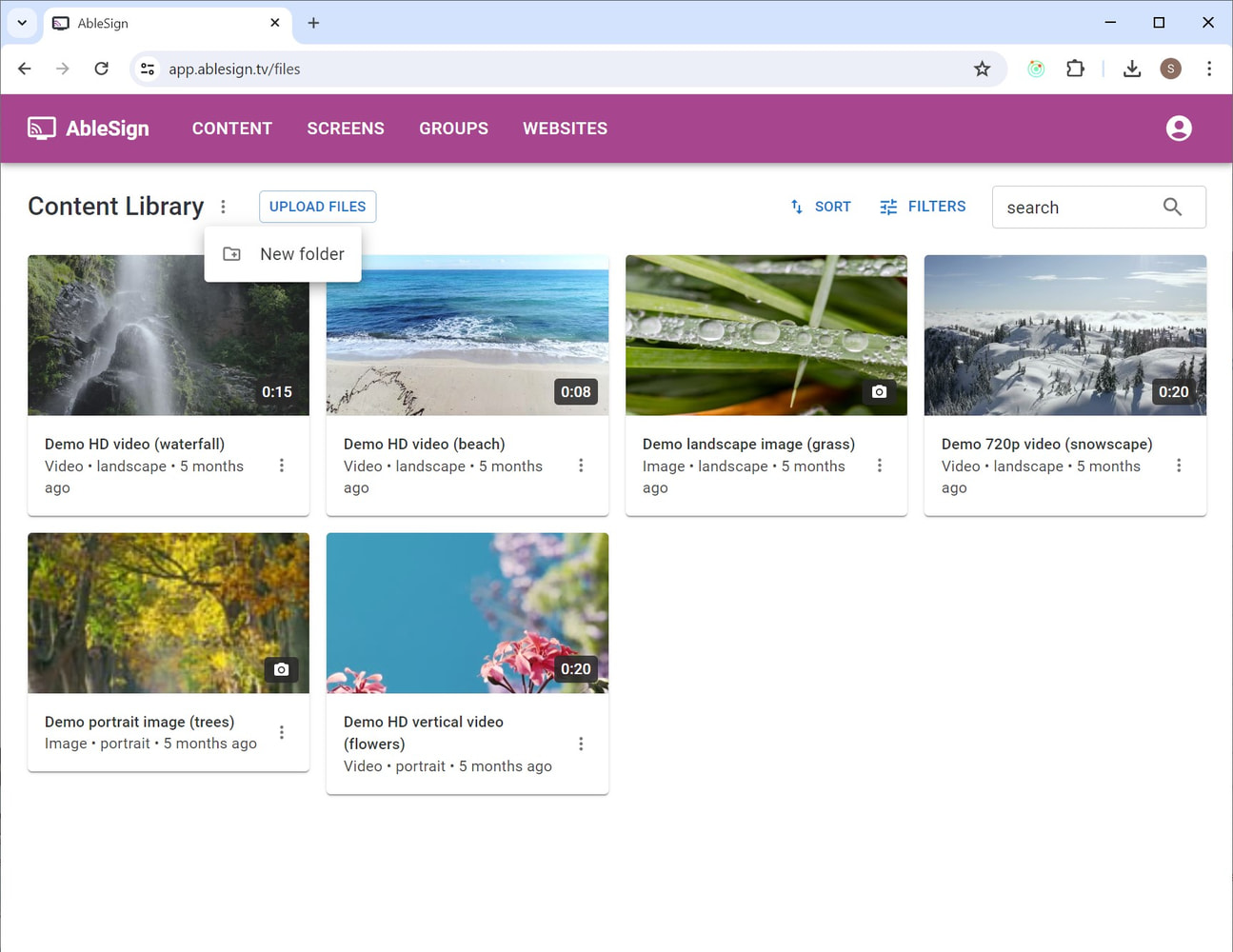
To start, select New folder from the Content library menu.
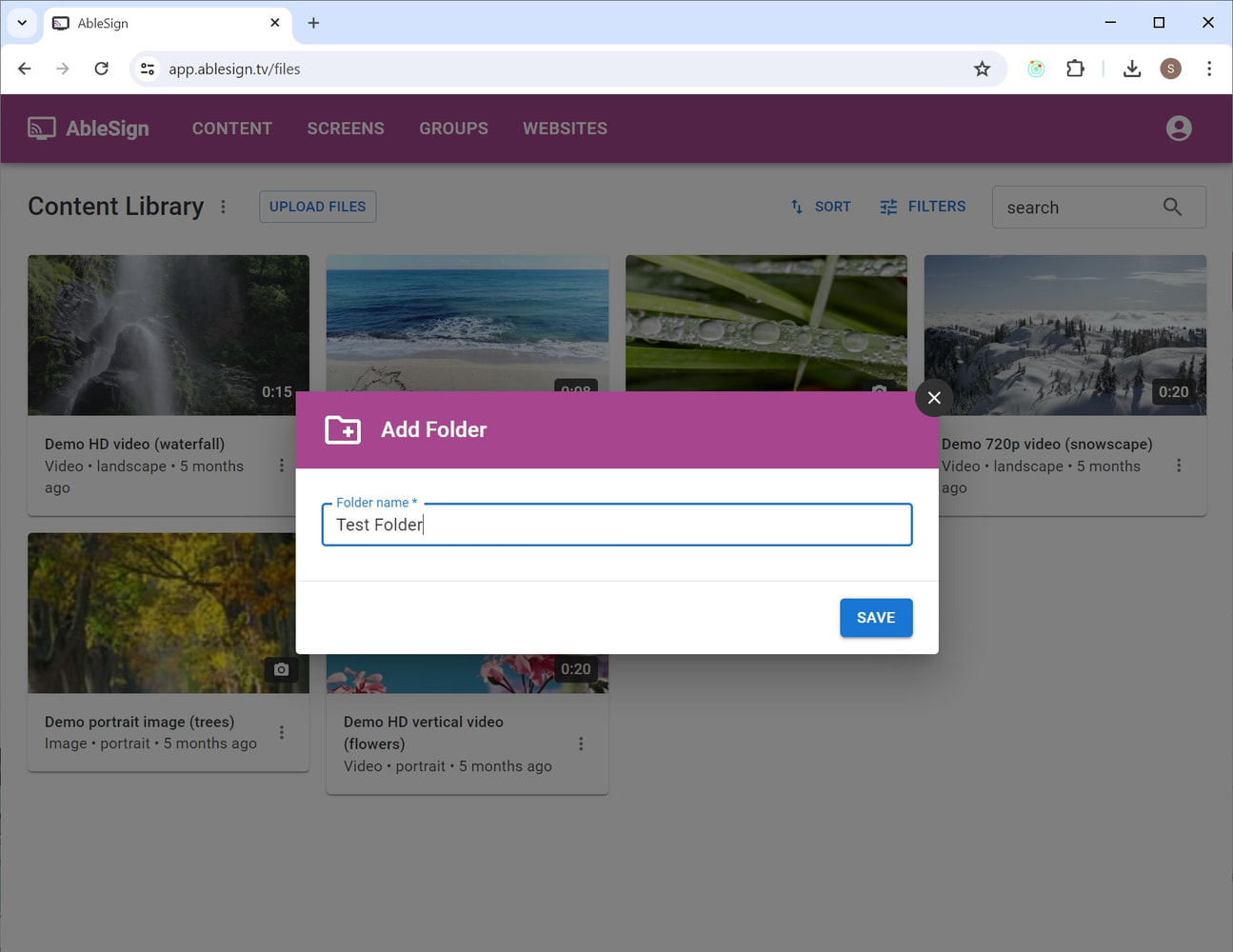
Give your folder a name. In this example we are going to call ours ‘Test Folder’.
Click SAVE.
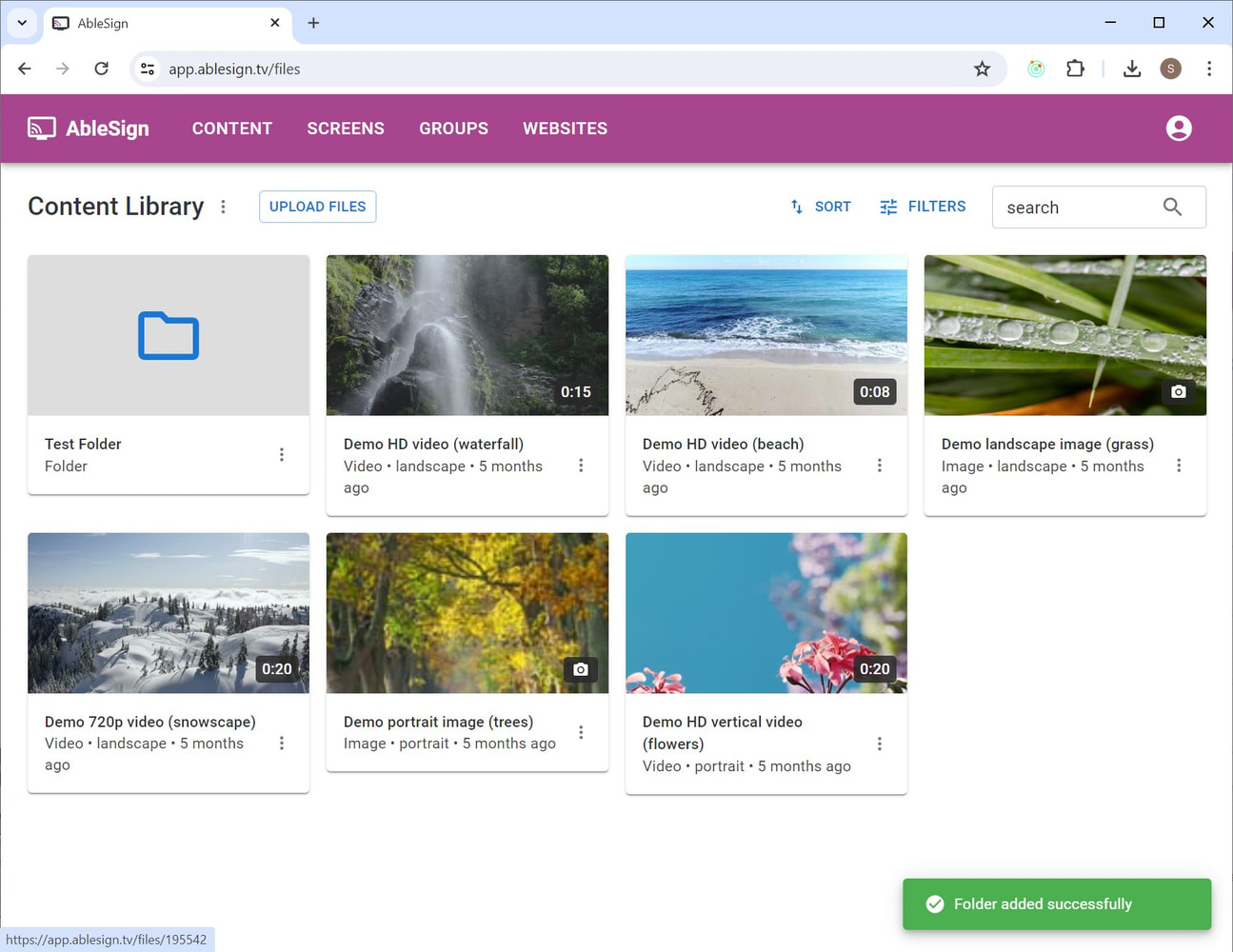
Your new folder will appear in your Content Library. Click in to your new folder.
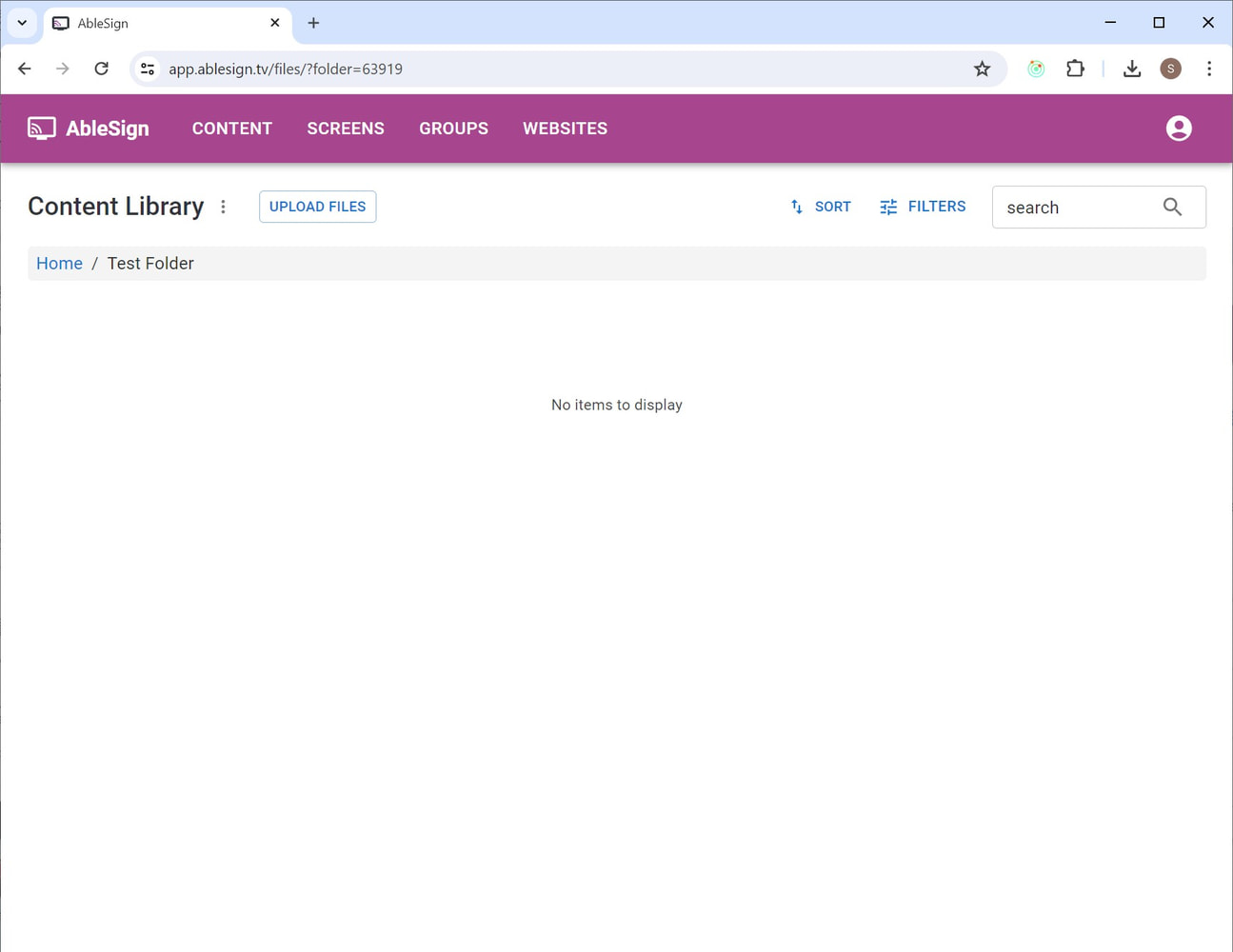
Your new folder is displayed.
You can now upload files into your folder. In this case we are uploading a Venice video.
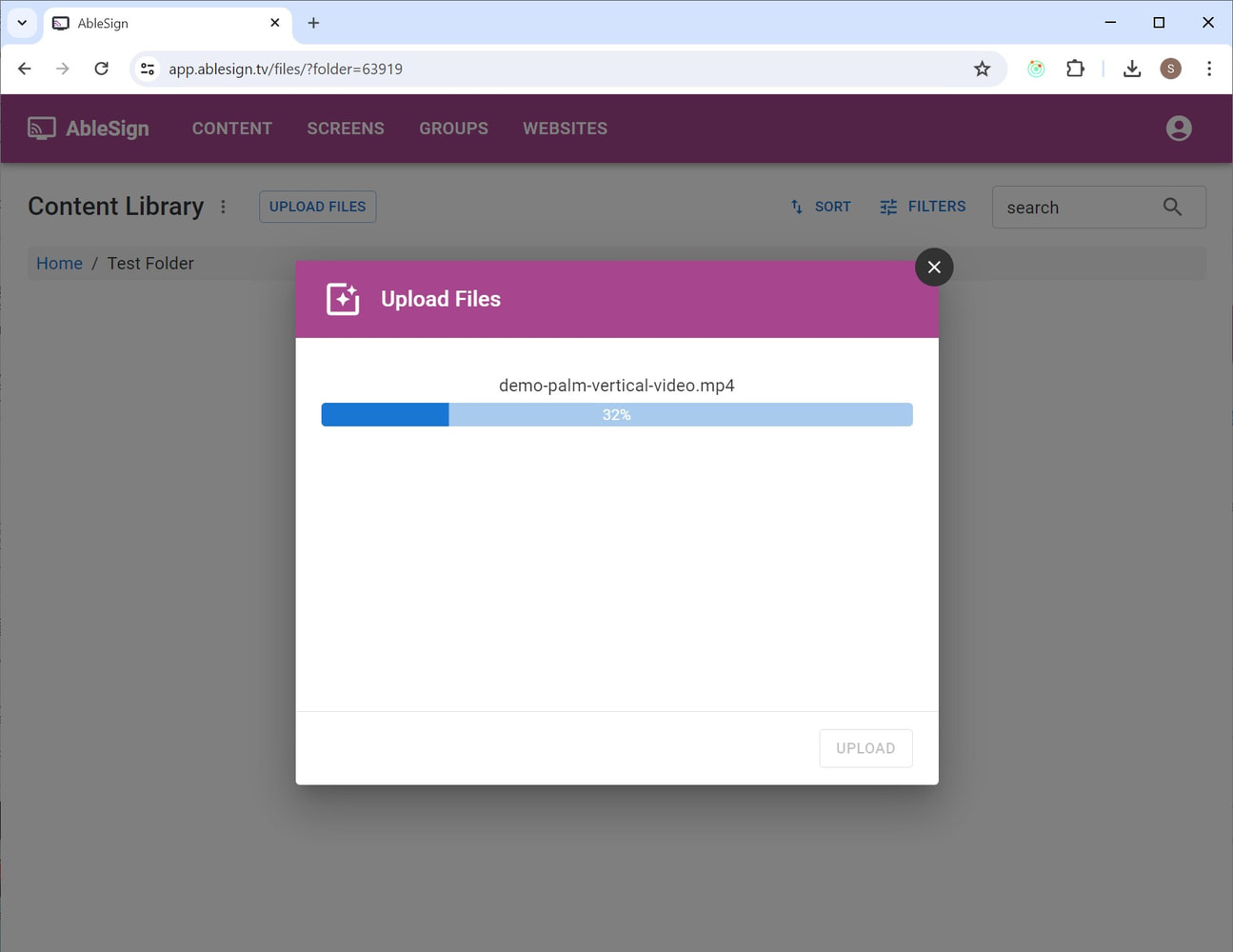
When uploading is finished the file will appear in your folder.
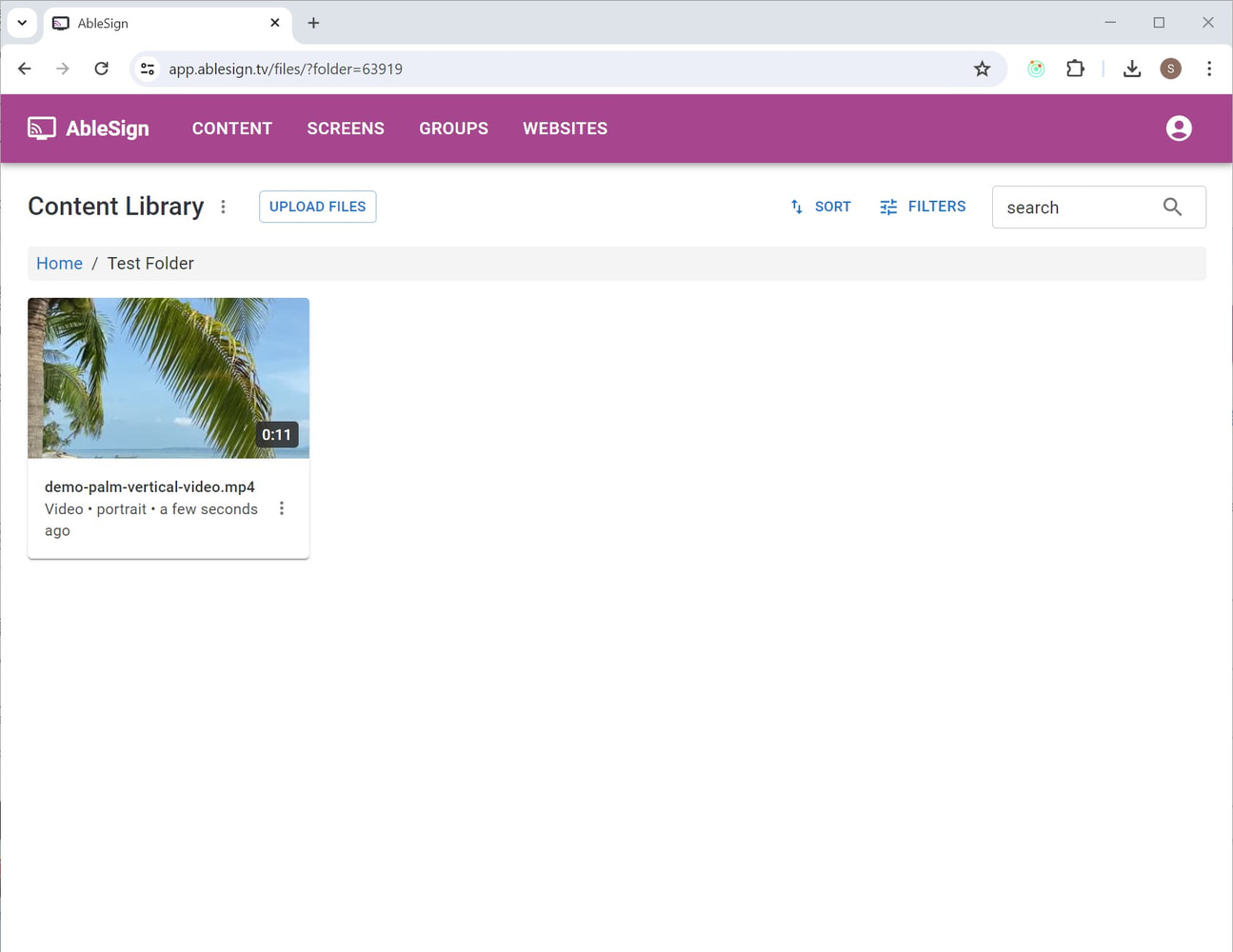
Next, let’s see how we use folders when managing a playlist.
Head to the manage screen page of any of your screens and you will see your new folder. Click on the folder to view the contents.
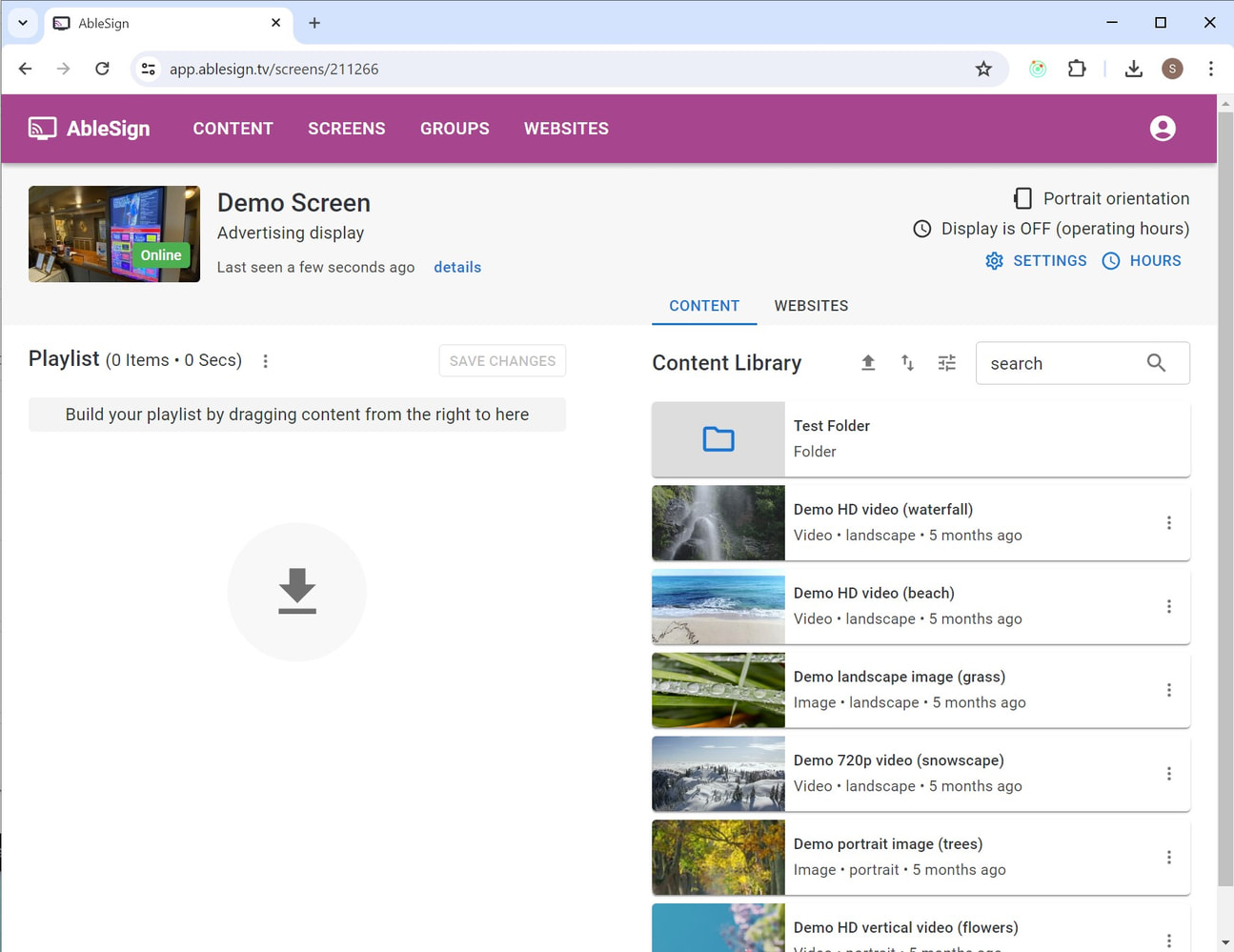
The files in your folder are displayed.
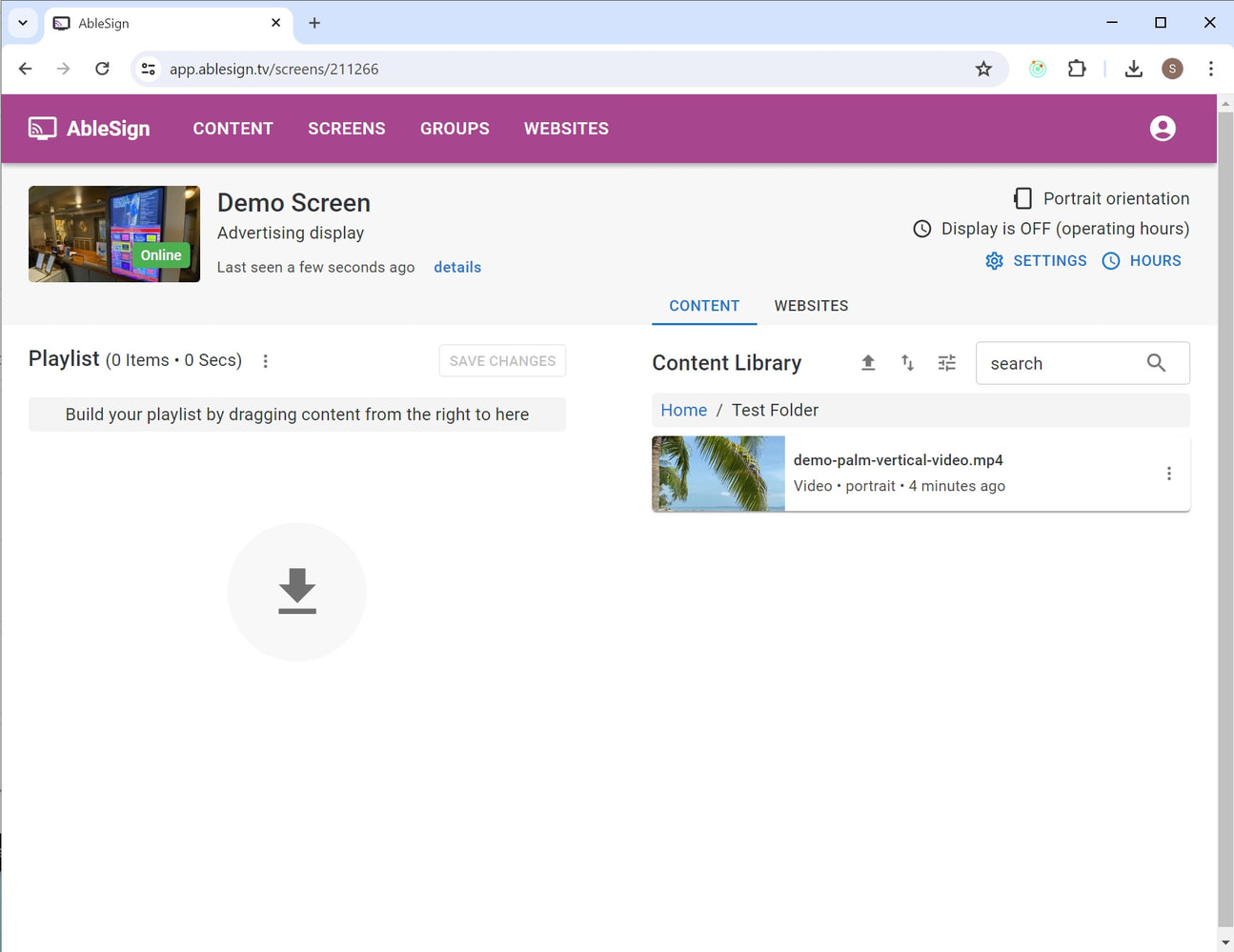
You can drag the file into your playlist as normal.
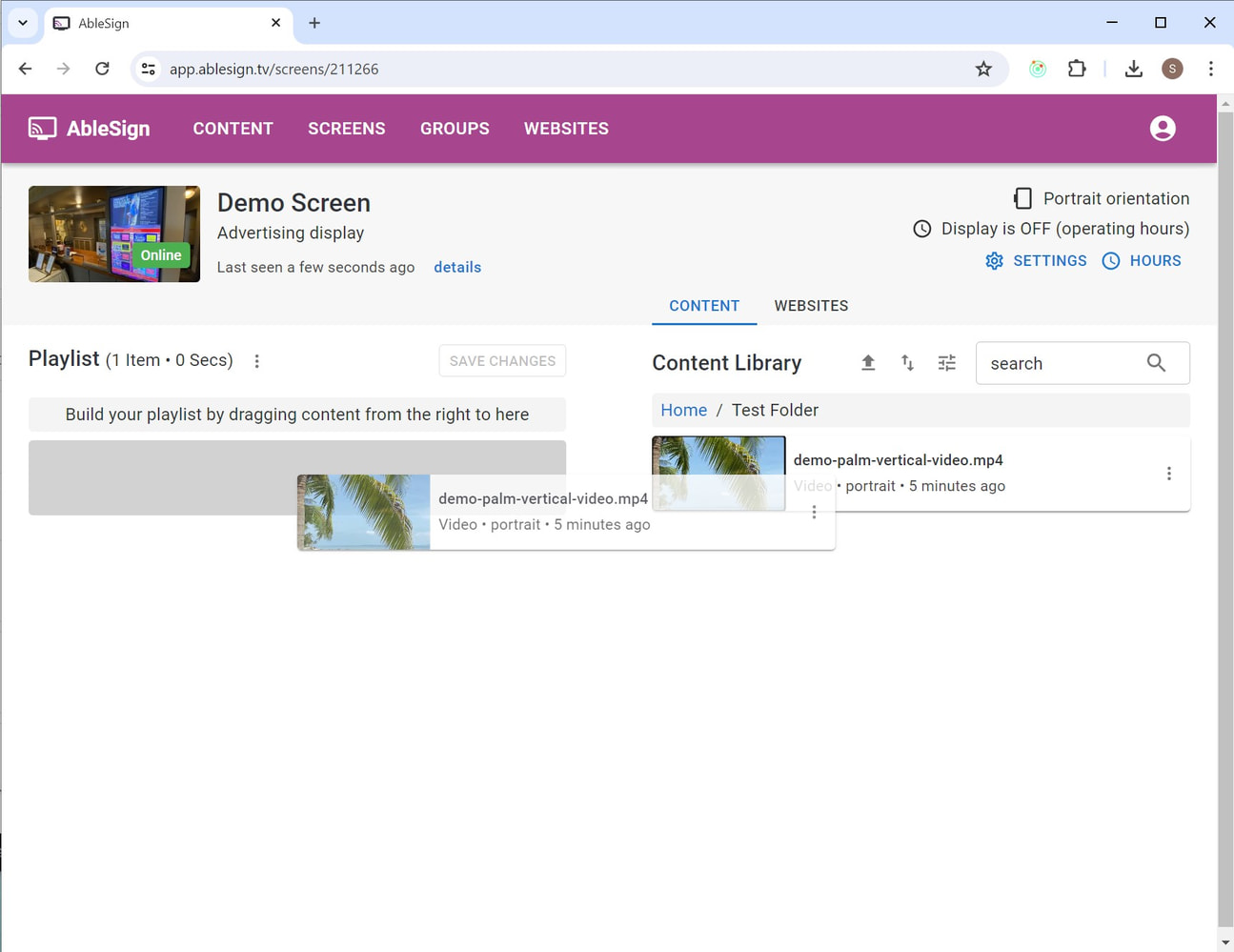
To return to the home folder simply click on Home in the folder navigation bar..
We hope you found this guide useful. If you have any questions or feedback about AbleSign please feel free to contact us at support@ablesign.tv.