How to share folders with other workspaces
This article covers how to share a folder in one workspace so that its content can be viewed and used in other workspaces. This can be useful if you have media files that are common across all your workspaces.
For example, if you have one workspace for London venues and another for Paris venues, a shared folder might include common images that could be used on screens in both locations.
Account owner only
Please note only the account owner can share a folder with other workspaces.
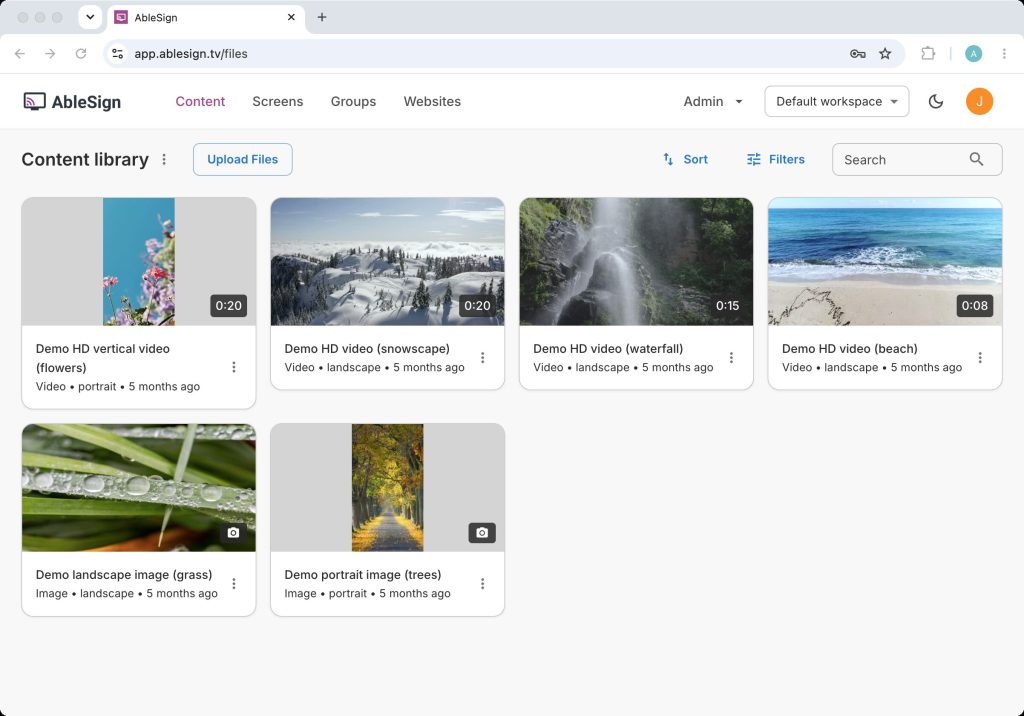
In this tutorial we are using an account that has 2 workspaces called ‘Default workspace’ and ‘New workspace’. We are starting this tutorial at the content library page from ‘Default workspace’.
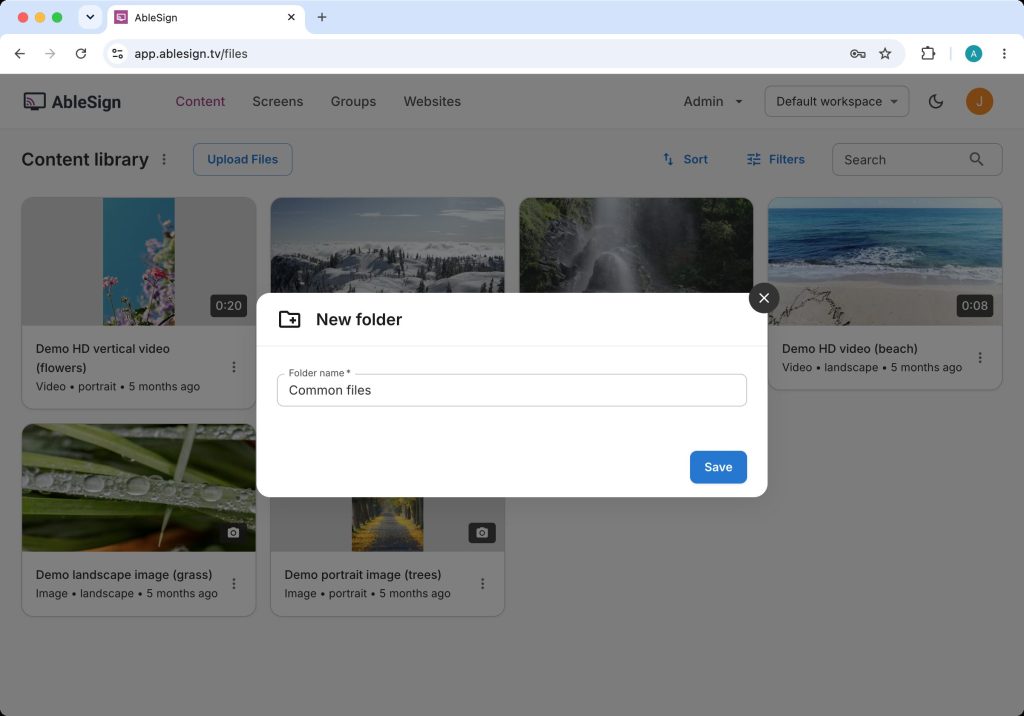
On the content library menu click ‘New folder’ and name the folder ‘Common files’. Click Save.
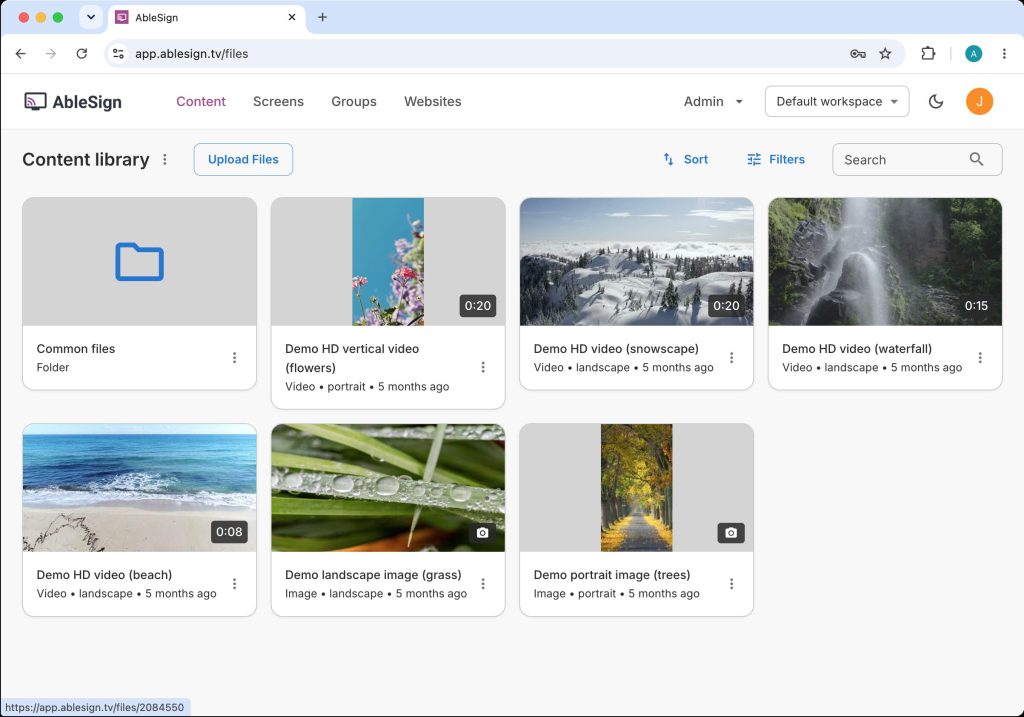
The content library now shows your new ‘Common files’ folder. We are going to upload a sample file into it so click into the folder.
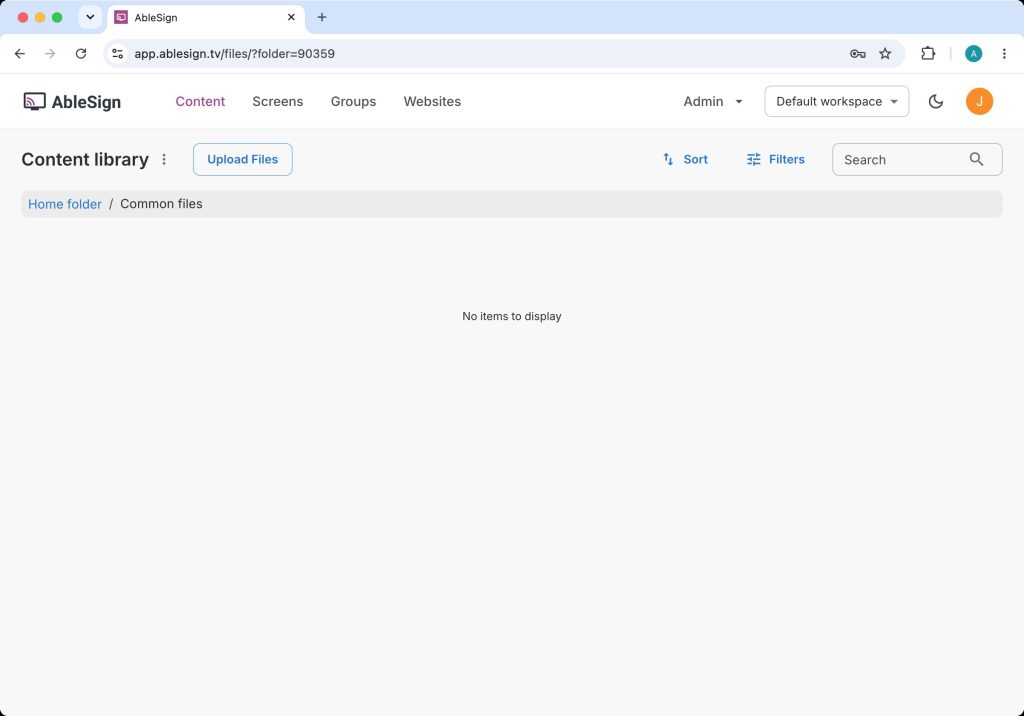
The folder will show as empty.
Now upload a file into the folder using the Upload Files button. In our case we have uploaded a sample video but you can use any file.
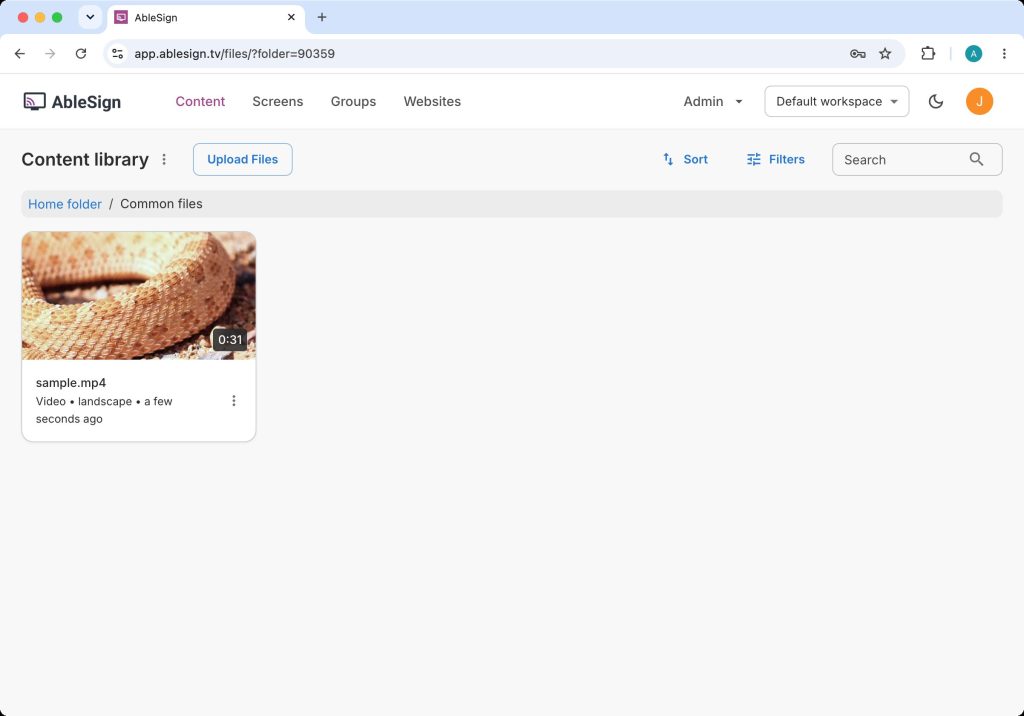
We can now share the ‘Common files’ folder with other workspaces so that users can access this sample file.
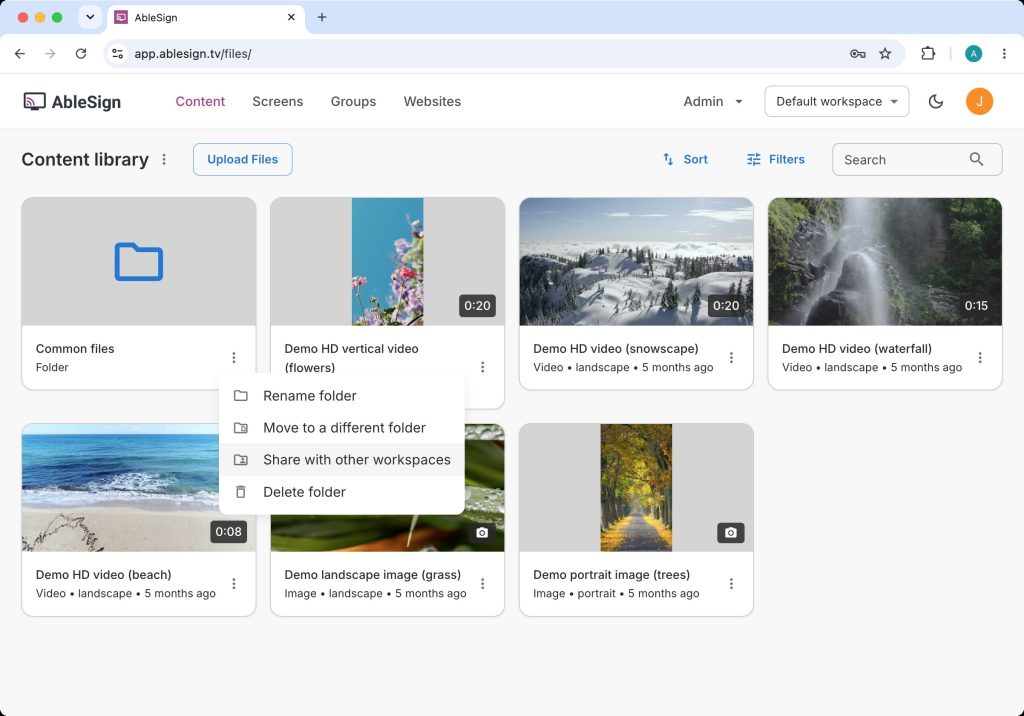
Click back to the content library page. From the menu on our ‘Common files’ folder select ‘Share with other workspaces’.
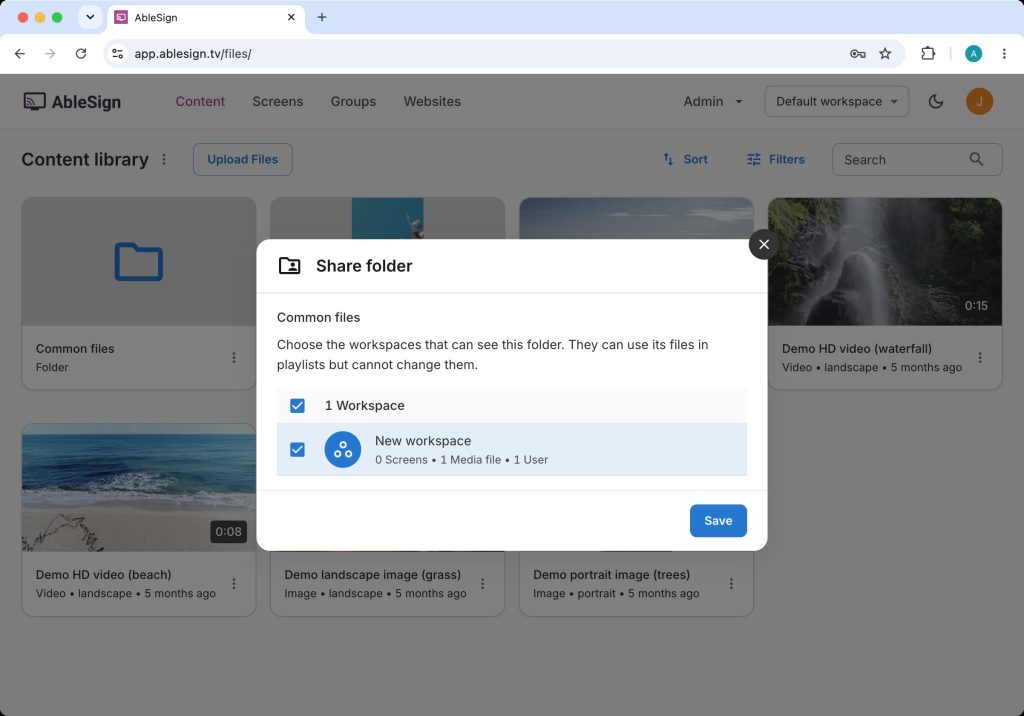
The share folder window will appear asking which workspaces to share with. In our case we select ‘New workspace’ and click Save.
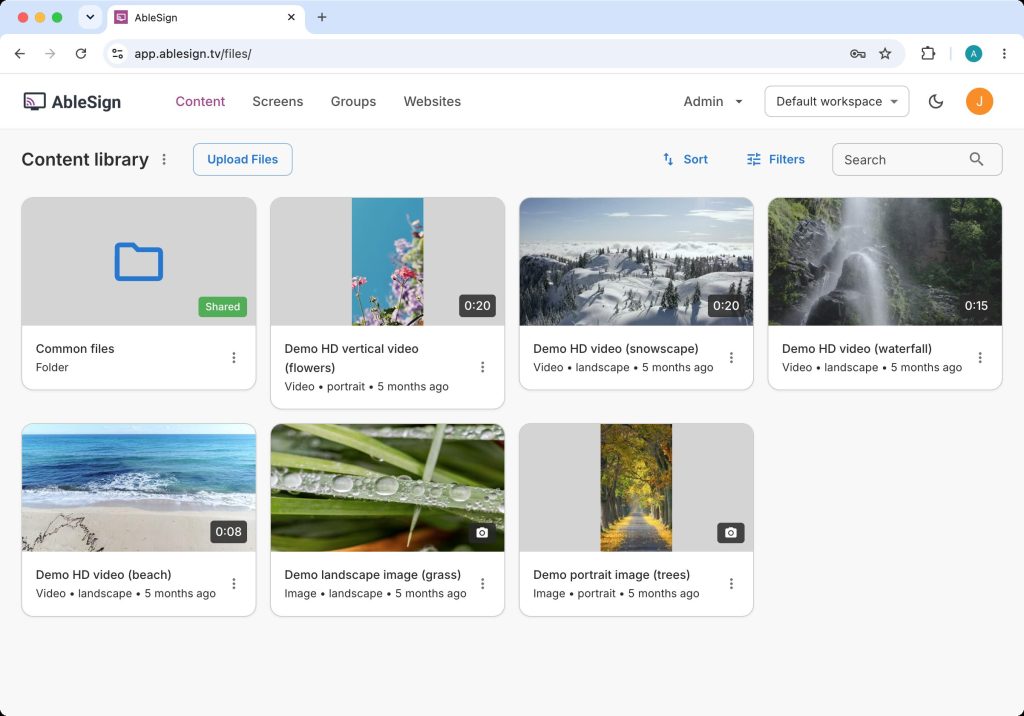
You will now see our ‘Common files’ folder has a ‘shared’ badge in the content library.
The ‘Common files’ folder from ‘Default workspace’ is now shared to the workspaces you selected. Let’s see how it looks by using the workspace selector in the top menu to switch to ‘New workspace’.
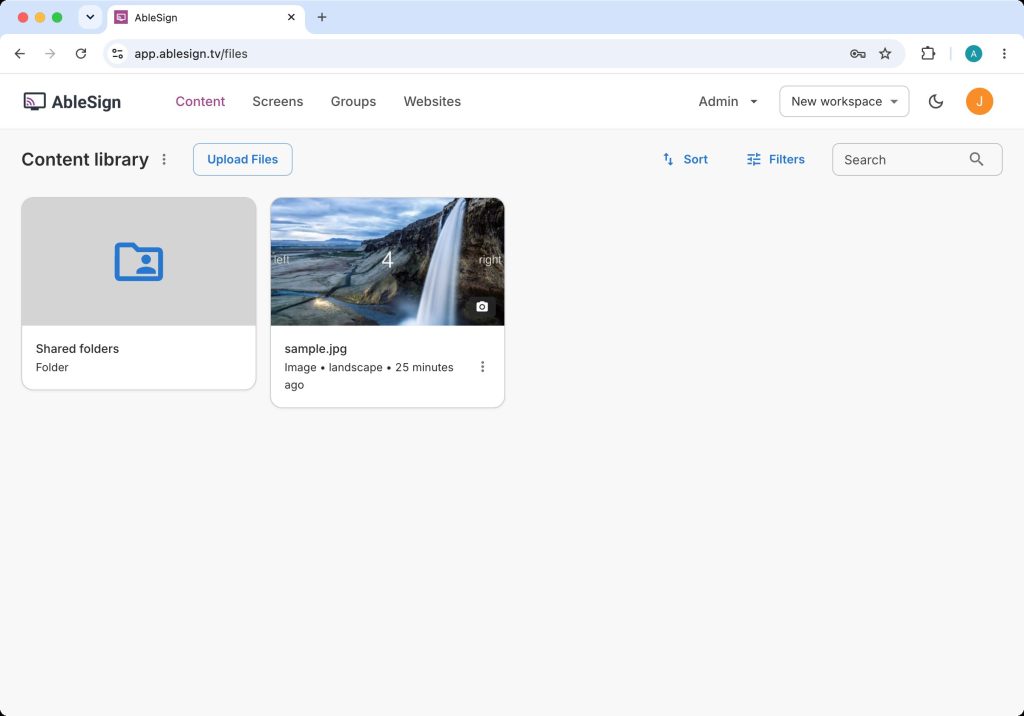
The content library for this workspace will now have a new ‘Shared folders’ folder. Click into it.
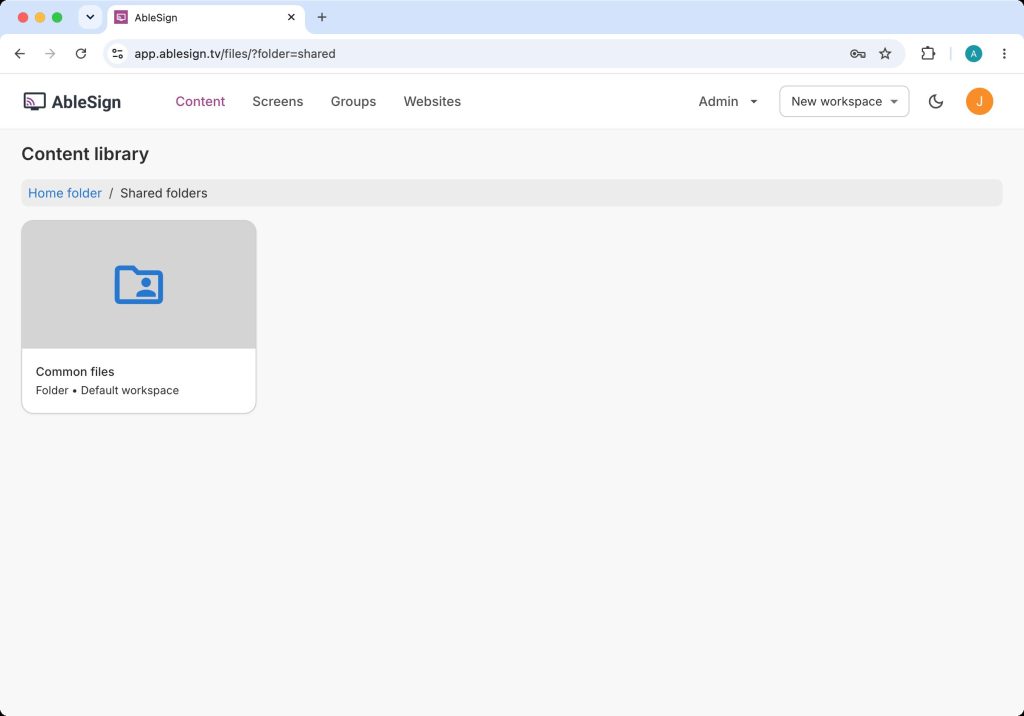
The ‘Common files’ folder from ‘Default workspace’ is shown. Click into the folder.
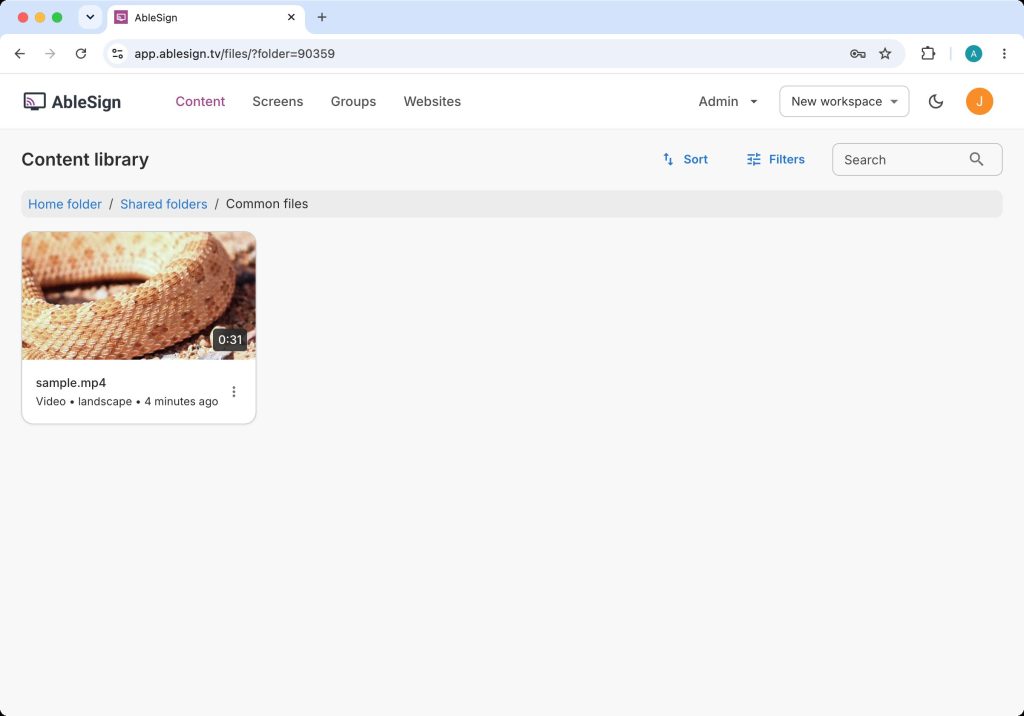
The sample file we uploaded is shown.
That’s it, you’ve successfully shared a folder and its contents from one workspace to another.
What the other workspace can do
A shared folder is read only for the workspaces you share it with. They can see the files and add them to their playlists, but they cannot rename, move, replace or delete them. Nothing is copied, so if you add or remove a file in the original folder the change appears in the other workspaces straight away.
How to stop sharing a folder
To stop sharing, select ‘Share with other workspaces’ on the folder again, uncheck the workspaces you no longer want to share with and click Save.
When you stop sharing, the files in that folder are also removed from any playlists in those workspaces that were using them, and the screens playing those playlists will update. The dialog tells you how many playlists are affected before you save, so check this if you are unsure.