How to add additional users to your account
Inviting additional users to share your account is a great way to collaborate with colleagues, and manage your screens more efficiently.
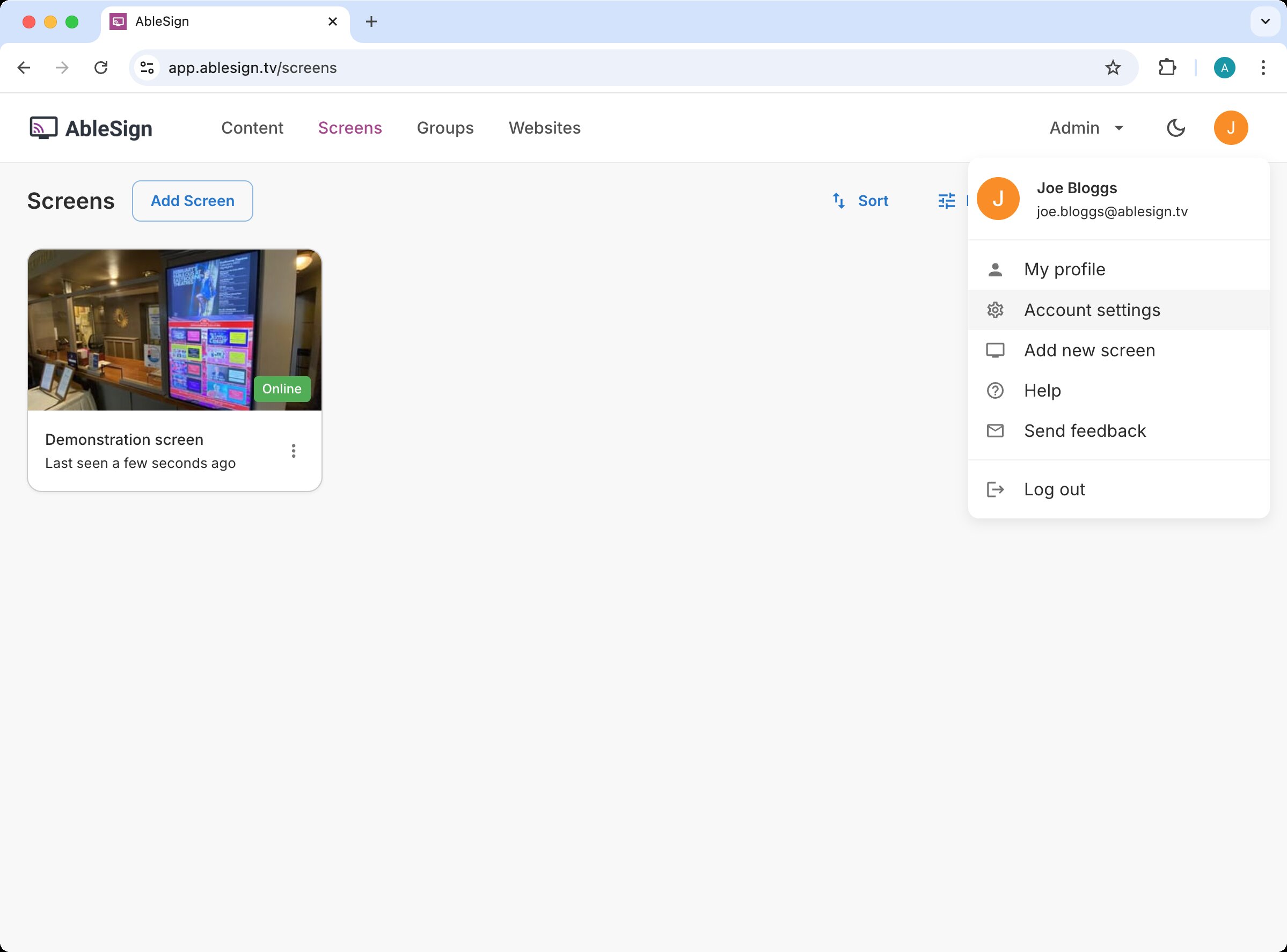
To begin, log in to your account and select Account settings from the top menu bar.
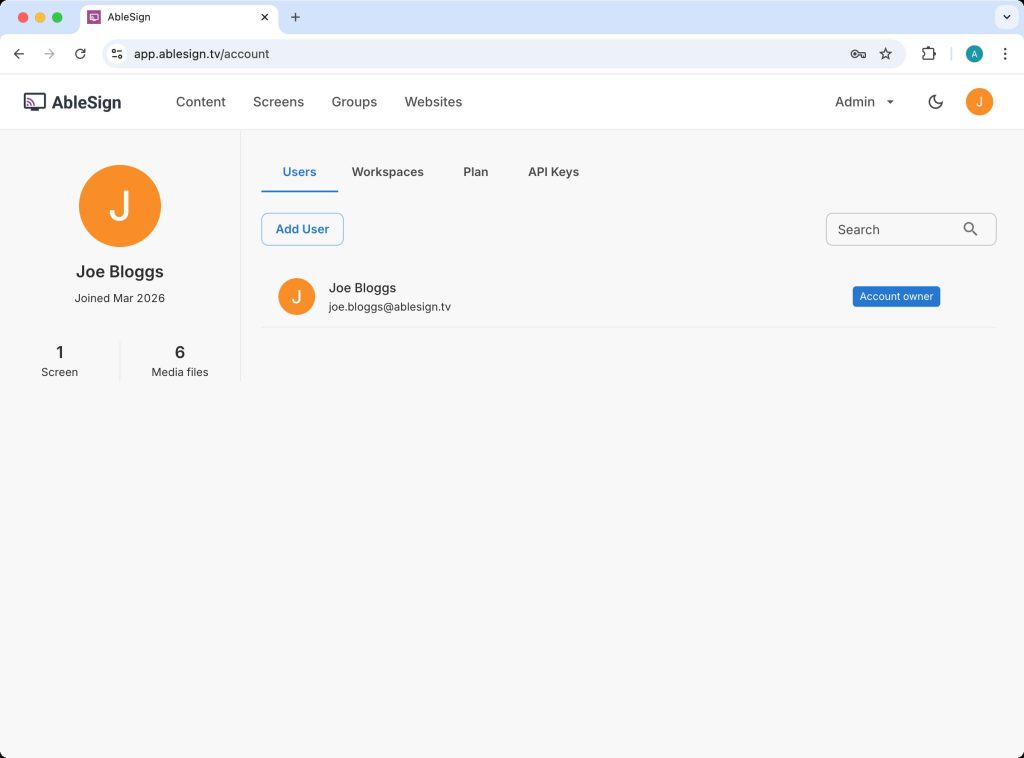
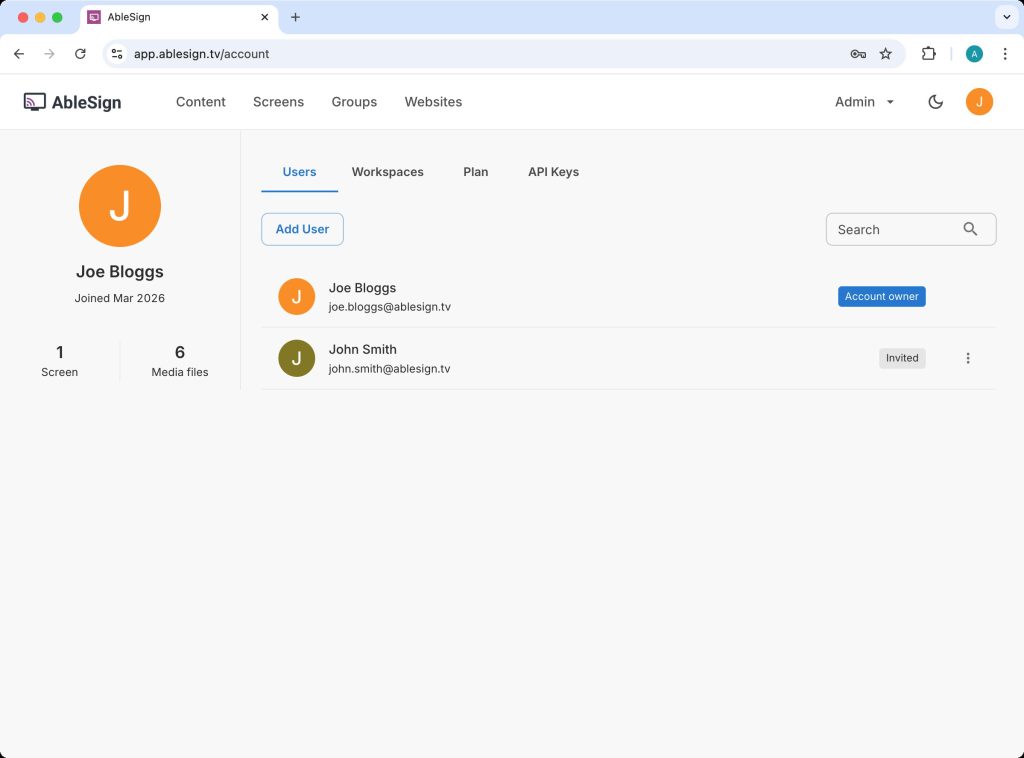
The users page shows you the current users on your account. Click on the ADD USER button.
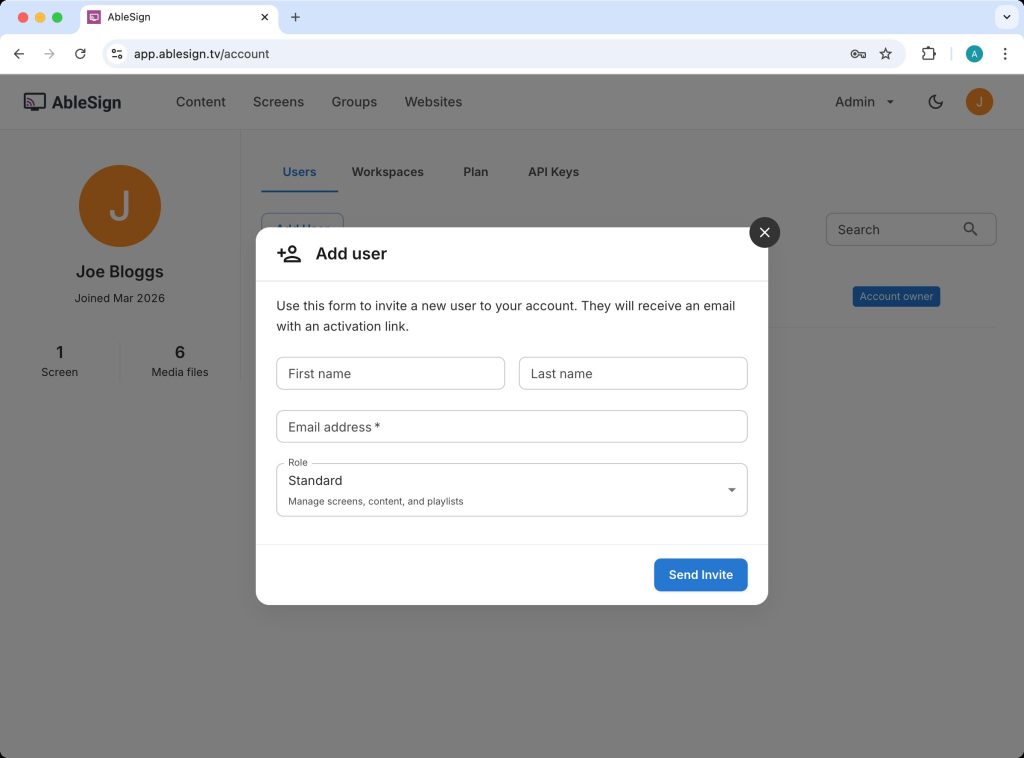
The Add User form will appear. Complete the name and email address fields of the user you want to add. They will receive an email with an activation link to complete the process.
Existing AbleSign users
You can invite anyone, whether they are new to AbleSign or already use it with another account. An existing AbleSign user keeps their current login and password and simply accepts the invitation to join your account. If they have access to more than one account, they choose which one to use when they log in.
If you wish, you can set permissions for this user by selecting a role. The standard role allows a user to manage all screens and content but not administrative items such as managing users. You can choose from a number of preset roles or choose Custom to set permissions individually.
For this guide, we are going to create a user called John Smith:
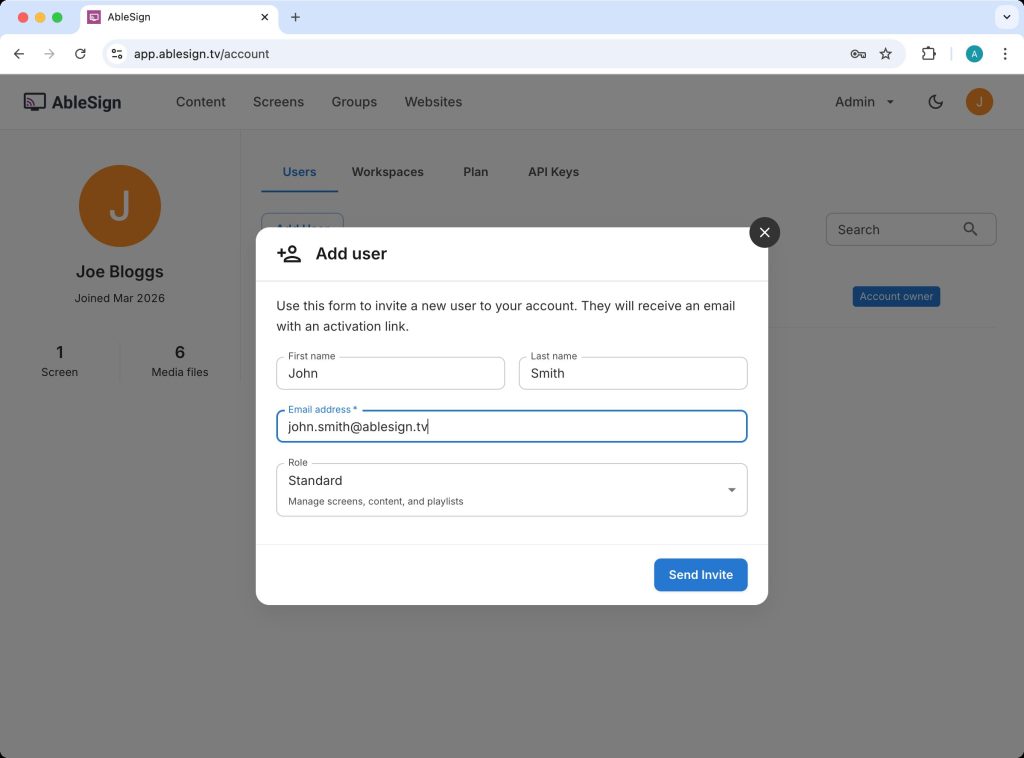
When you click SEND INVITE the invitation email will be sent. You will see the user in your list with the status Invited.
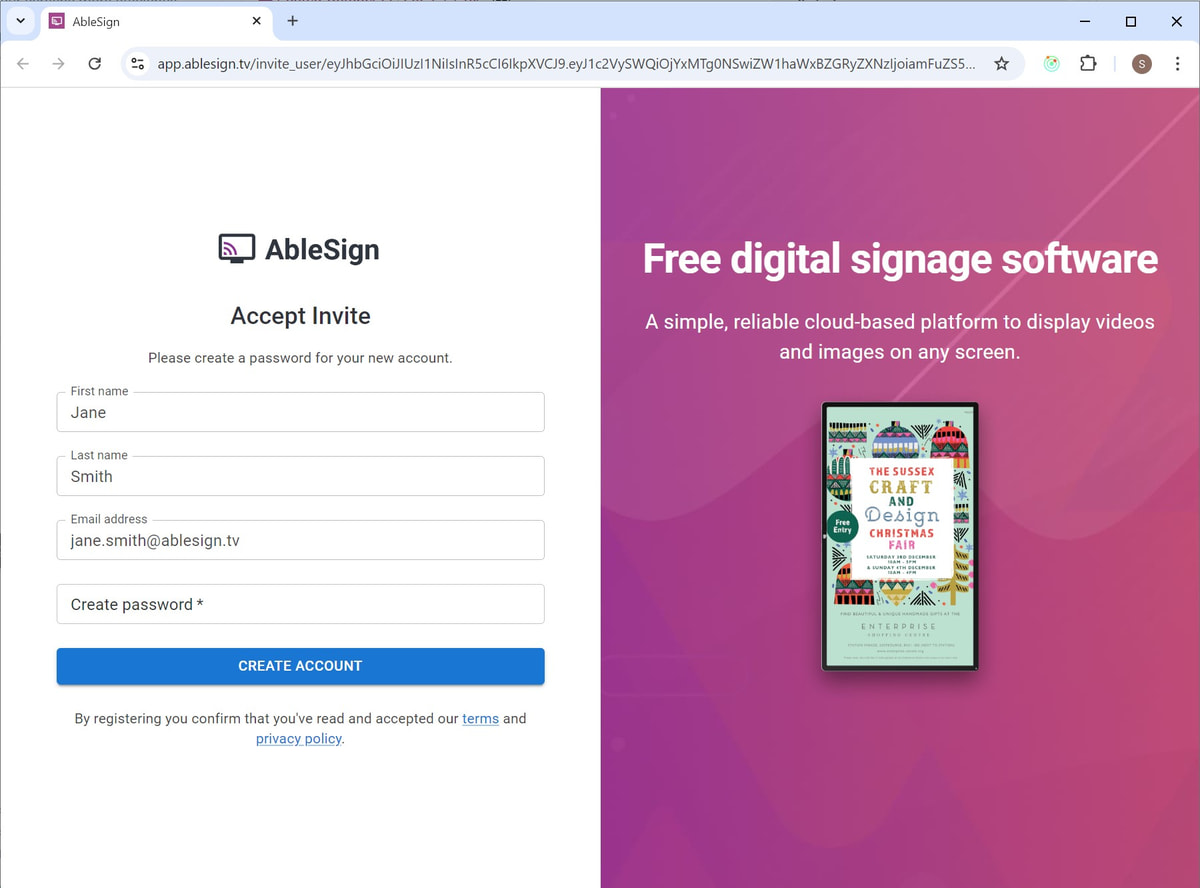
When John Smith receives his invitation email and clicks on the activation link he will be taken to a page to complete the process. John will need to create a password for his new user account:
John can now log in with his credentials, and will have access according to the permissions that have been set for him.
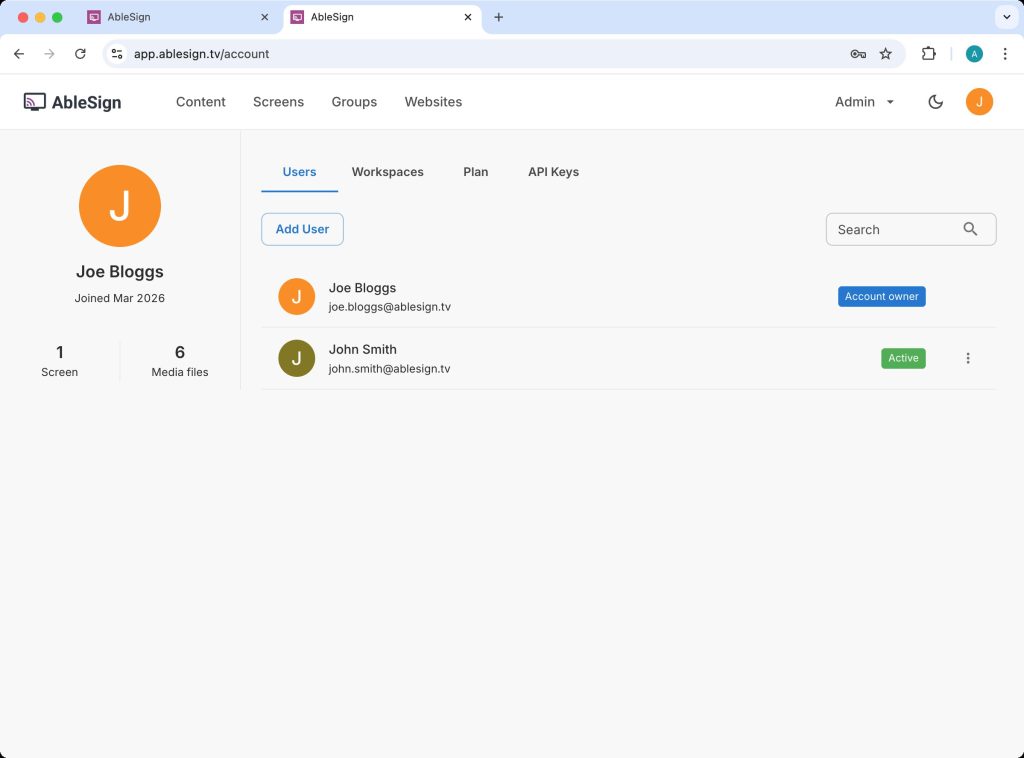
In the user list his account will now display as Active.
That’s it. You’ve successfully added a new user to your account.
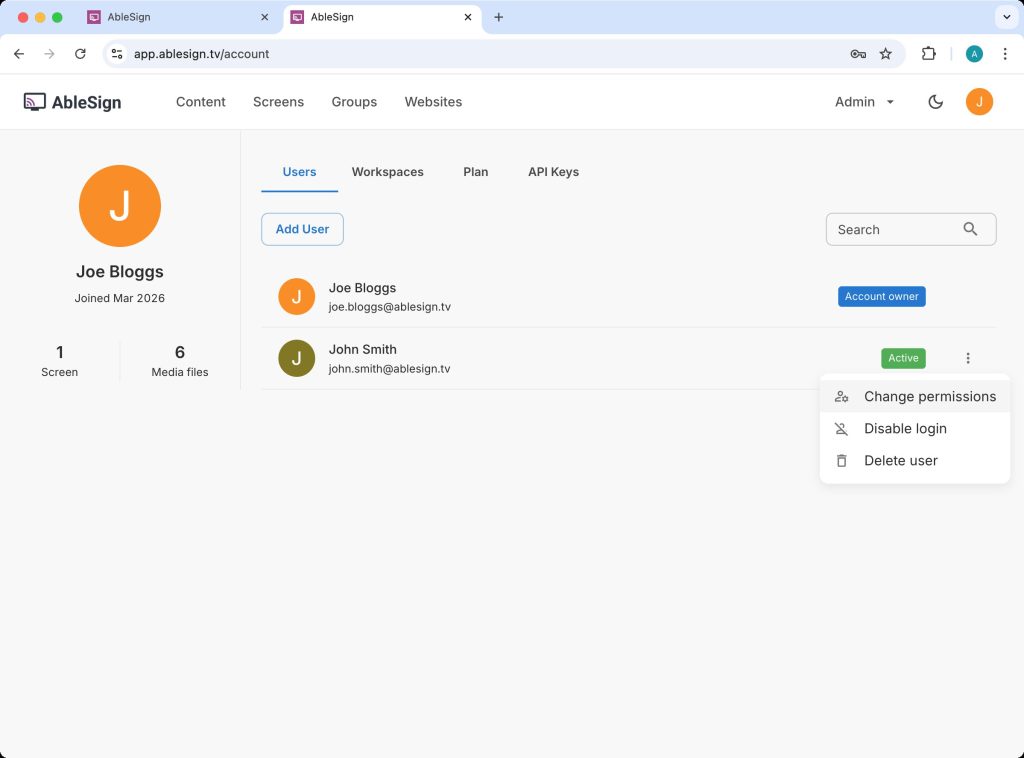
You can change permissions for an active user at any point using the drop down menu.
We hope you found this guide useful. If you have any questions or feedback about AbleSign please feel free to contact us at support@ablesign.tv.