How to set up screen alerts
Screen alerts notify you by email when one of your screens goes offline, and again when it comes back online, so you can react quickly to connectivity or device issues.
How it works
The AbleSign player app contacts the AbleSign servers to “check in” approximately every 6 minutes. When 2 consecutive check-ins are missed AbleSign marks the screen as offline.
Note the AbleSign player is specifically designed to handle breaks in connectivity, so the playlist will continue to be displayed even when offline.
Get started
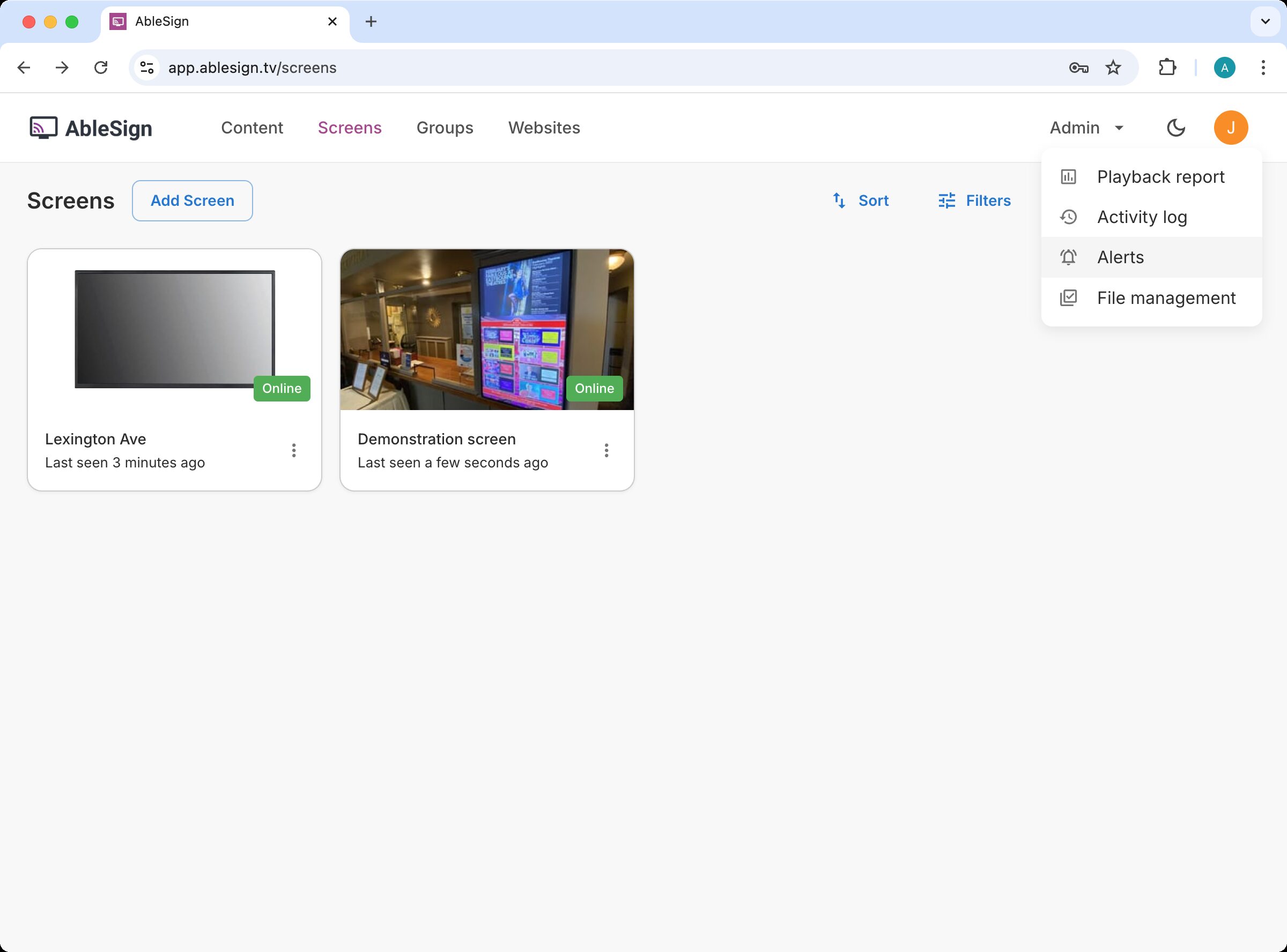
From the Admin menu in the top app bar select Alerts.
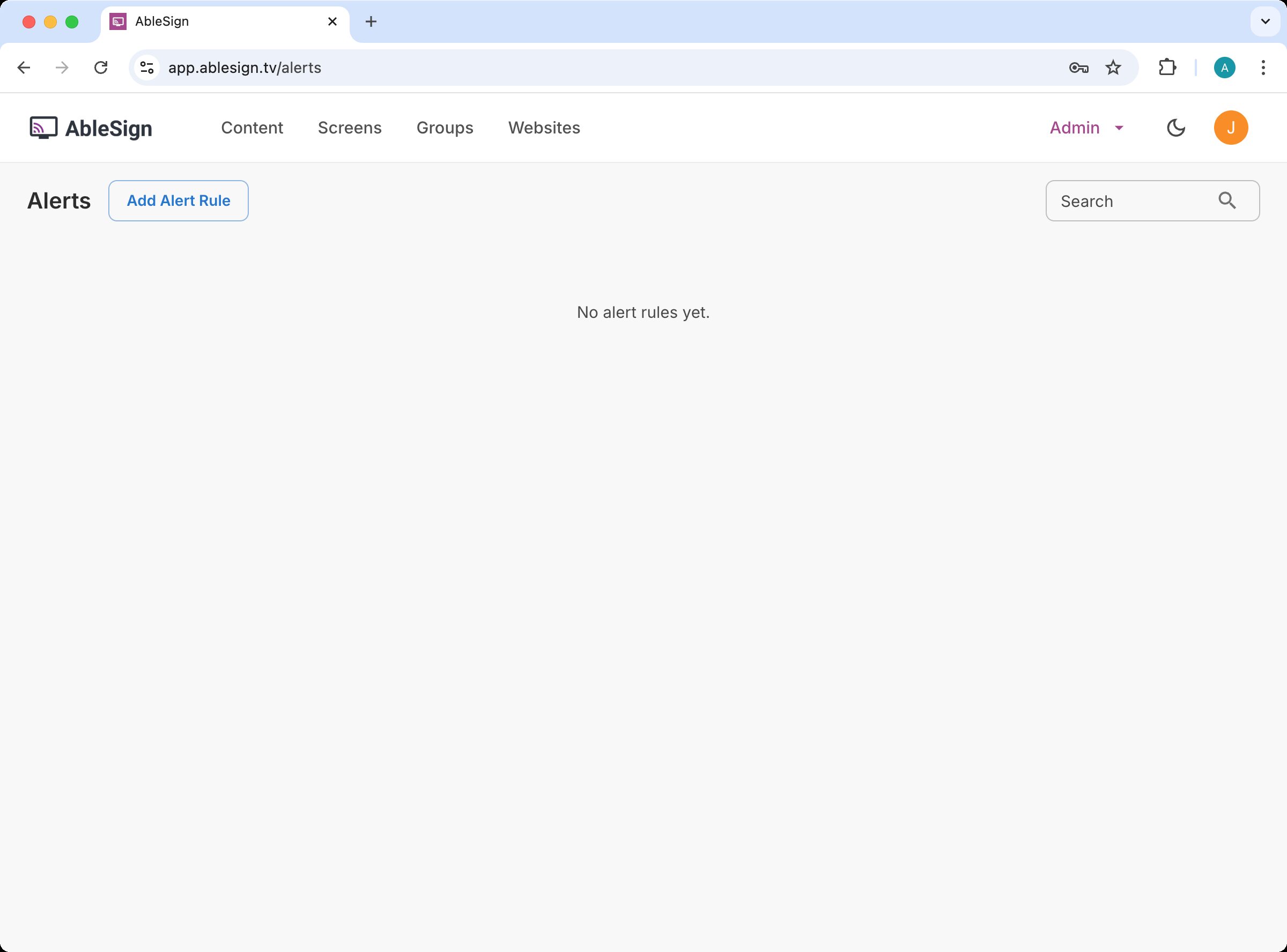
The Alert rules page is shown. Click Add Alert Rule.
Configure alert types and timing
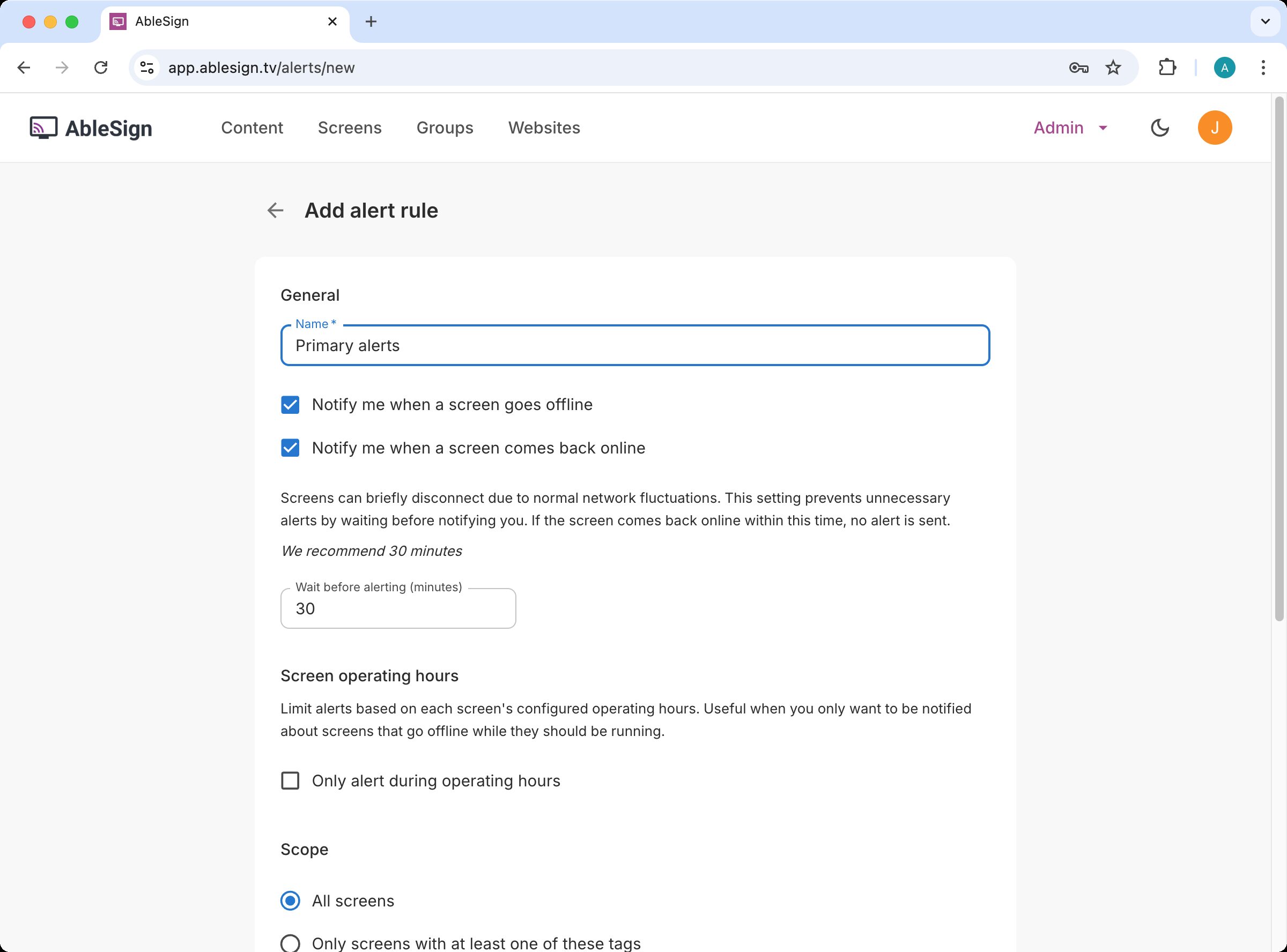
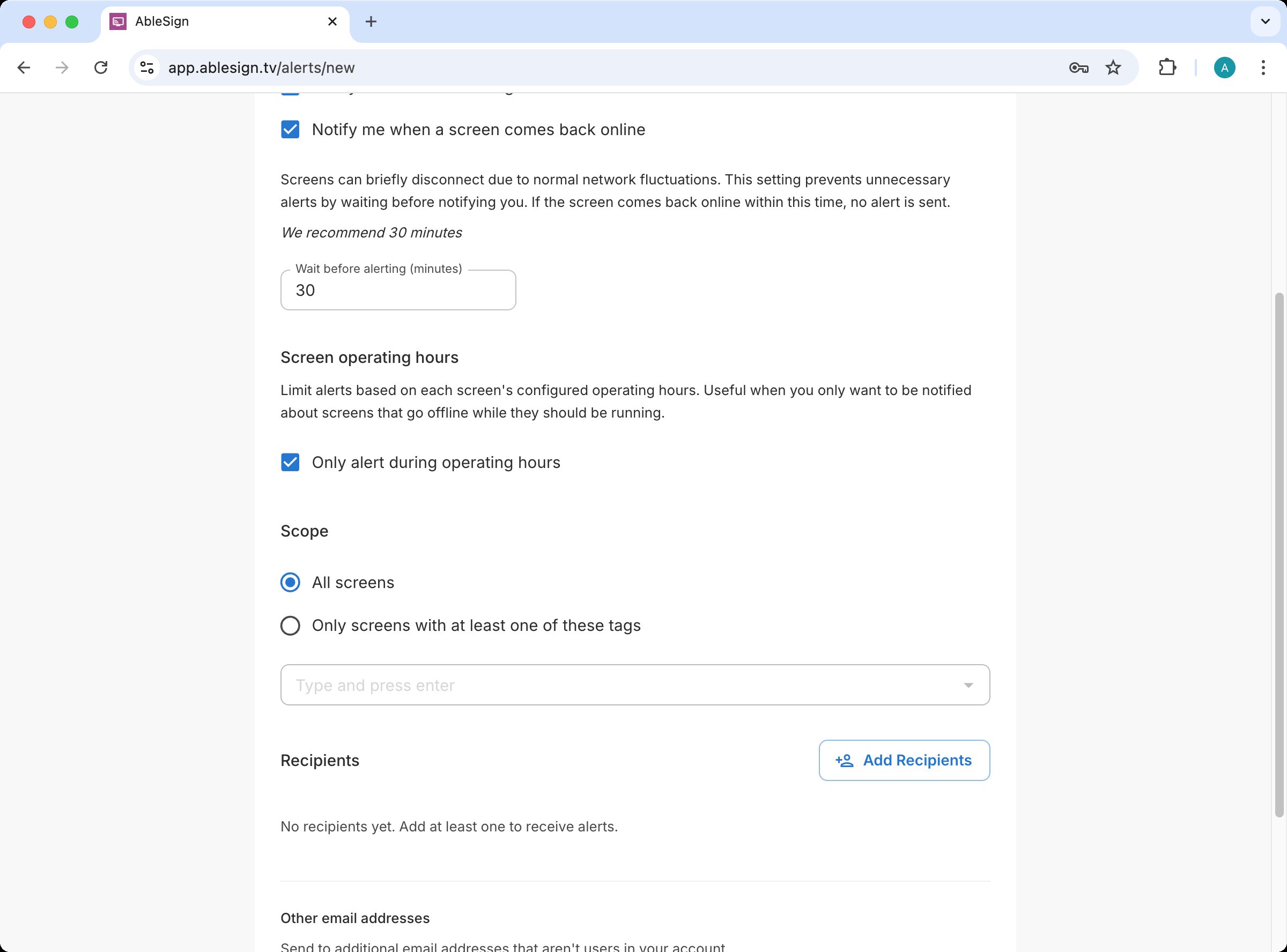
Start by entering a name for your rule. Next, choose which alerts you want to receive. In this example you will receive an alert when the screen goes offline and again when it comes back online.
To avoid false alarms, set a period of time to wait before alerting. This allows the screen time to recover from a brief Internet outage or network fluctuation. Leave the recommended 30 minutes.
Limit alerts to operating hours
The Screen operating hours section lets you limit alerts to the times when your screens are in use. For example, in a retail store that opens from 9am to 6pm you do not need to be alerted if there is a connectivity issue overnight. See How to set screen operating hours if you have not configured these yet.
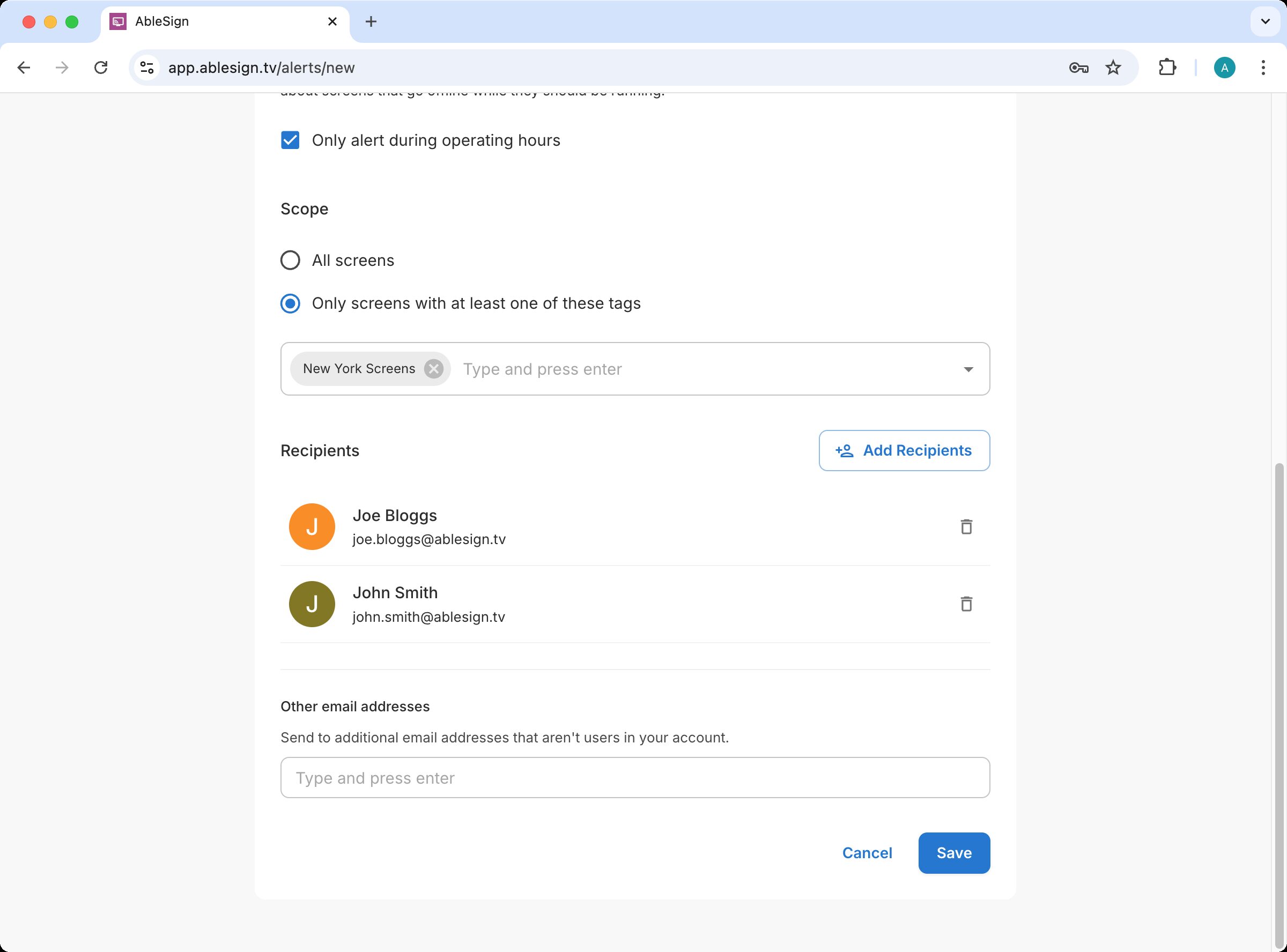
Check the checkbox to only alert during operating hours.
Choose which screens are covered
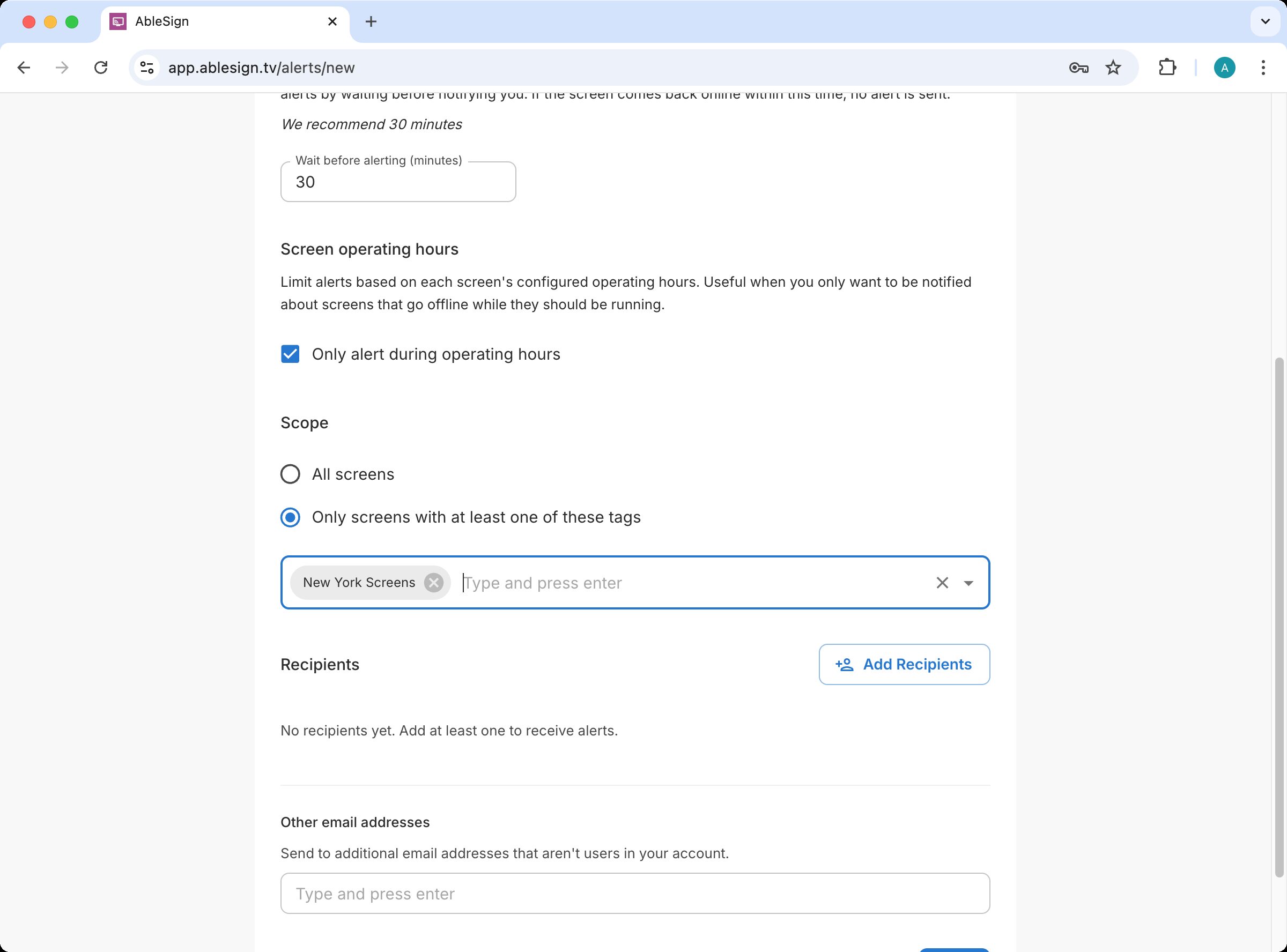
The Scope section controls which screens this rule applies to. You can target all your screens, or just the screens that have a specific tag. This lets you tailor alerts to specific groups of screens. In this example the rule only applies to screens tagged New York Screens.
Setting screen tags
You can set tags on a screen from the Screens page by clicking the screen and opening its settings.
Add recipients
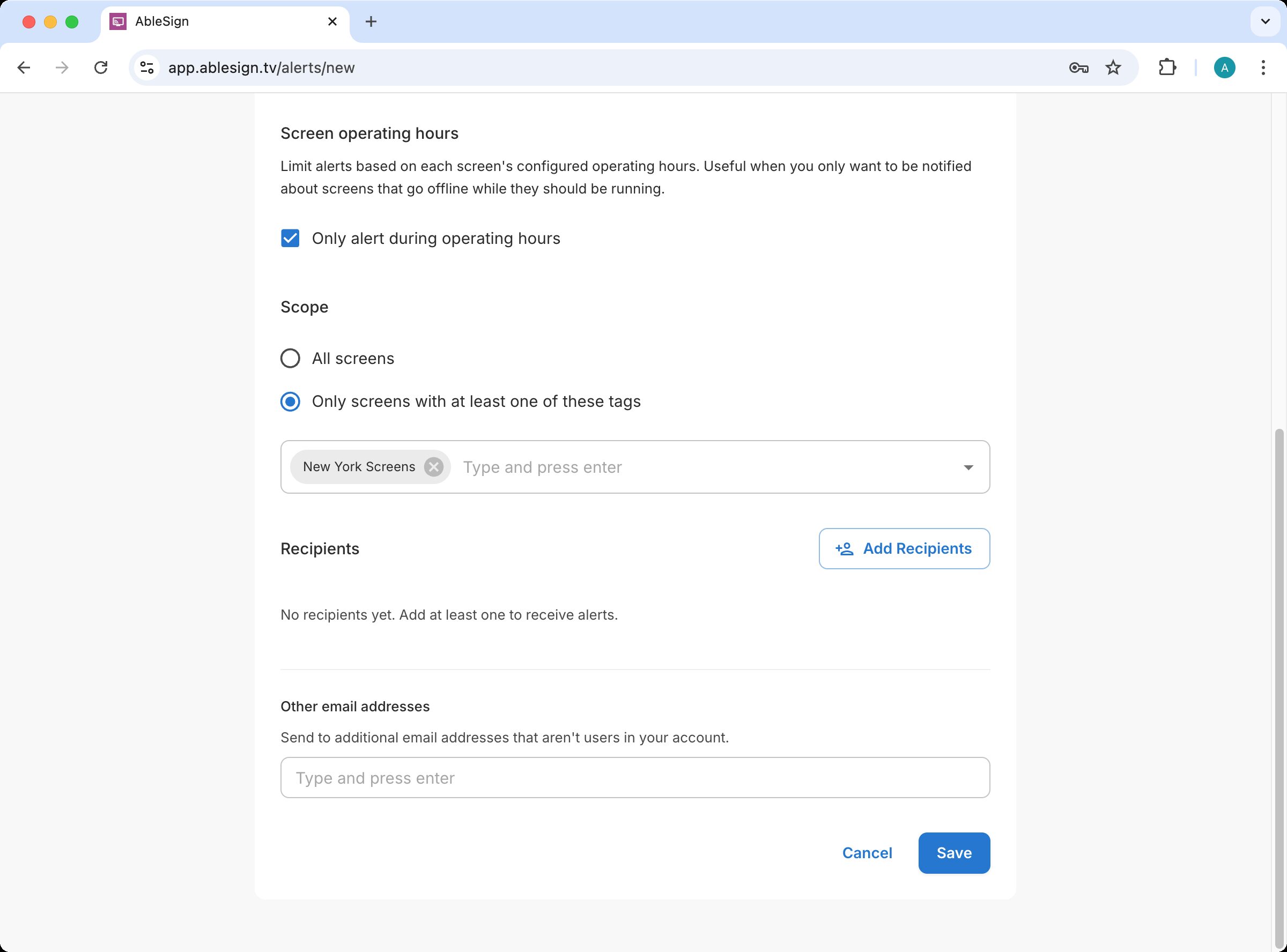
Recipients are the people who receive the alert email. Click Add Recipients.
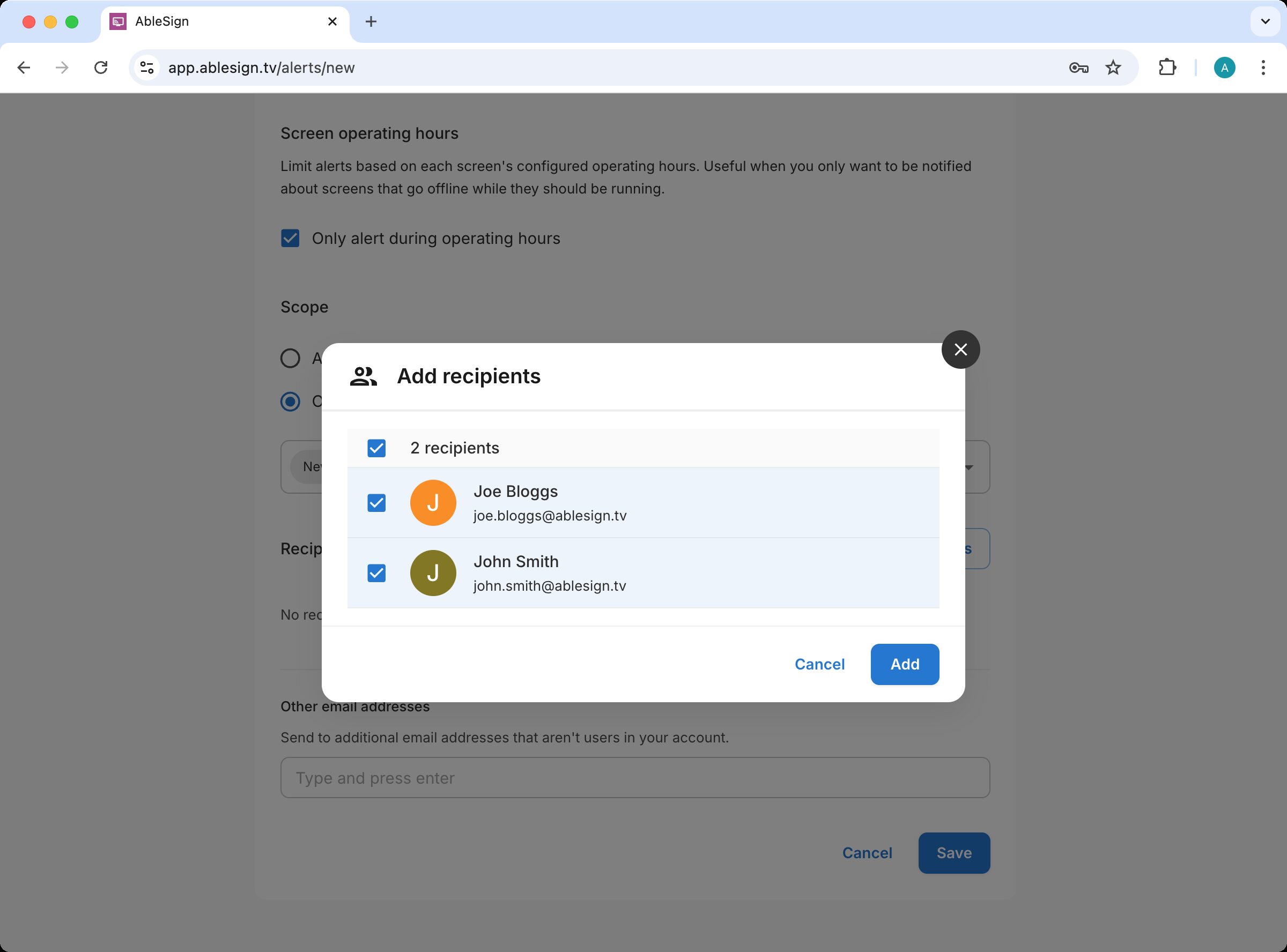
The Add Recipients window appears. Select the AbleSign users you want to add, and you can also enter other email addresses for people who are not AbleSign users. Click Add when you are done.
Save and review
Click Save to save your alert rule.
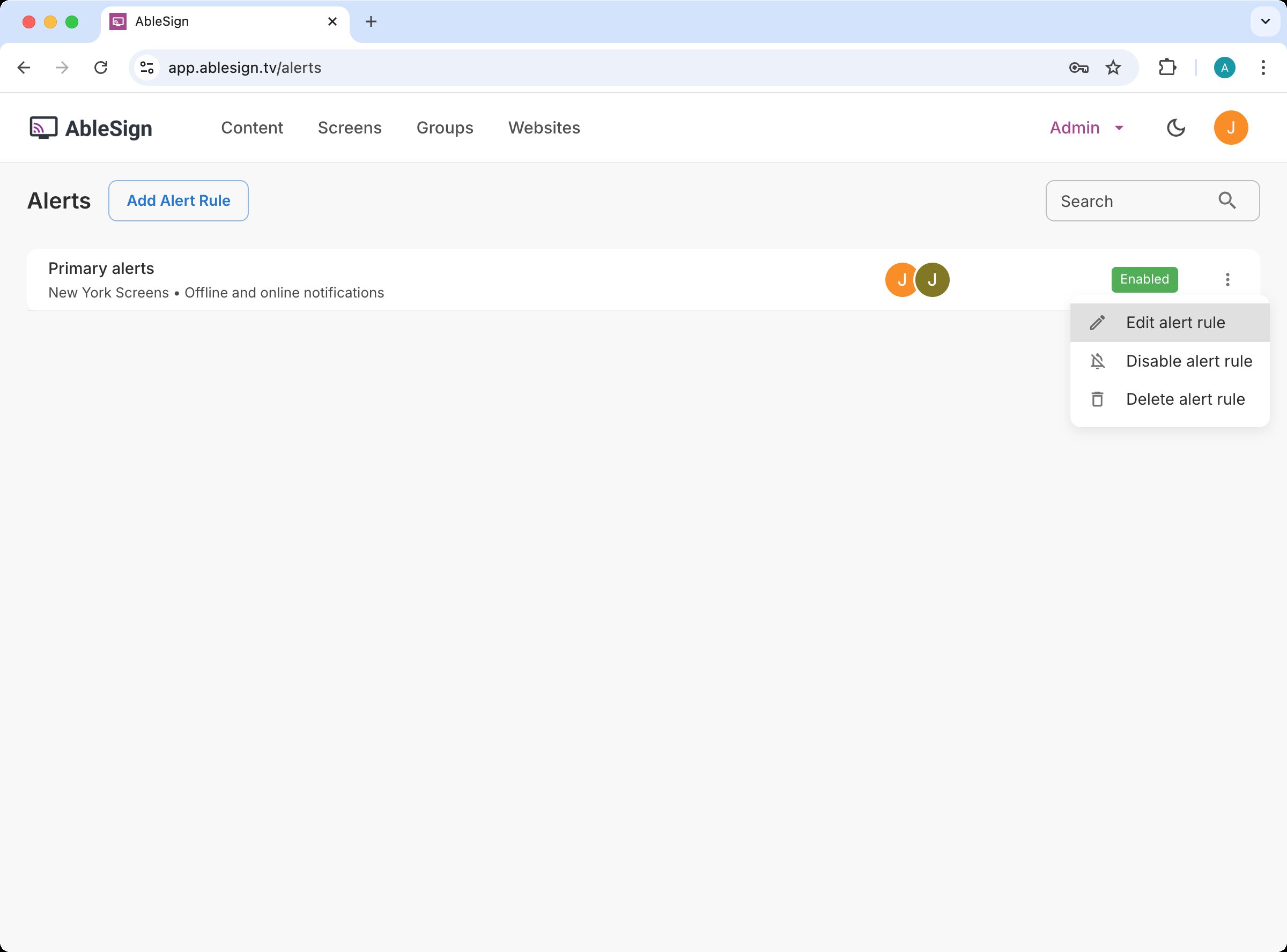
Your rule is now active. You can edit or disable your alert rule at any time from the Alert rules page.