How to enable proof of play reporting
In this tutorial we will learn how to view playback reports for your media. Once a device has proof of play reporting enabled it records the start and end time of every piece of media it displays. This information is periodically sent by the device to enable a comprehensive, real world report of exactly what media has been displayed and for how long.
Version 2.4.5 or later of the AbleSign player app is required to support proof of play reporting.
Get Started
In this example we are using a screen called BrightSign LS445
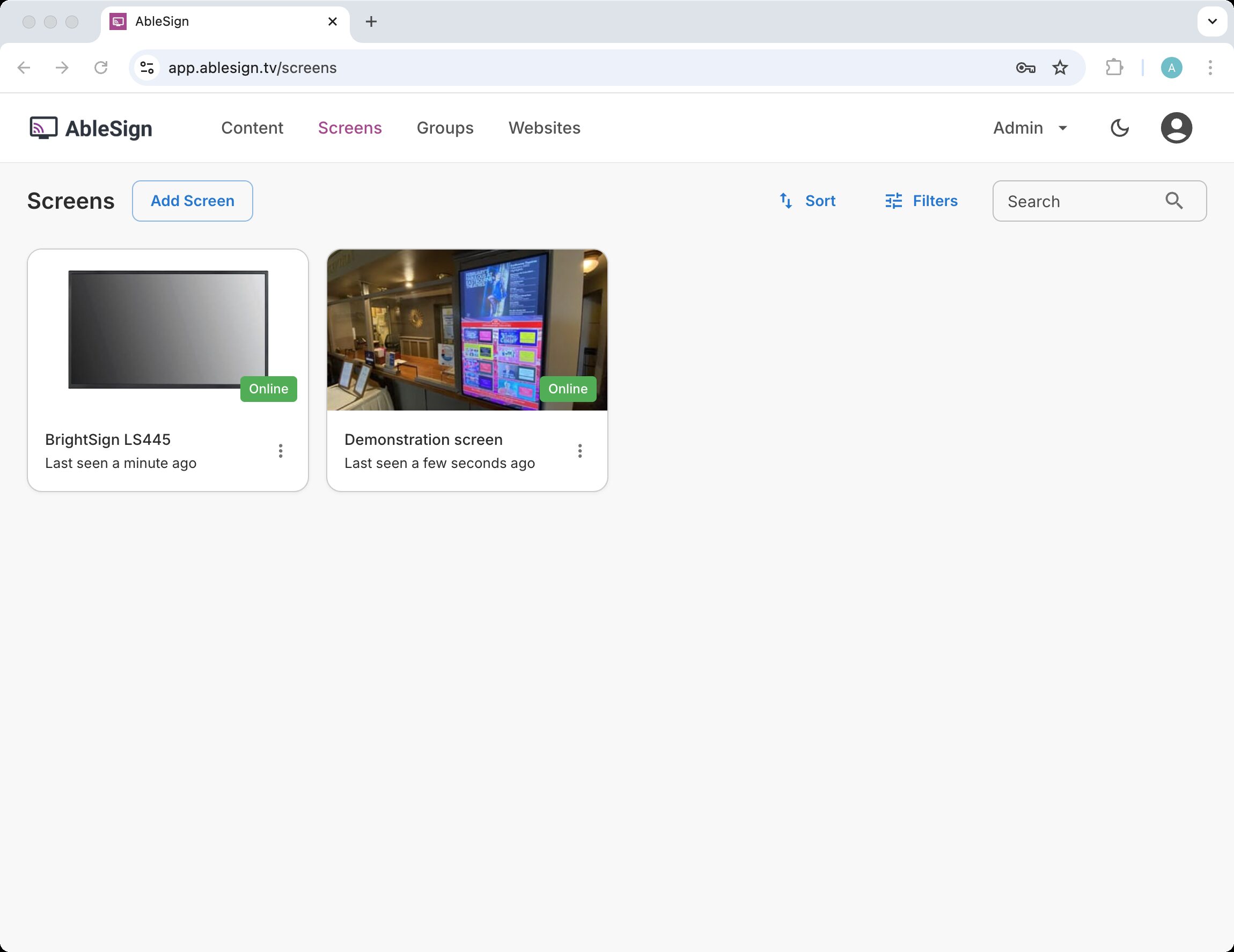
From the Admin menu at the top of the page select Playback report
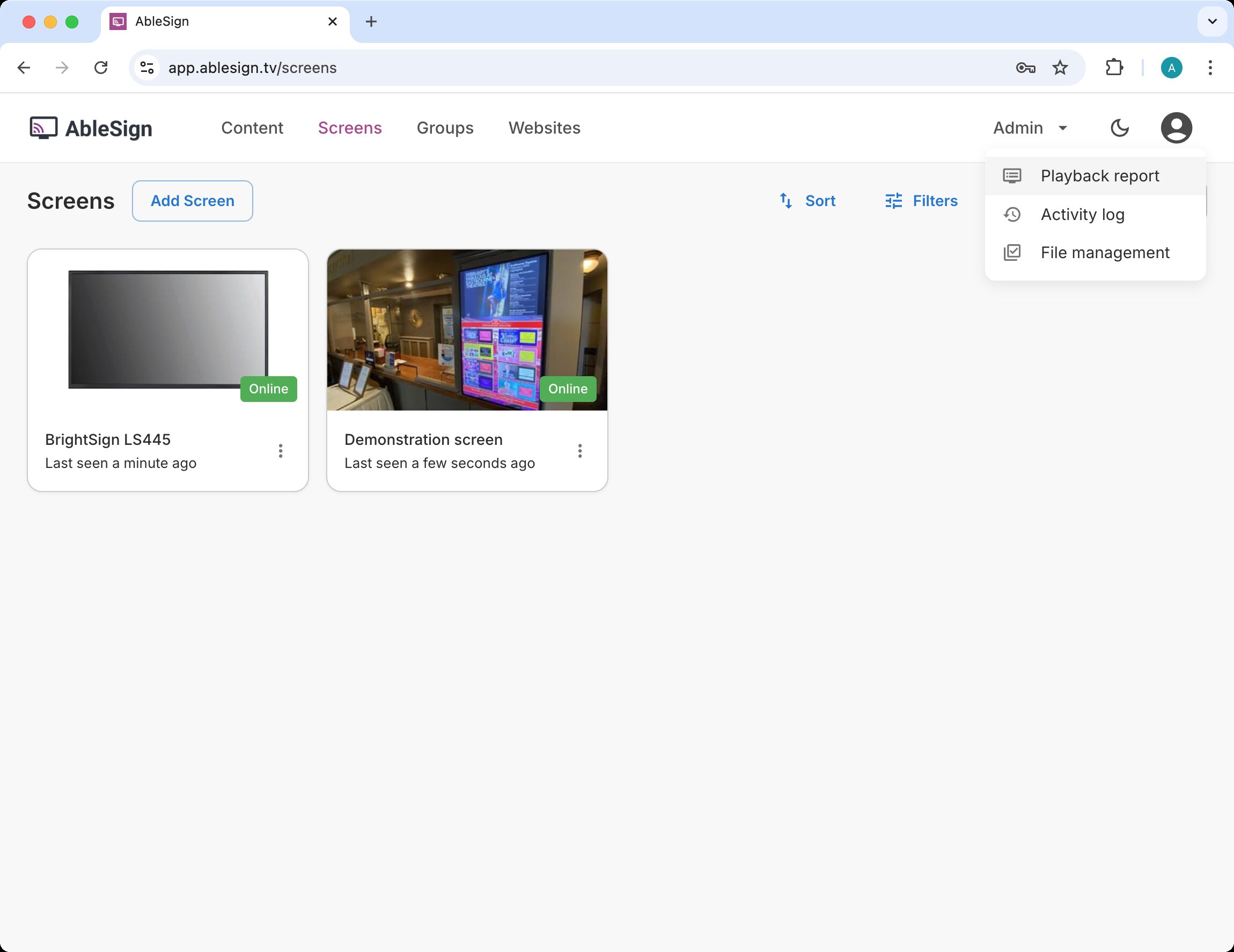
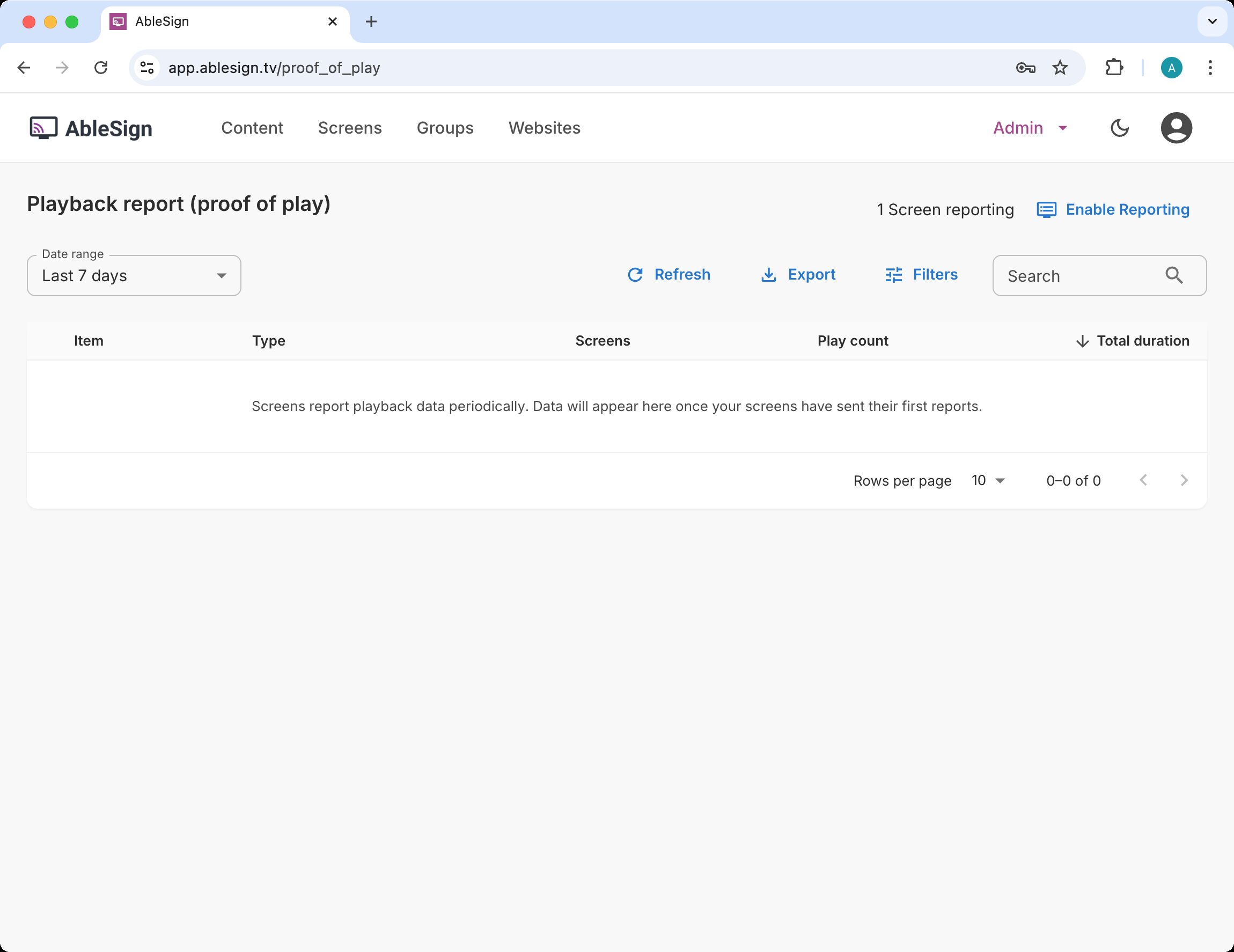
The playback report page is displayed.
Click on the Enable Reporting button.
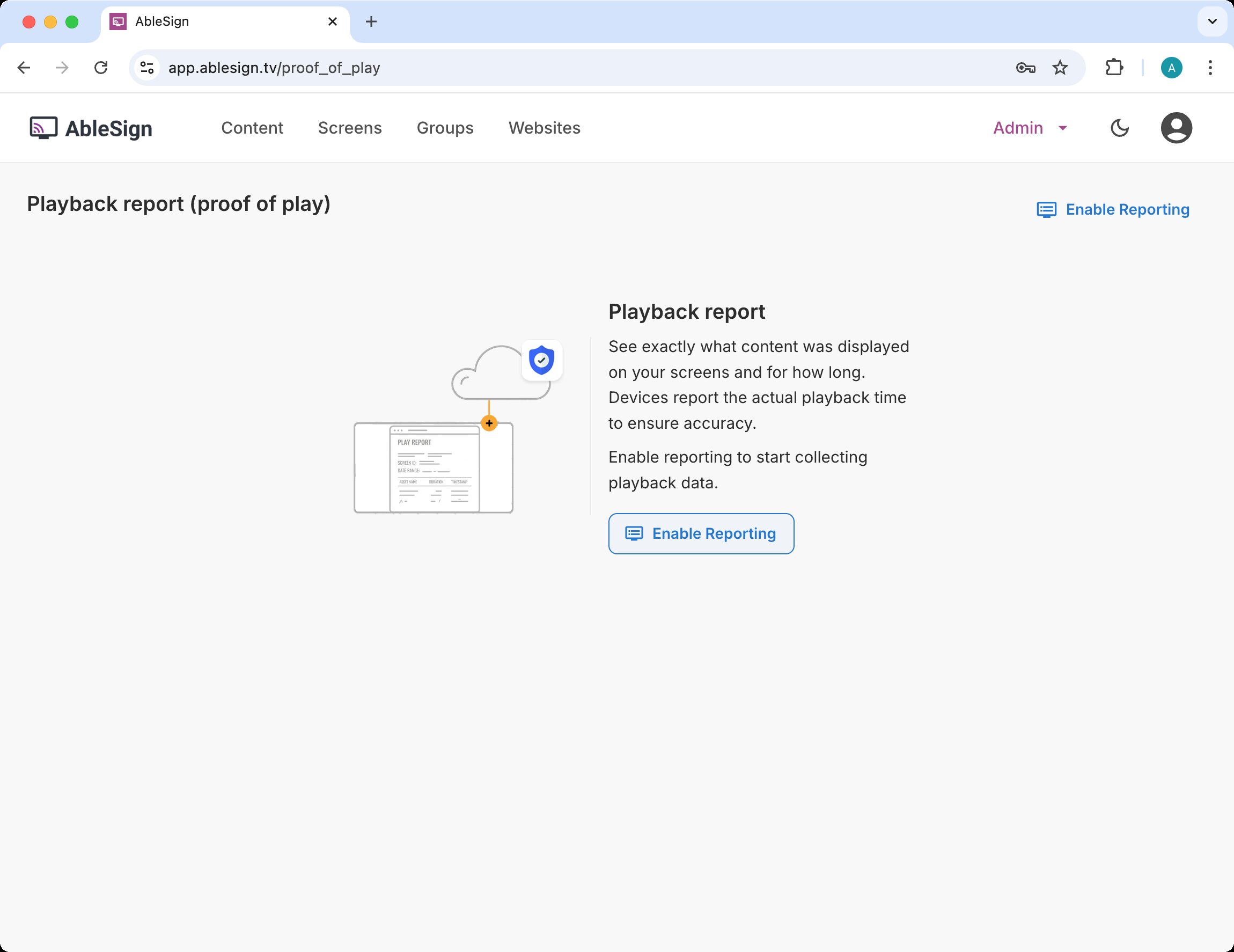
The screen selector will appear. Select the screens that you would like to report proof of play. Bear in mind that there will be extra load on the device so for devices with very little memory this may not be advisable. When done press Save
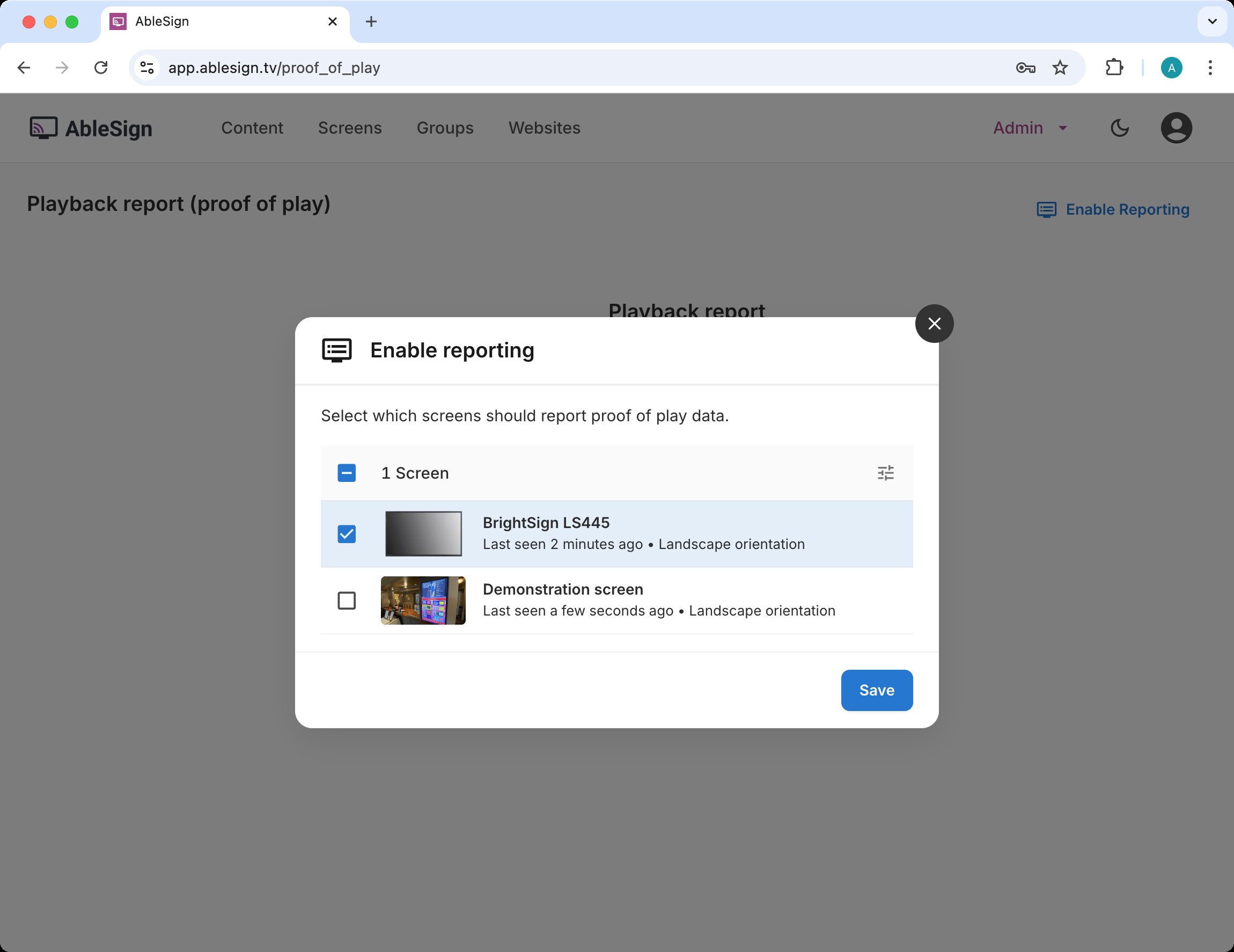
The playback report page is now displayed. Your devices will send playback data periodically with the first data being received within an hour.
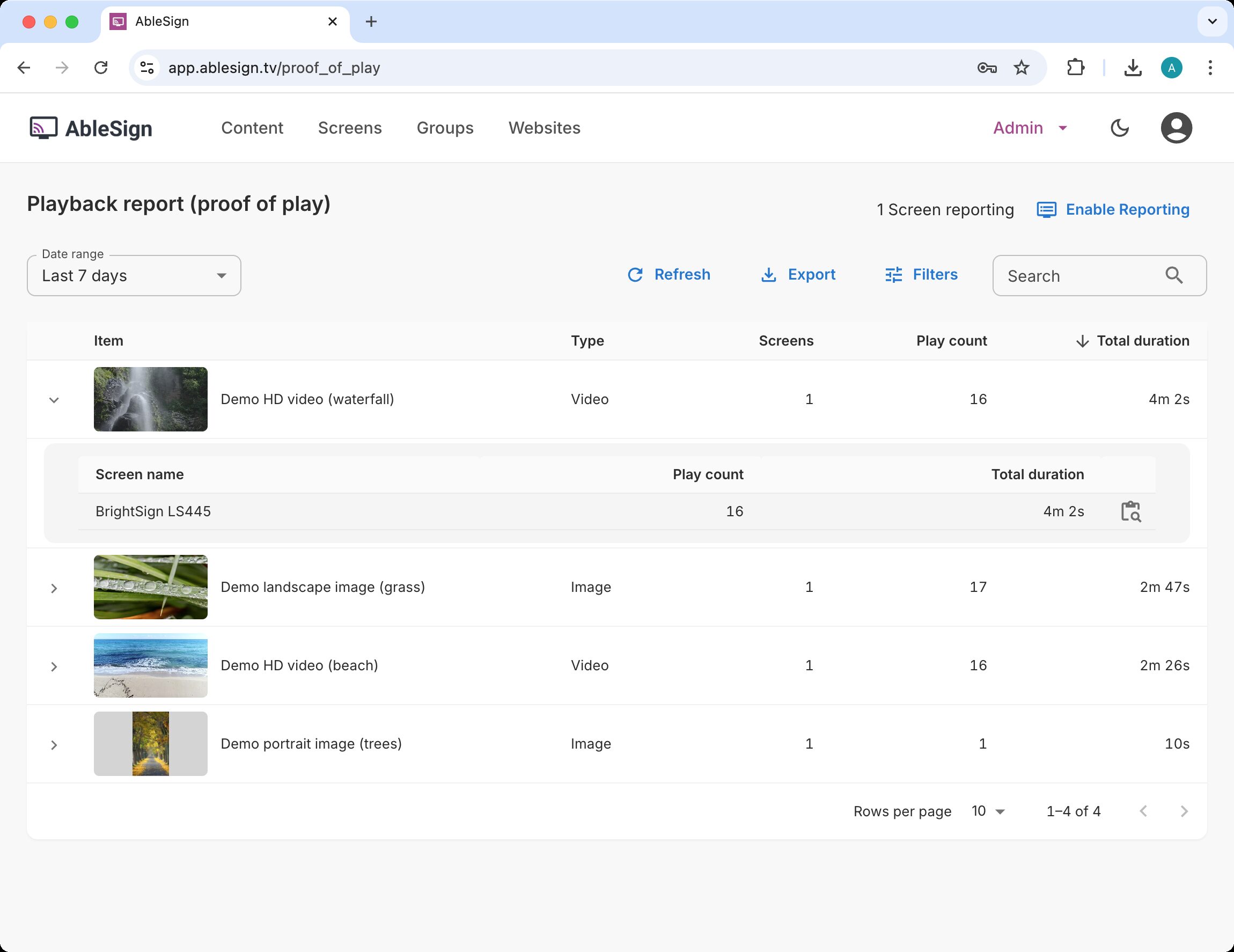
When the data is received it will be displayed in the media table. The Demo HD video (waterfall) media item in this example has been clicked to reveal a breakdown of plays and duration by each device. For each device you can get an hour-by-hour report by clicking the report icon at the end of each row.
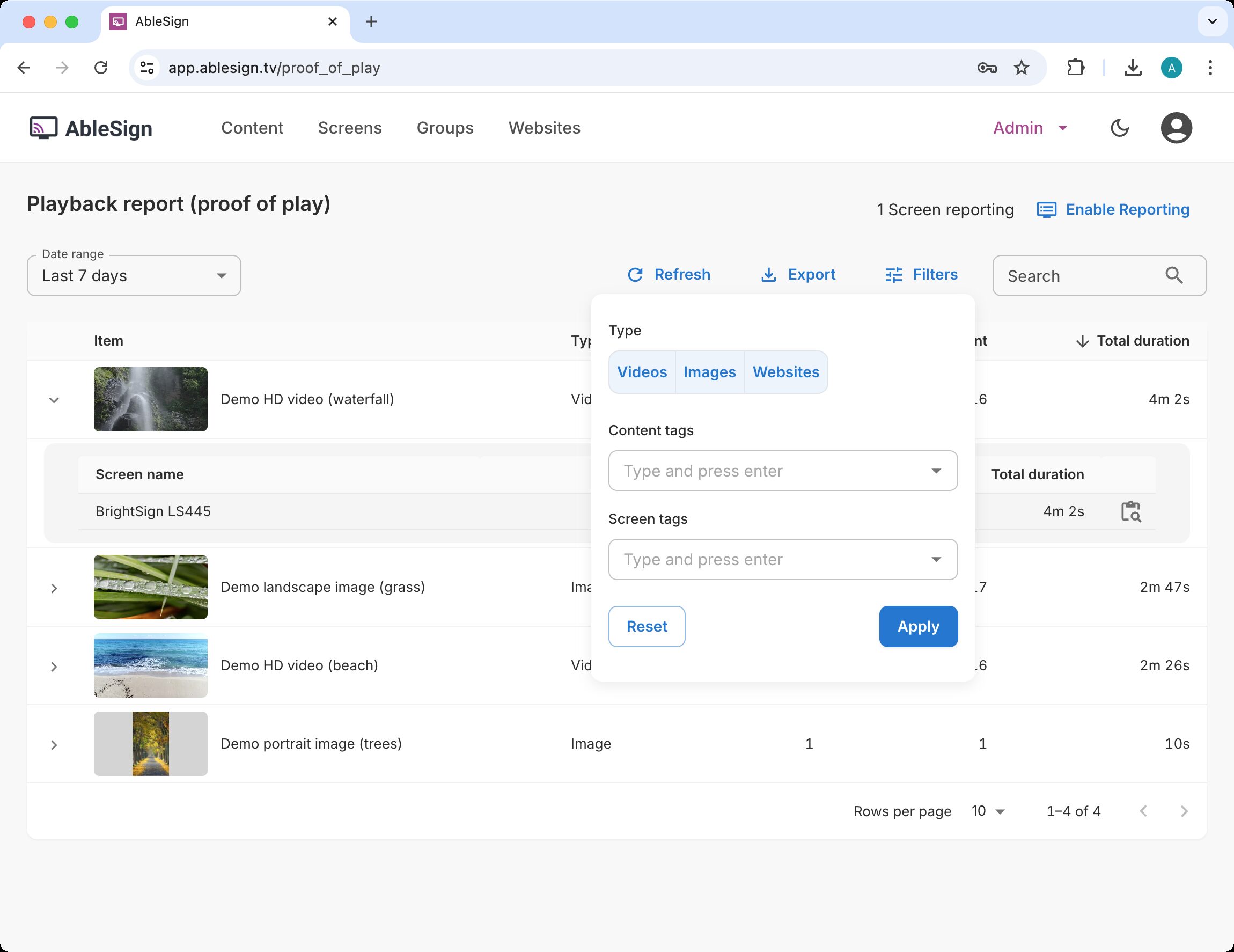
Tags are very useful in tailoring your reports. Using the Filters menu you can filter the media files and screens by selecting tags that have been assigned to them.
You can use the Export button to export the data from your report in standard CSV format suitable for applications such as Microsoft Excel.