How to add a logo overlay to your screen
This article shows how to display your logo in a corner of the screen, on top of the content that is playing. It uses the layouts feature, which splits the screen into zones, each with its own playlist.
A zone can be a separate area of the screen or a transparent overlay. The Main + corner logo layout adds a transparent overlay in the lower right corner, which can be used to display a logo or a clock.
Getting started
AbleSign player version 2.7.0 or later is required in order to display zones. Low performance devices with 1GB of memory or less are restricted to displaying the main zone only.
In this example we have already paired a new screen called Test Screen, and uploaded a white version of our logo to the content library. For a logo overlay, use a PNG with a transparent background so that the content underneath shows through.
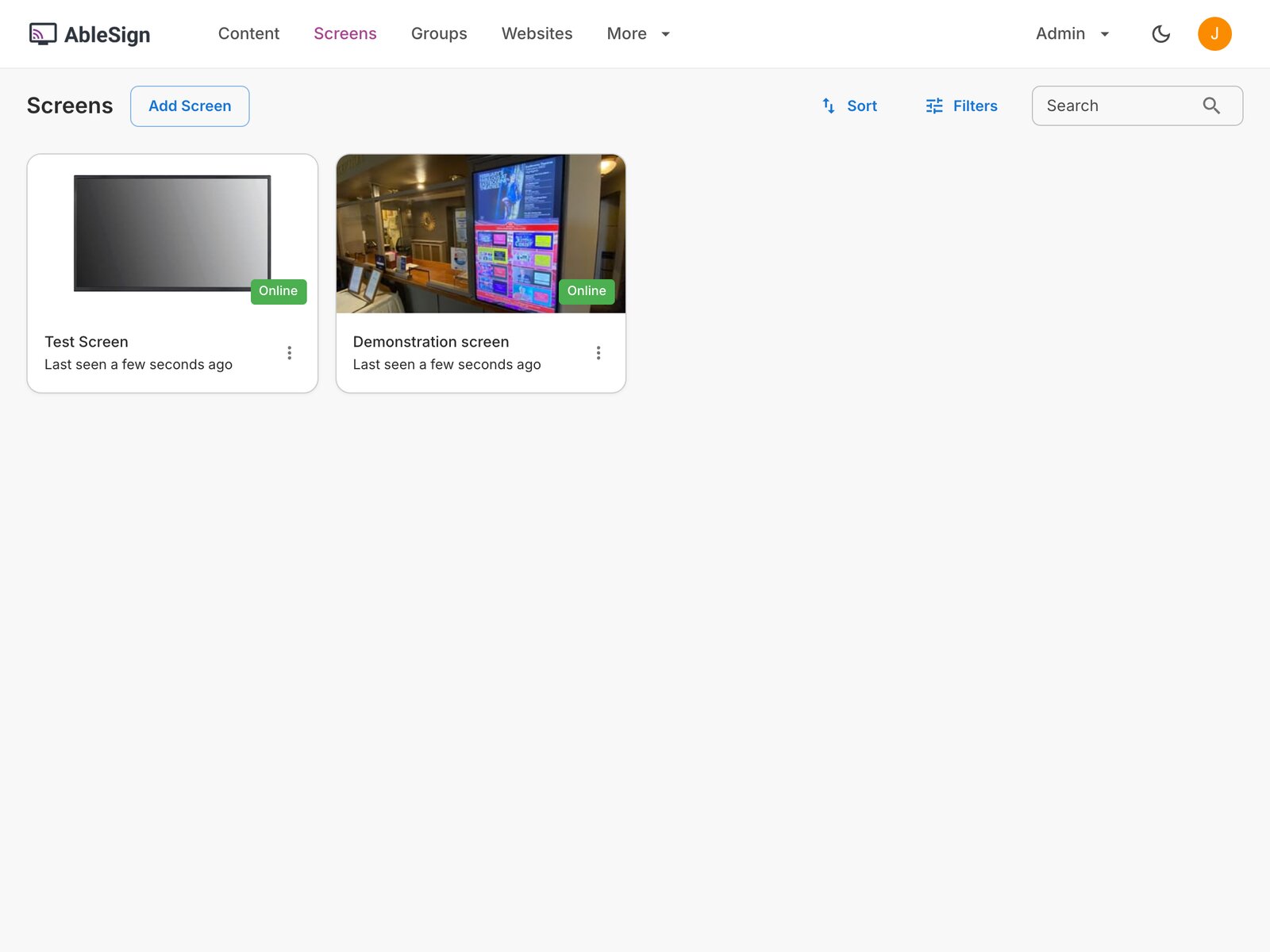
Click on the screen to open it. Its playlist has one item, the demo waterfall video, and the white logo is at the top of the content library on the right.
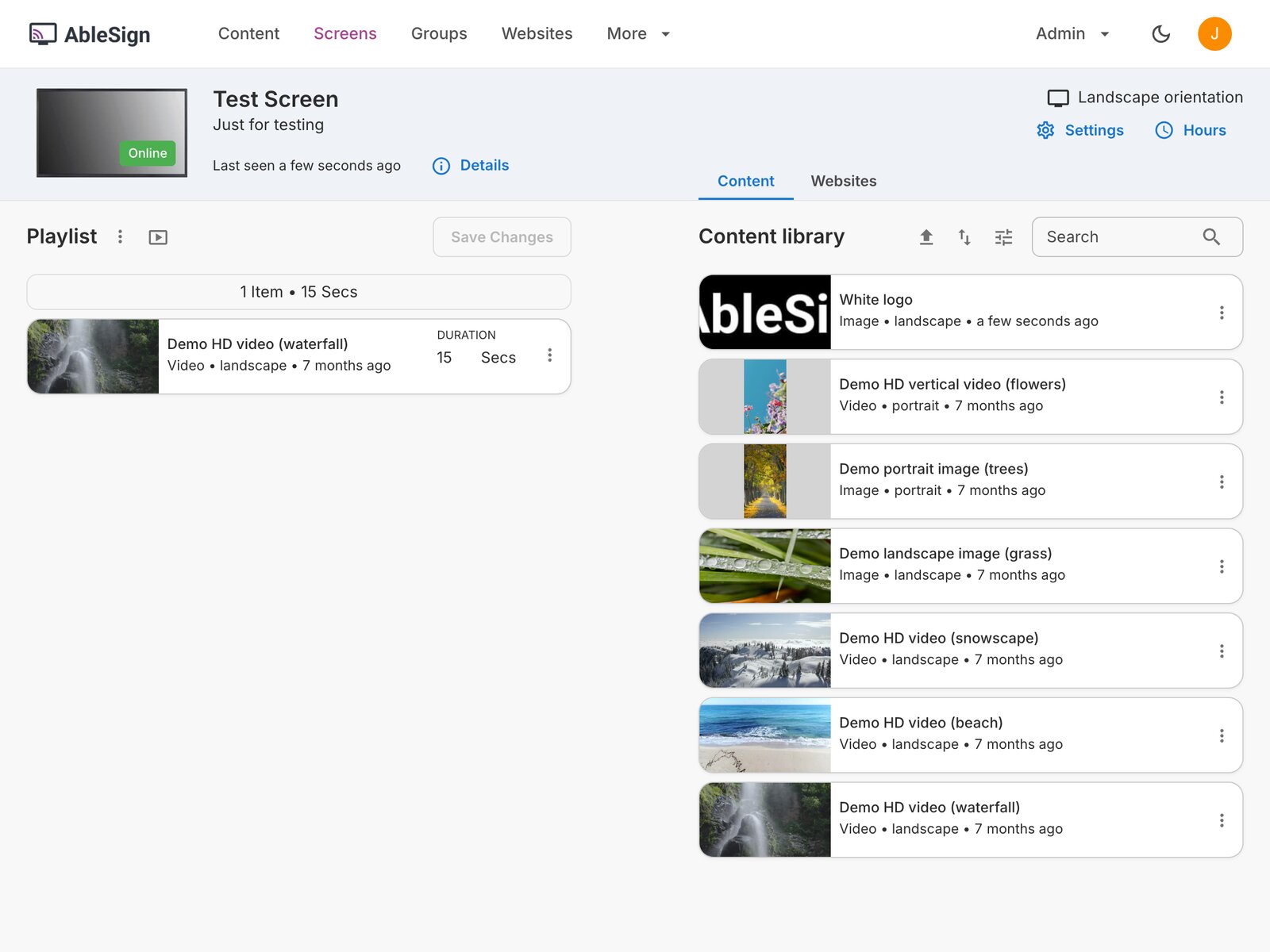
At the moment the screen plays the video full screen.

Choose a layout
Click Settings at the top right of the screen page to open the screen settings.
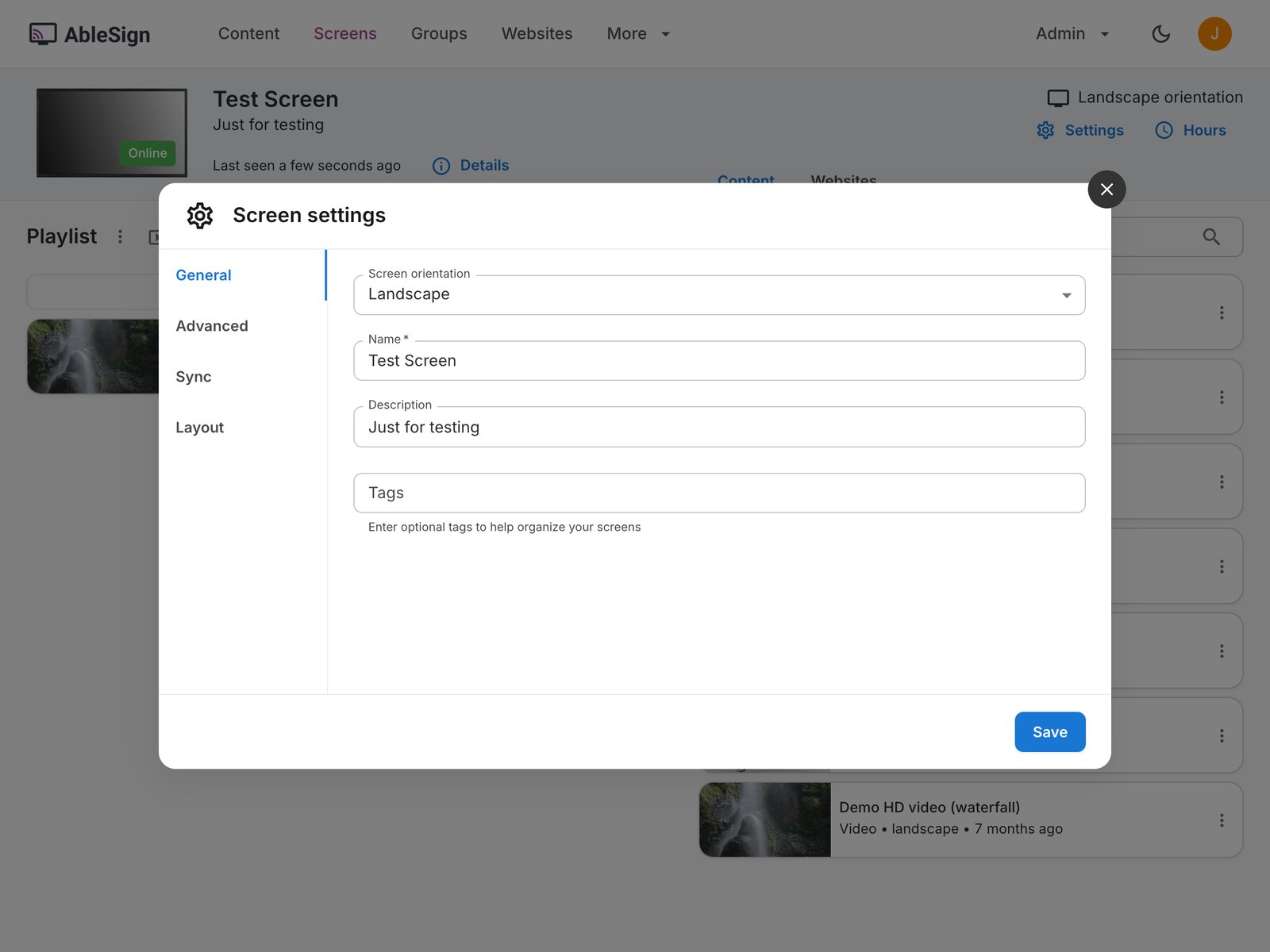
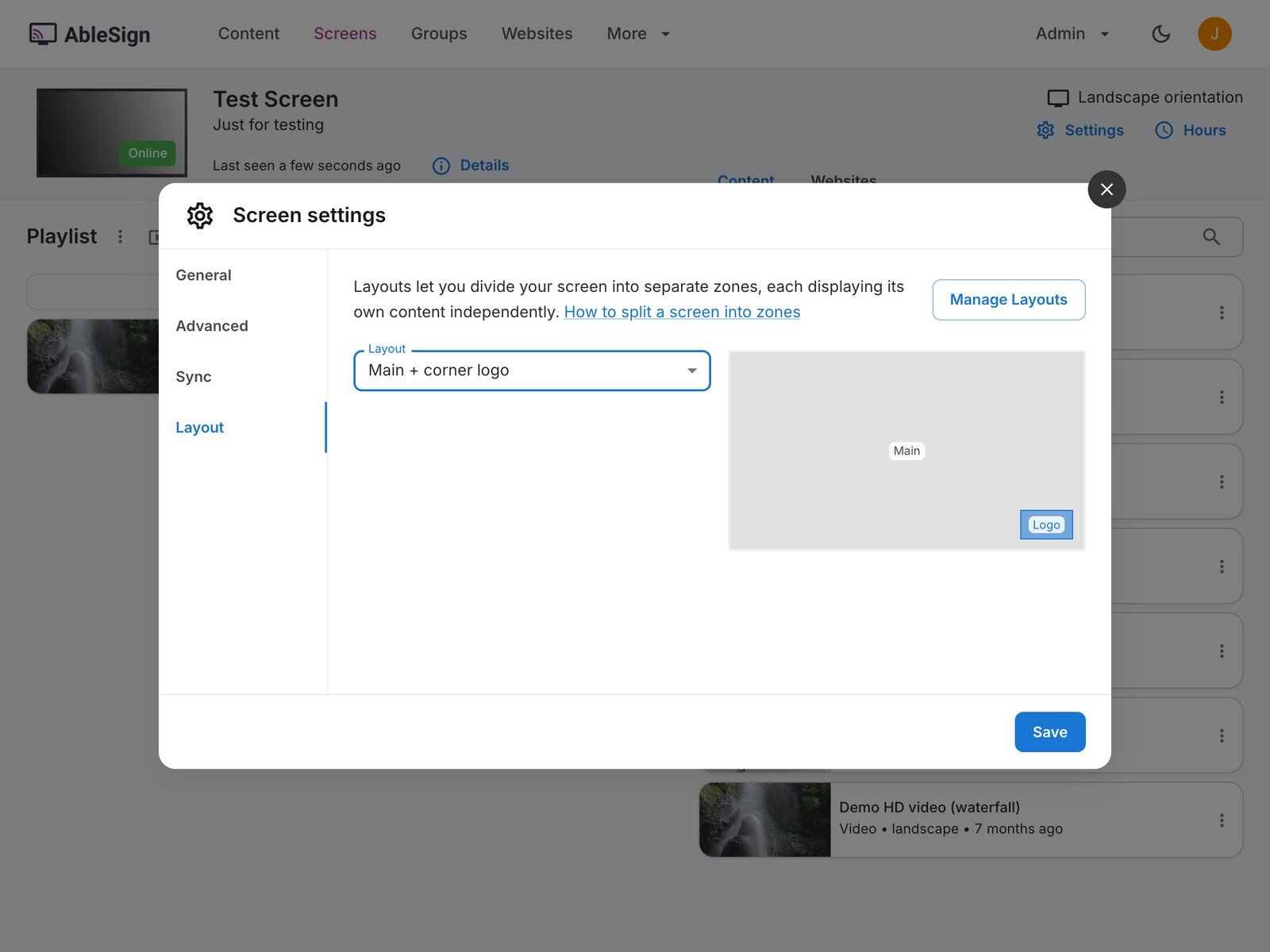
Select the Layout tab. The screen is using the Full screen layout, which has a single zone called Main. The Manage layouts button lets you create your own layouts, but for this example we will use one of the preset layouts.
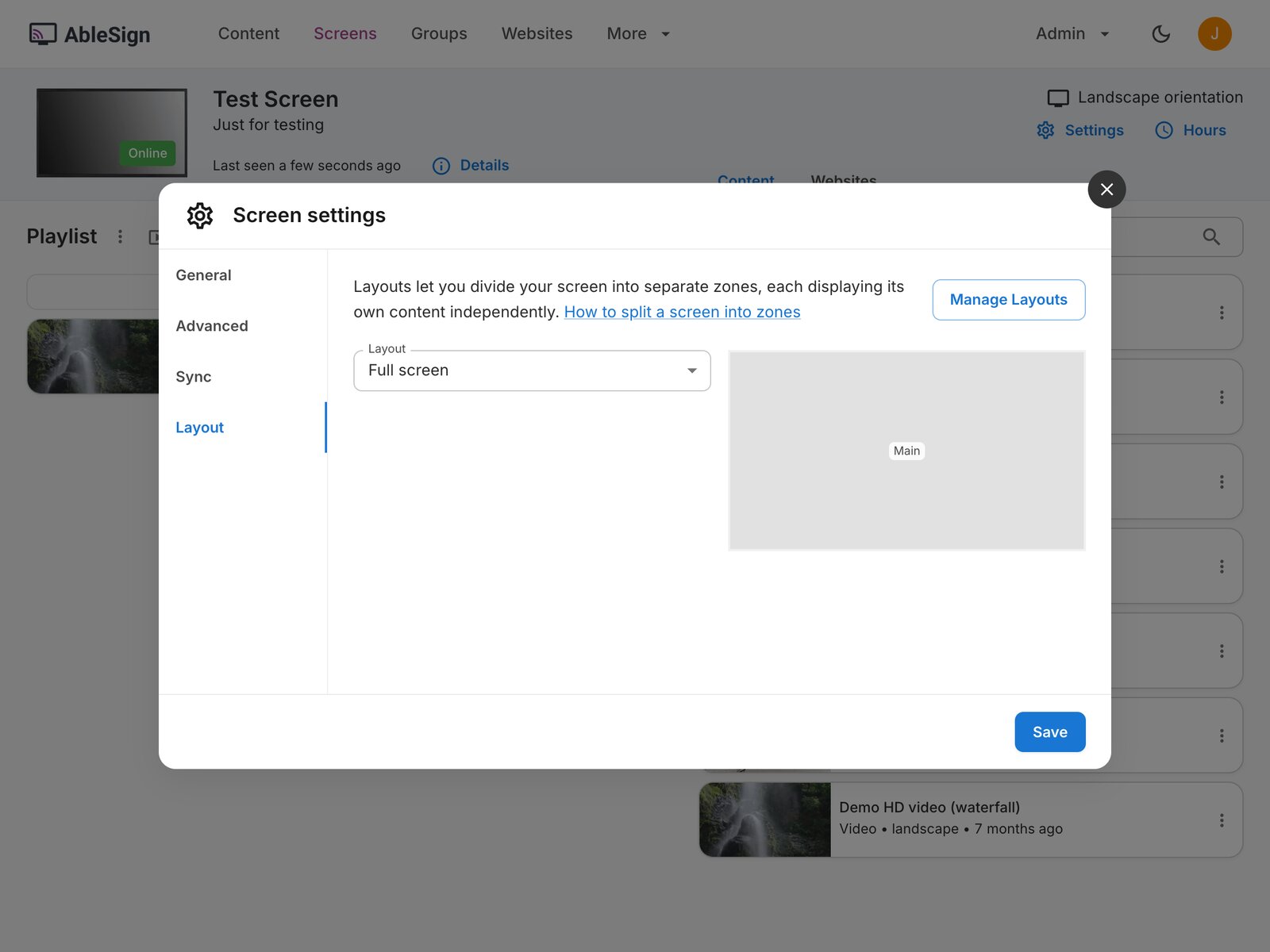
Open the Layout dropdown and choose Main + corner logo. The preview on the right shows the new Logo zone in the lower right corner of the screen. Click Save.
If the screen is a member of a screen group, the layout is set in the group’s settings instead and applies to every screen in the group.
Add content to the logo zone
The screen page now has a tab for each zone, Main and Logo, and the name of the layout is shown next to the screen orientation. The Main zone still has the waterfall video in its playlist.
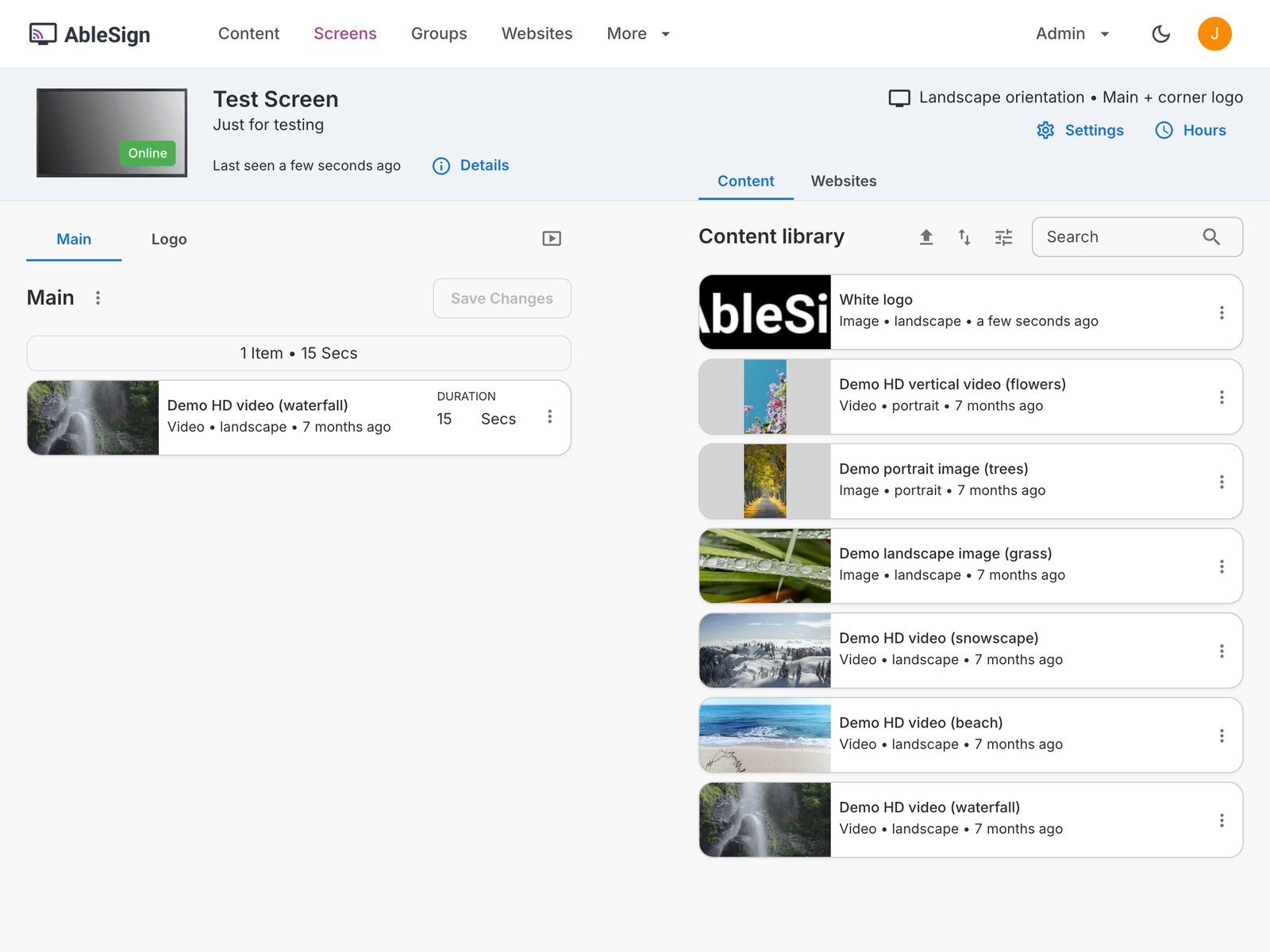
Click the Logo tab. Each zone has its own playlist, and the Logo zone’s playlist is empty.
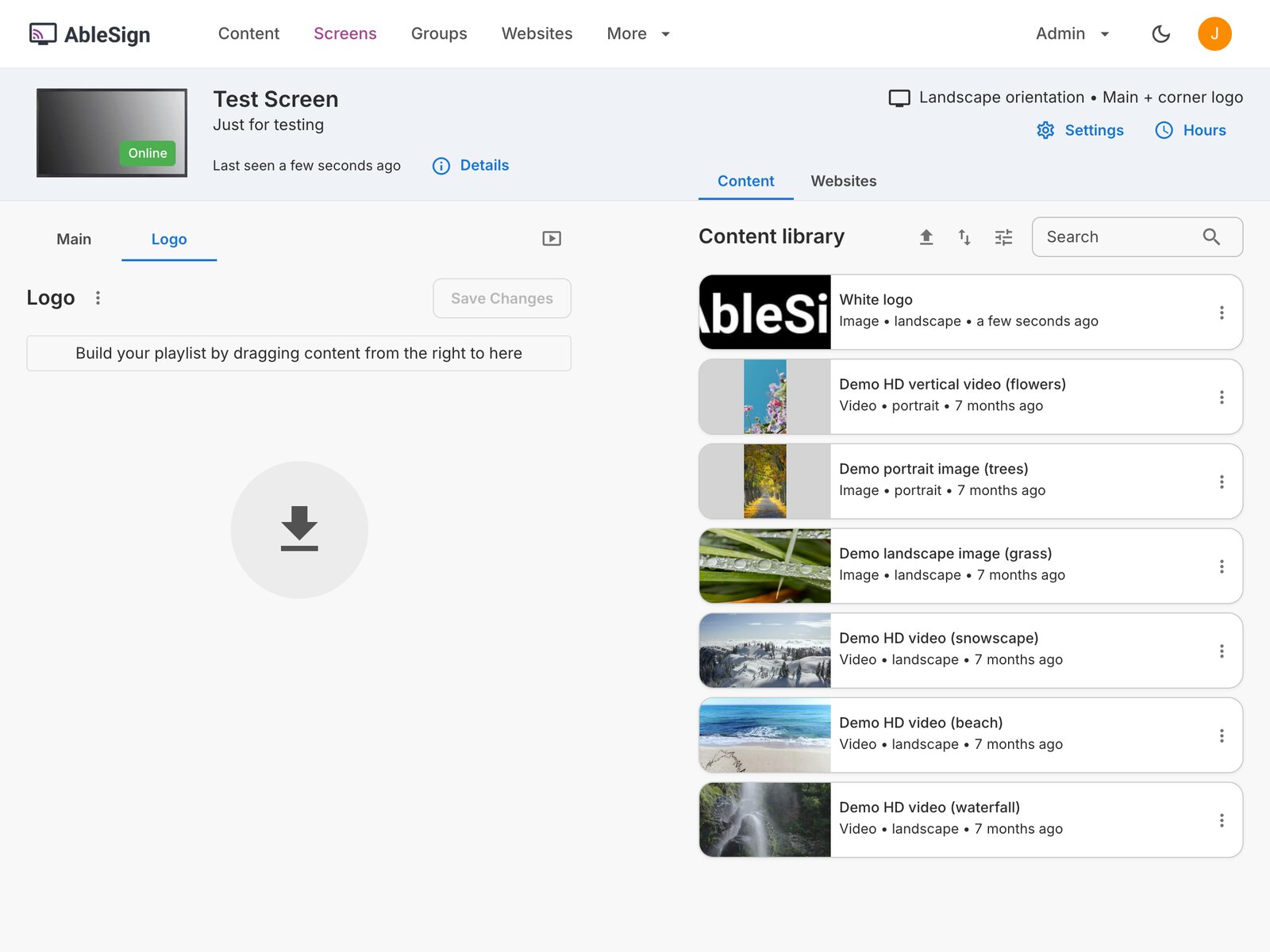
In this example we have an white logo image file in our content library. You should upload and use your own image file here. Drag your image from the content library on the right into the Logo playlist, then click Save Changes.
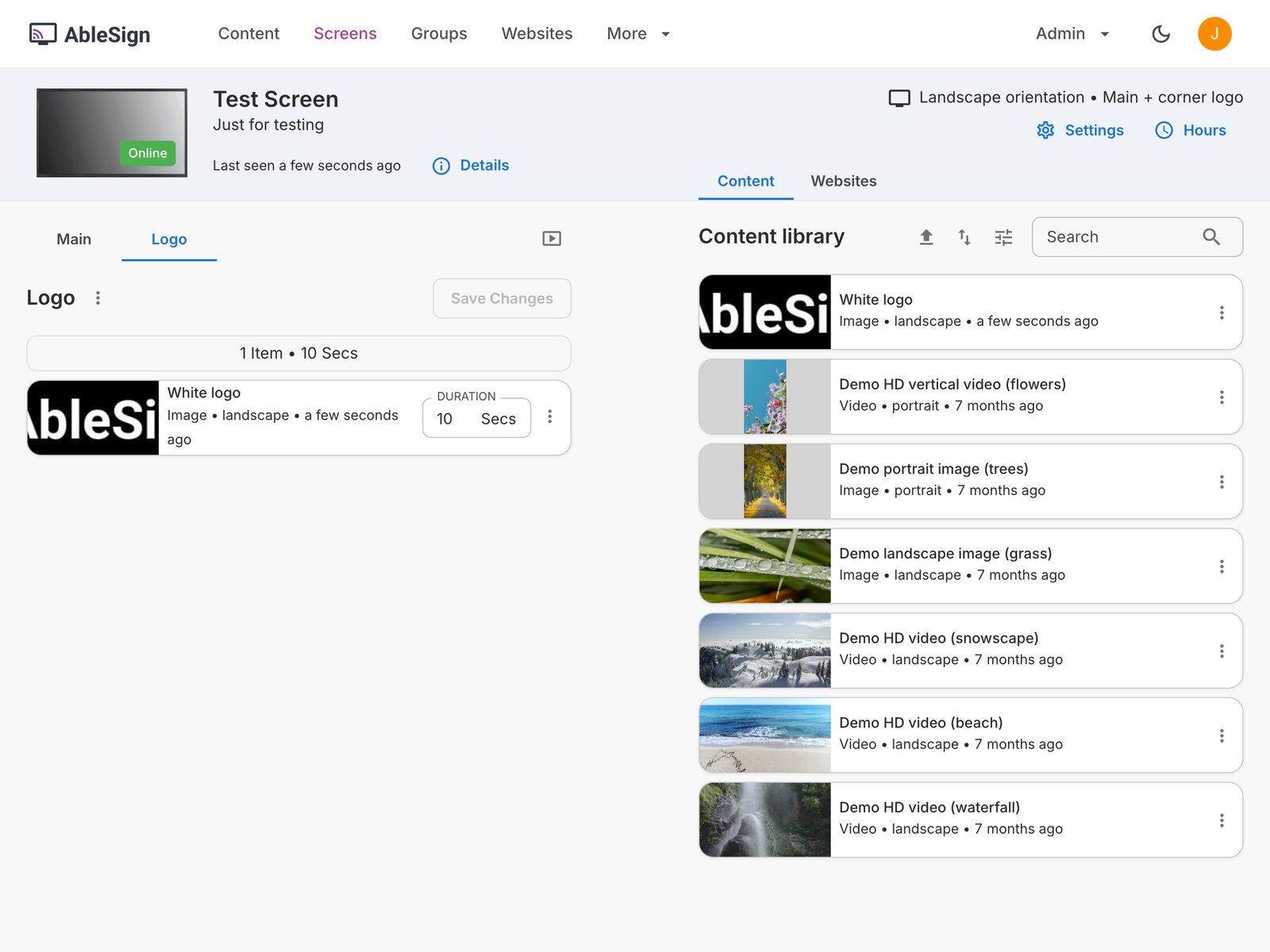
The screen downloads the logo and displays it in the lower right corner, on top of the video playing in the main zone.

The same steps apply to the other preset layouts, Main + sidebar and Main + ticker, and to any layout you create with Manage layouts. Each zone has its own playlist, so you can add as many items to a zone as you like and schedule them in the same way as a full screen playlist.
An overlay zone can hold more than a logo. For a clock, a weather ticker or any other content you create yourself, see How to create a screen widget using AI.