How to create a screen widget using AI
In this article we will show you how to create a clock widget and then use it in a ticker bar zone at the bottom of a screen. Images and videos play above it in the main zone, and the clock shows the current time at the right-hand side of the bar.
You can find third-party libraries of pre-built widgets for use in digital signage, but in this article we will be using ChatGPT to create the widget. Using AI allows you to tailor the widget to your exact needs and branding.
The same steps work for any other content you want to display, such as a weather forecast, a welcome message or a countdown timer.
Getting started
AbleSign player version 2.7.0 or later is required in order to display zones. Low performance devices with 1GB of memory or less are restricted to displaying the main zone only.
You will need access to an AI tool such as ChatGPT or Claude. Both offer free plans which are suitable for this task.
In this example our screen already uses the Main + ticker layout. If you have not used AbleSign layouts before, How to split a screen into zones explains how layouts and zones work.
Create the clock with ChatGPT or Claude
This is the prompt we used to create the clock in ChatGPT. Copy it and send it as it is, or change the details first, for example a 24-hour clock or a different colour.
Create a clock widget for a digital signage screen as a single HTML file, with all of the CSS and JavaScript inline and nothing loaded from other websites.

It will play in a strip along the bottom of a 1920x1080 screen, the full width and 15% of the height. Fill the frame exactly, with no margins or scrollbars, and size the text from the height of the frame so that it looks right at any size.

Show the current time from the device's clock in 12-hour format, for example 6:30 PM, updated every second. Put it in large white text at the right-hand side of the strip, with a gap between the text and the right edge of about half the height of the strip, and leave the rest of the strip empty.

Give the page a dark background at 50% opacity so that the video playing behind it shows through.

Use plain JavaScript that also runs in older browsers such as Chrome 56. Give me the complete file.
Save the generated file on your computer with a name such as clock.html. If it is not quite what you want, ask for changes in plain English, for example “make the text bigger”, “show a 24-hour clock” or “add the date underneath”, and save the new version.
Upload the clock
Now to upload the clock into AbleSign. Go to the Websites page and click Add Website. The dialog opens ready for a web address, so click More Options to see the other ways of adding a website.
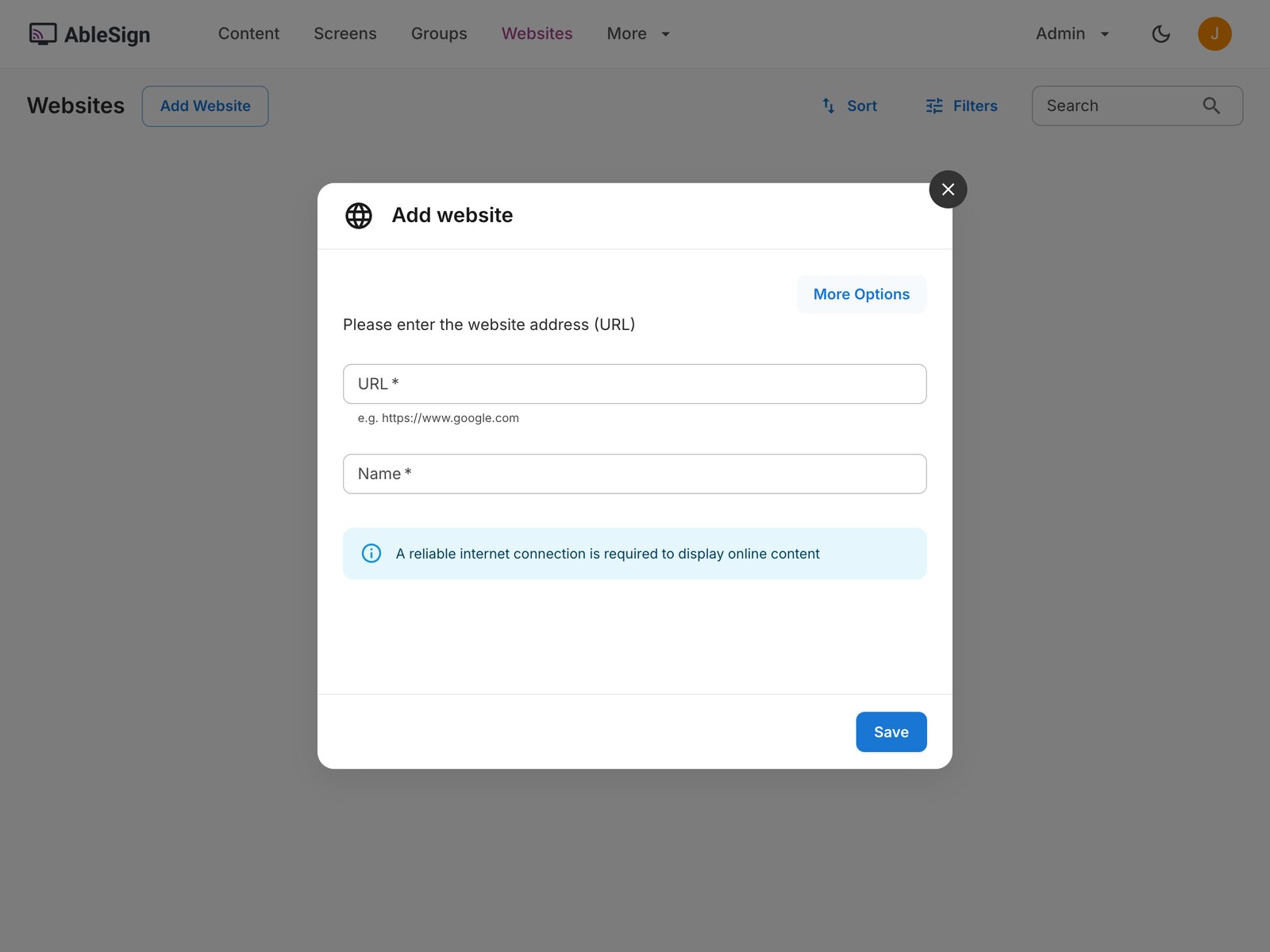
Select the Upload File tab, drop the file in and click Upload.
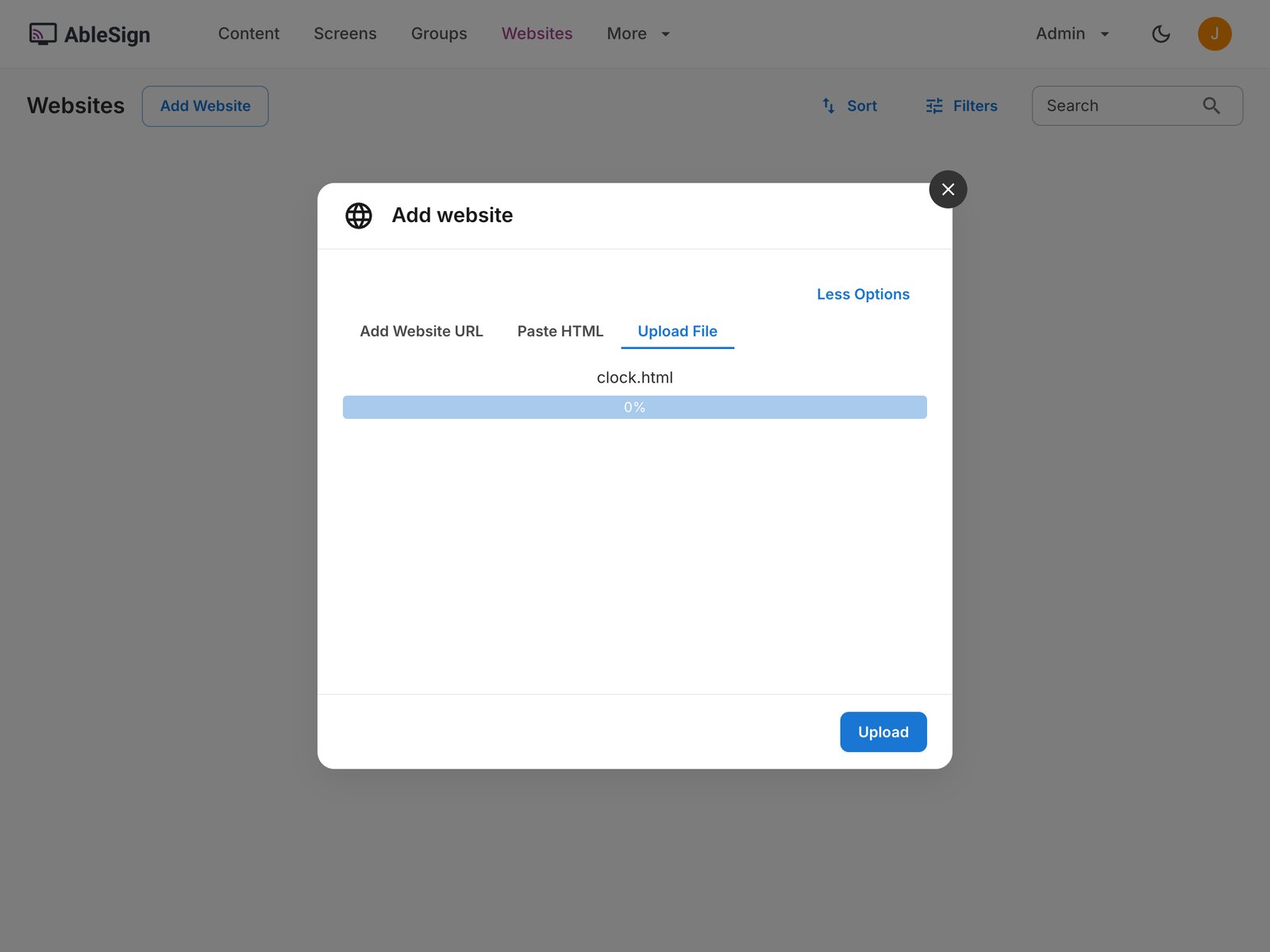
The clock appears on the Websites page under the name of the file. To update it later, generate a new version and choose Replace HTML content from its menu: every playlist that uses it picks up the new version.
Add the clock to the zone
Select the Ticker tab, select the Websites tab of the library on the right, and drag the clock into the Ticker playlist.
Then set its duration. The player reloads a web page each time the playlist comes round to it, so a clock that should stay on screen is best given a long duration. Here we have set 3600 seconds, an hour. Click Save Changes.
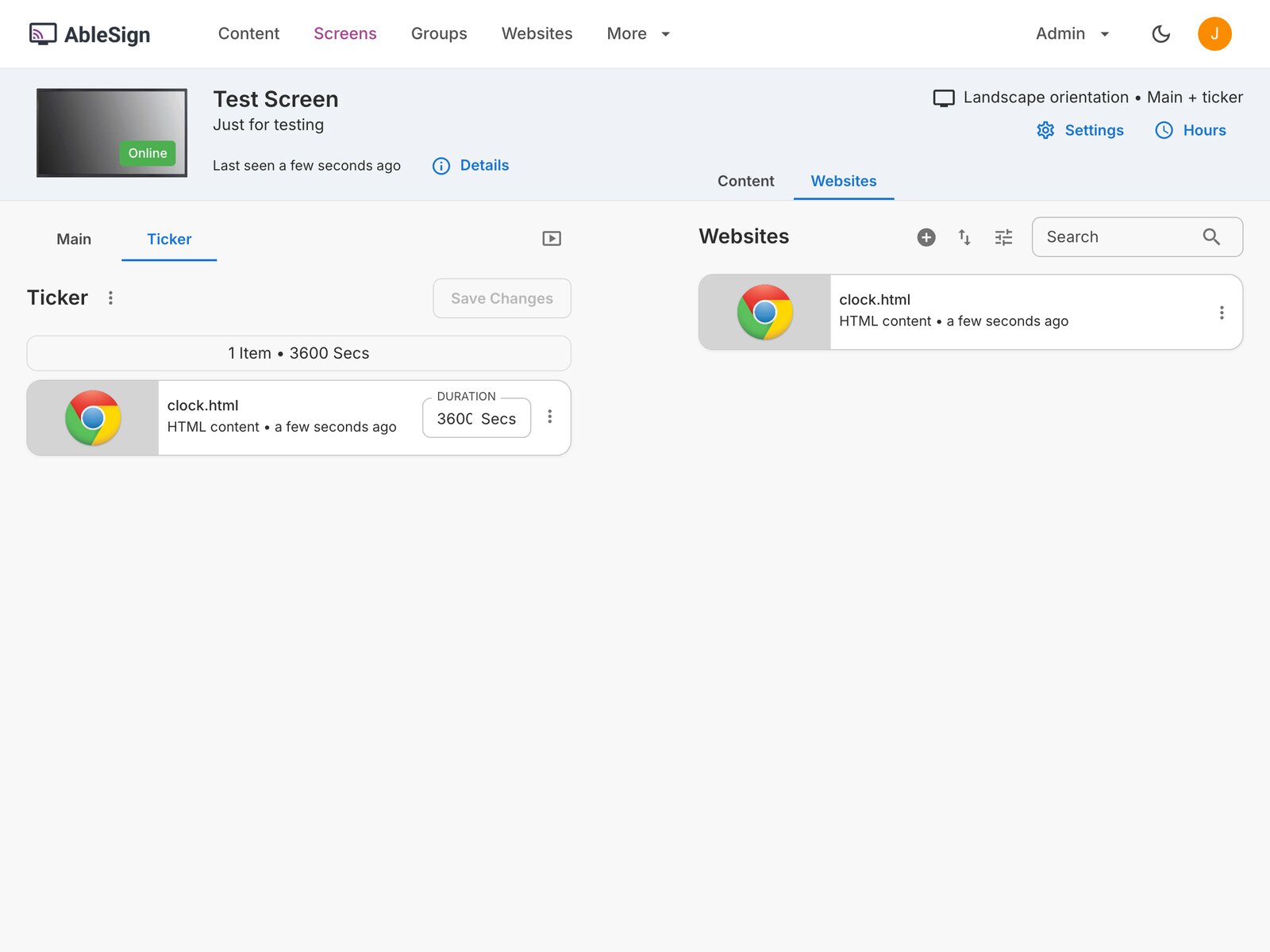
The screen now plays its video in the main zone with the time in the bottom right-hand corner. The preview button next to the zone tabs shows the same in your browser, which is a quick way to check the clock before it reaches the screen.