How to set screen operating hours
Screens can be set to display content only at certain times of day. Outside of the times that you specify, your screen will display a black screen or turn off altogether if your device supports it.
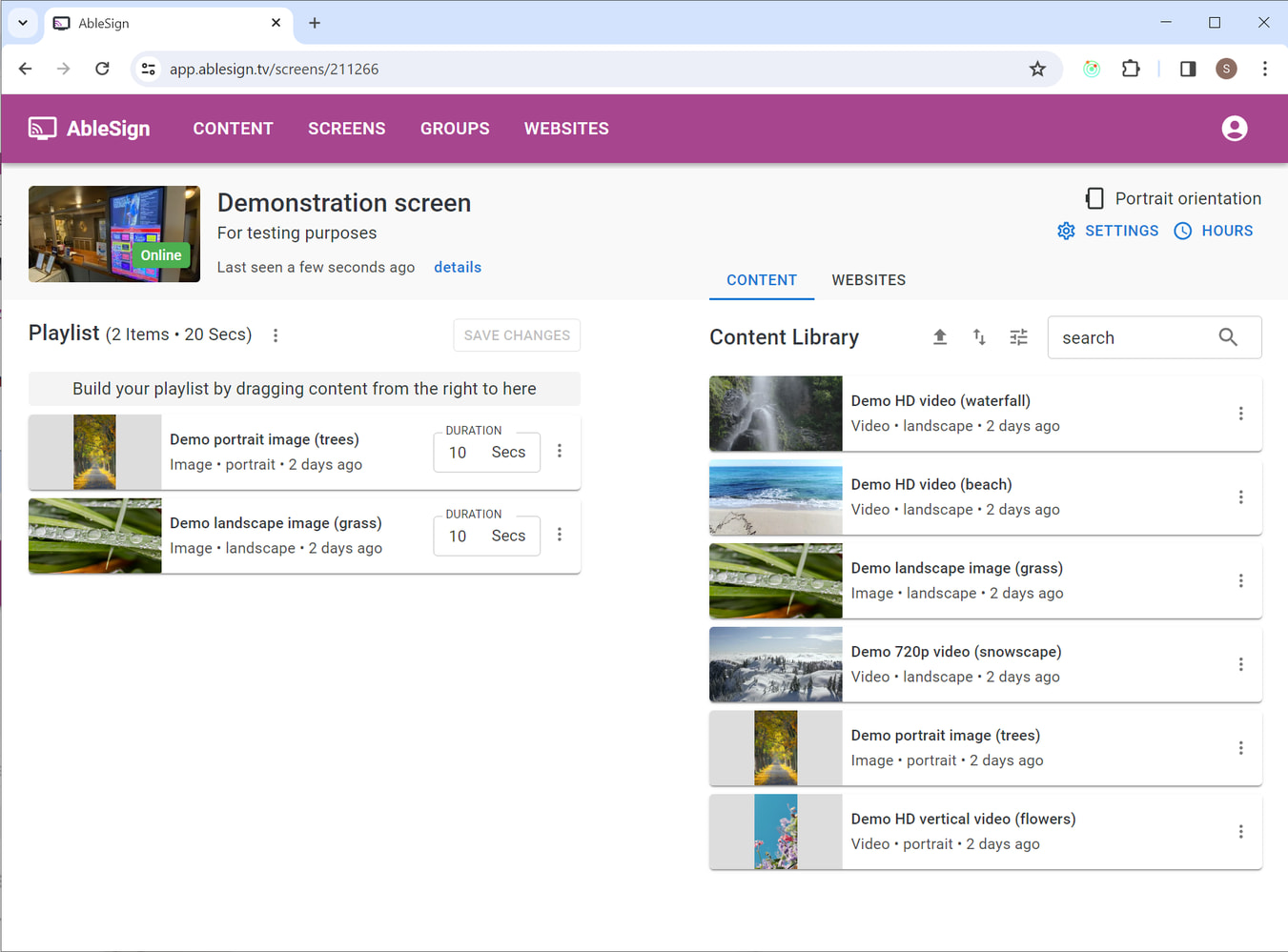
To start, click Hours on the screen management page:
The Screen Operating Hours window will appear.
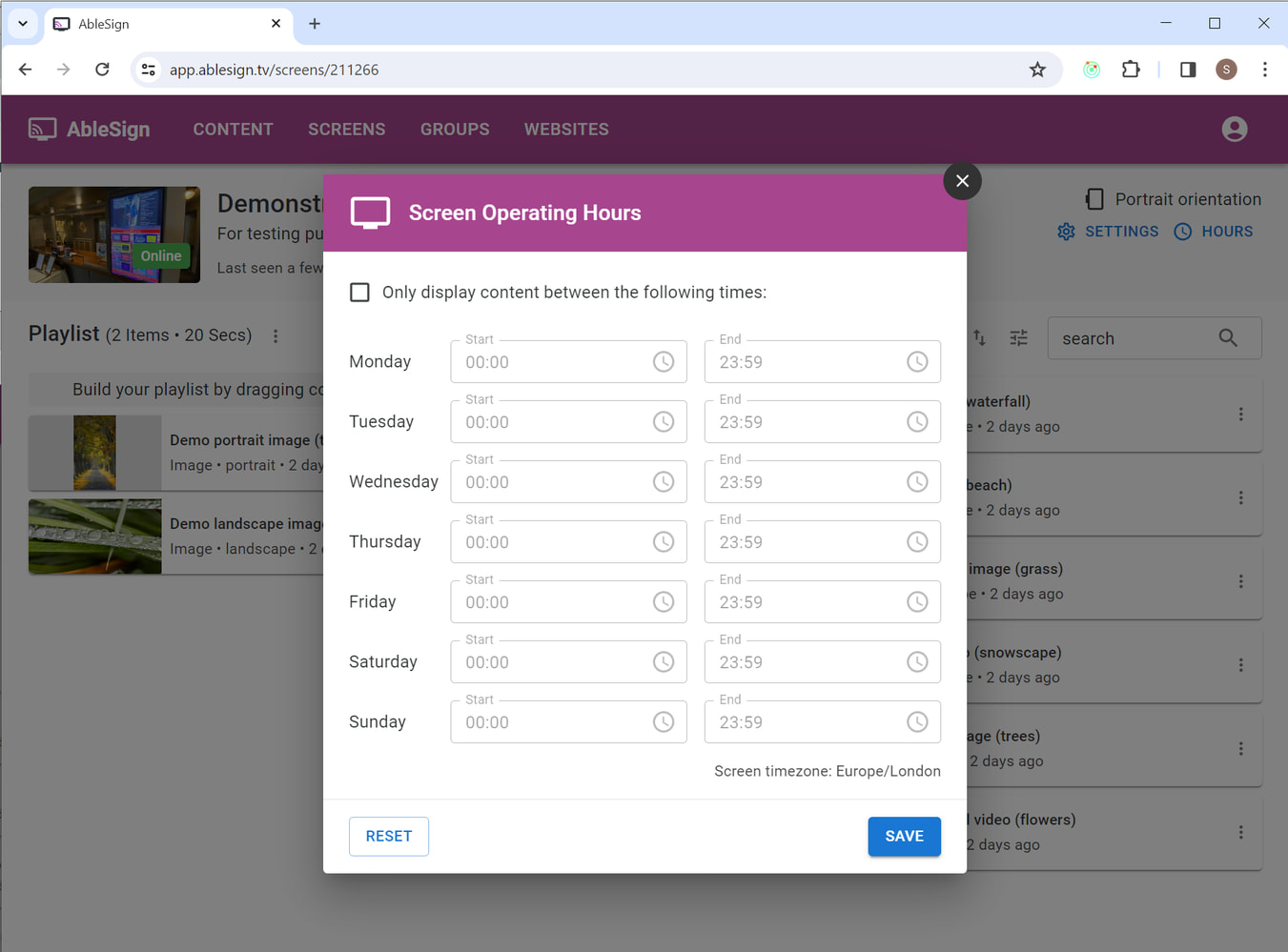
Click the checkbox at the bottom ‘Blank the screen when not in use’.
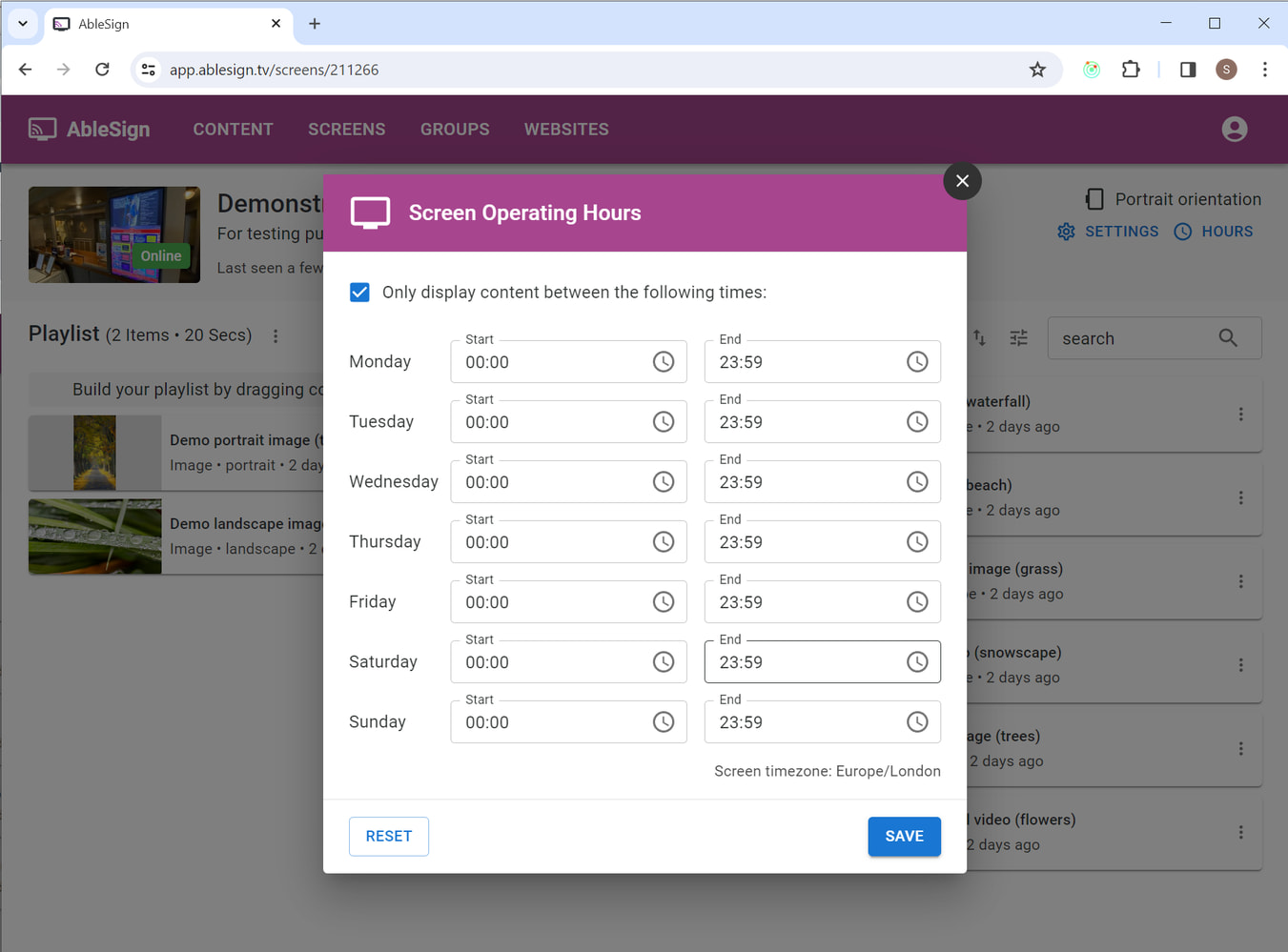
Now enter the times of day that the screen should operate.
In the following example, we have a screen running from 9am to 5pm on weekdays. Please note that times are in 24 hour clock format.
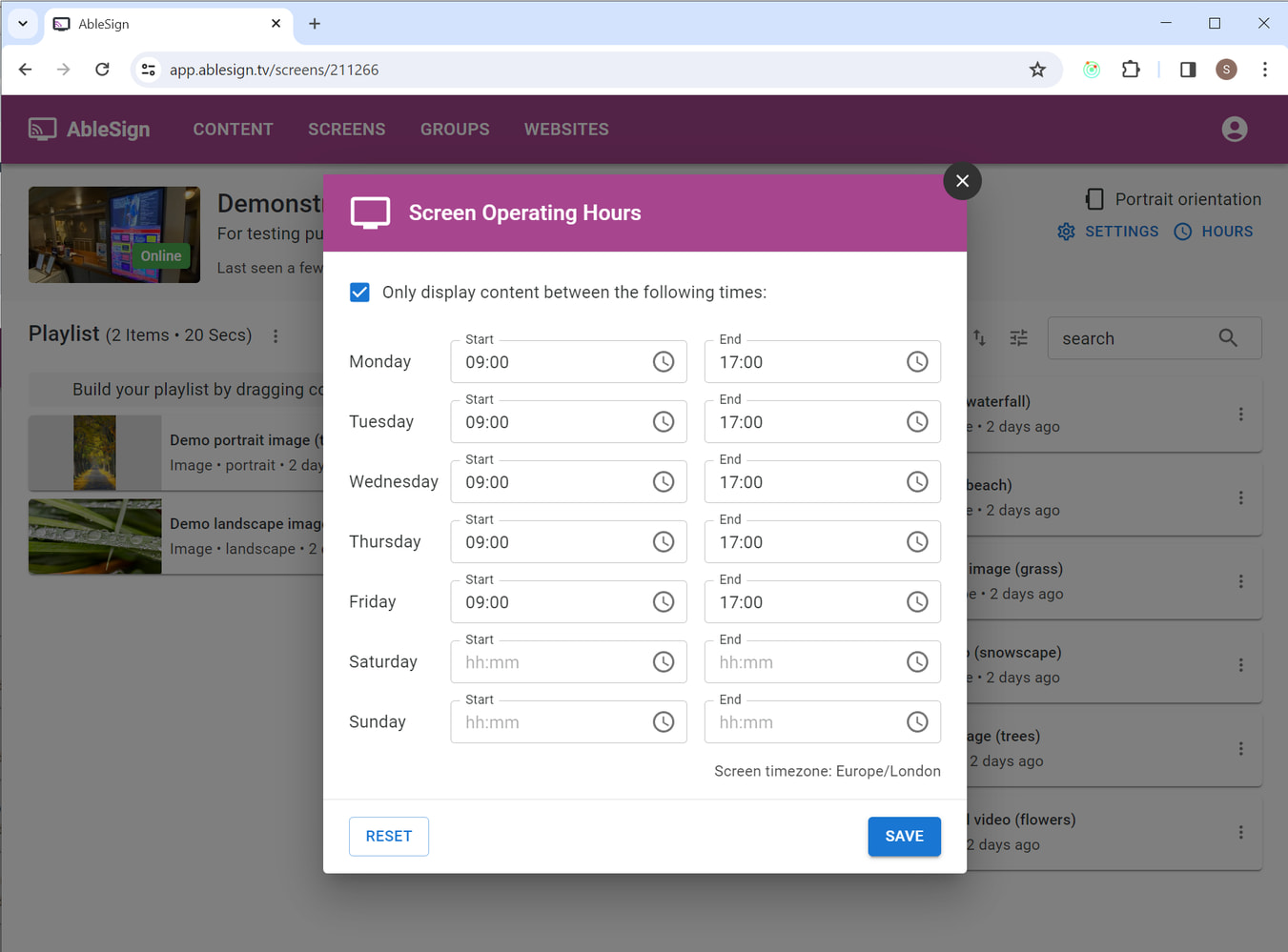
If you leave the start and end times blank the screen will not display content on that day at all.
You can enter just an end time, in which case the screen will display content all day until the time specified.
You can enter just a start time, in which case the screen will not display content until the specified time, but will then display content until the end of the day (i.e. 23:59).
Please note the timezone displayed for your screen. The timezone can be found in the screen settings:
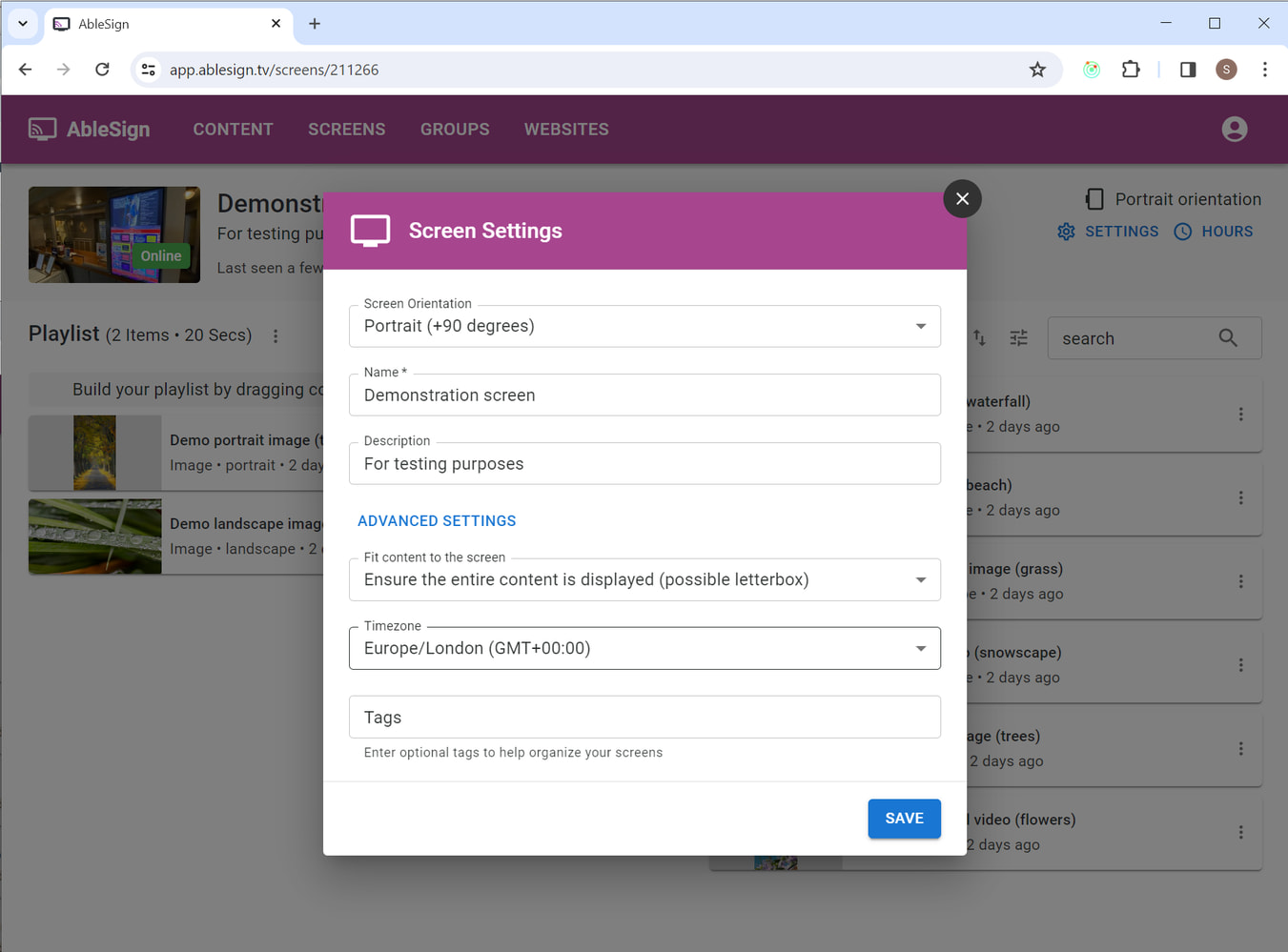
That’s it. Your screen will now blank or turn off at the times you set.