How to reprovision a BrightSign player to use AbleSign
This guide covers how to reprovision an existing BrightSign player using BrightSign control cloud.
Login to control cloud
Login to control.bsn.cloud.
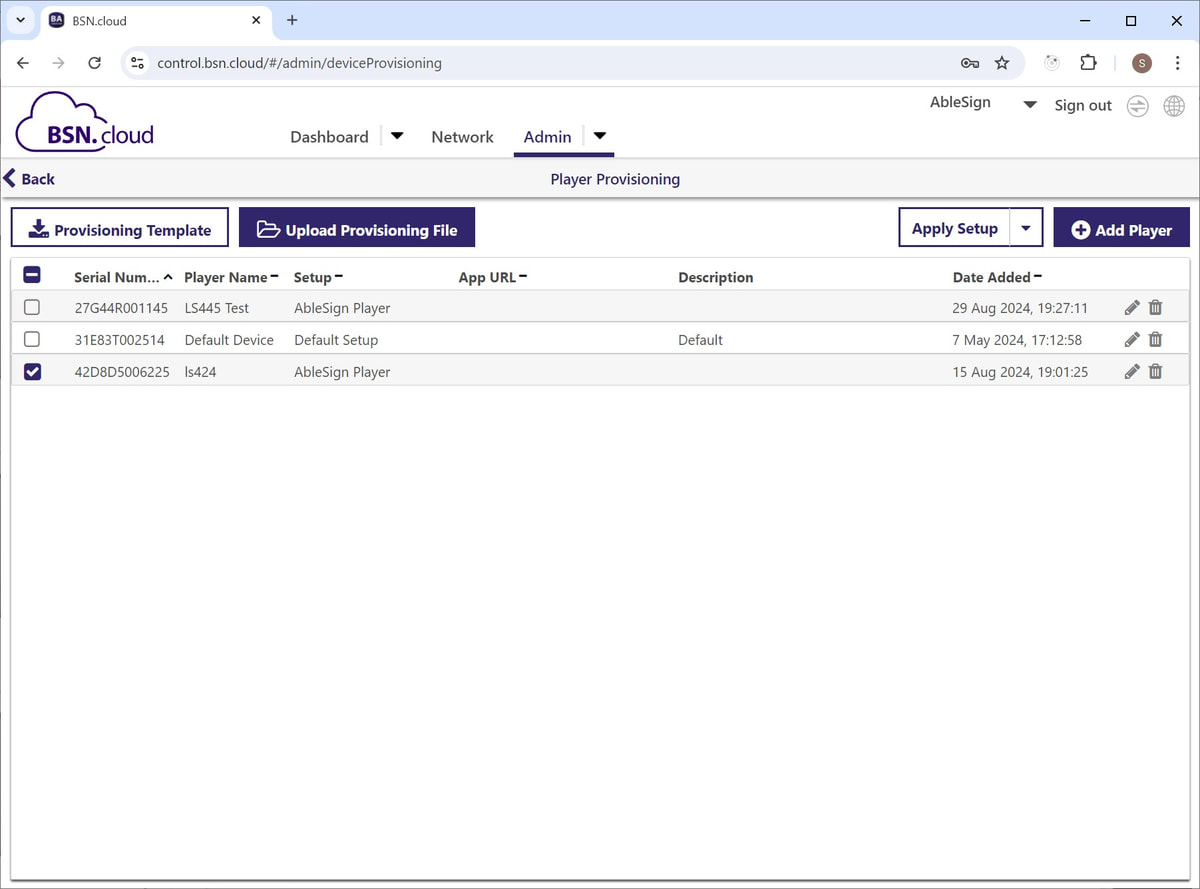
Click on the Admin tab.
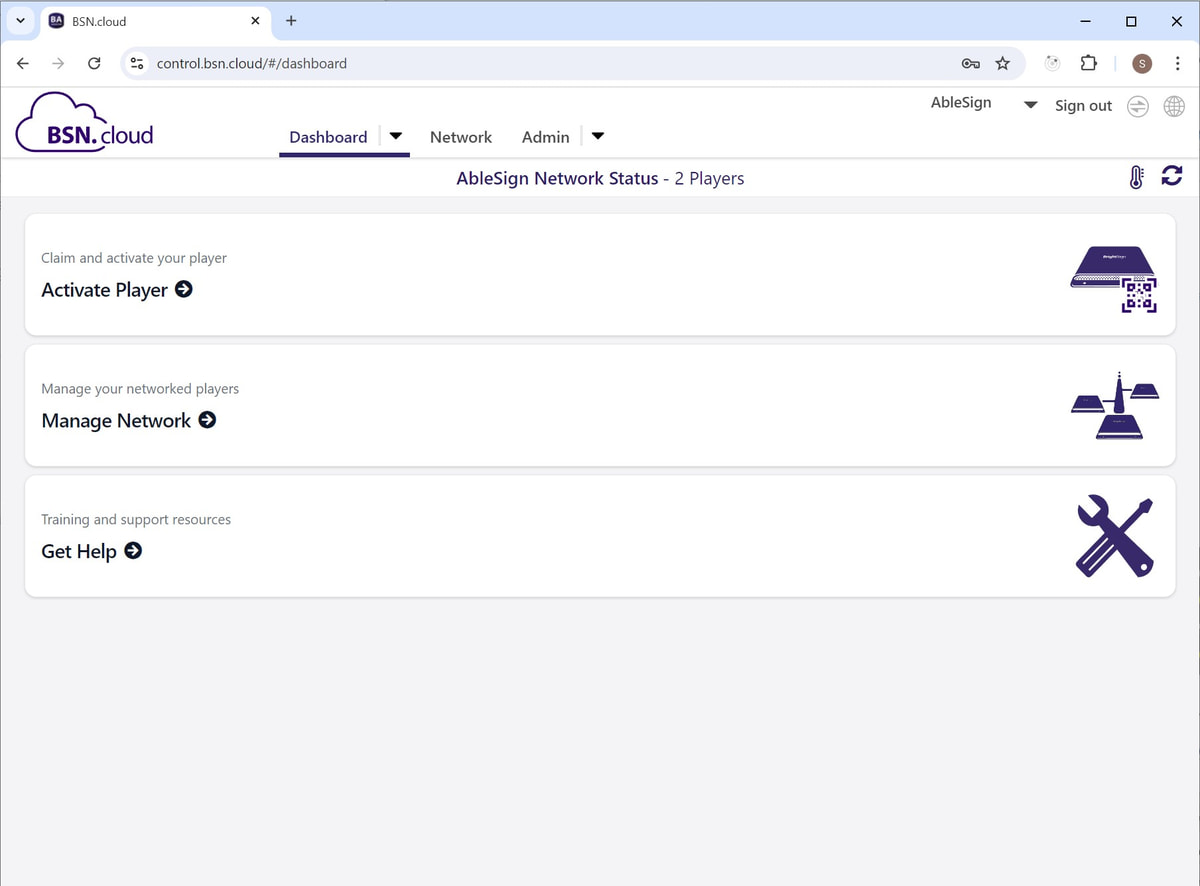
This guide assumes you have created a ‘Setup’ with the publishing mode set to App URL, and pointing to https://dl.ablesign.tv/brightsign/autorun.zip.
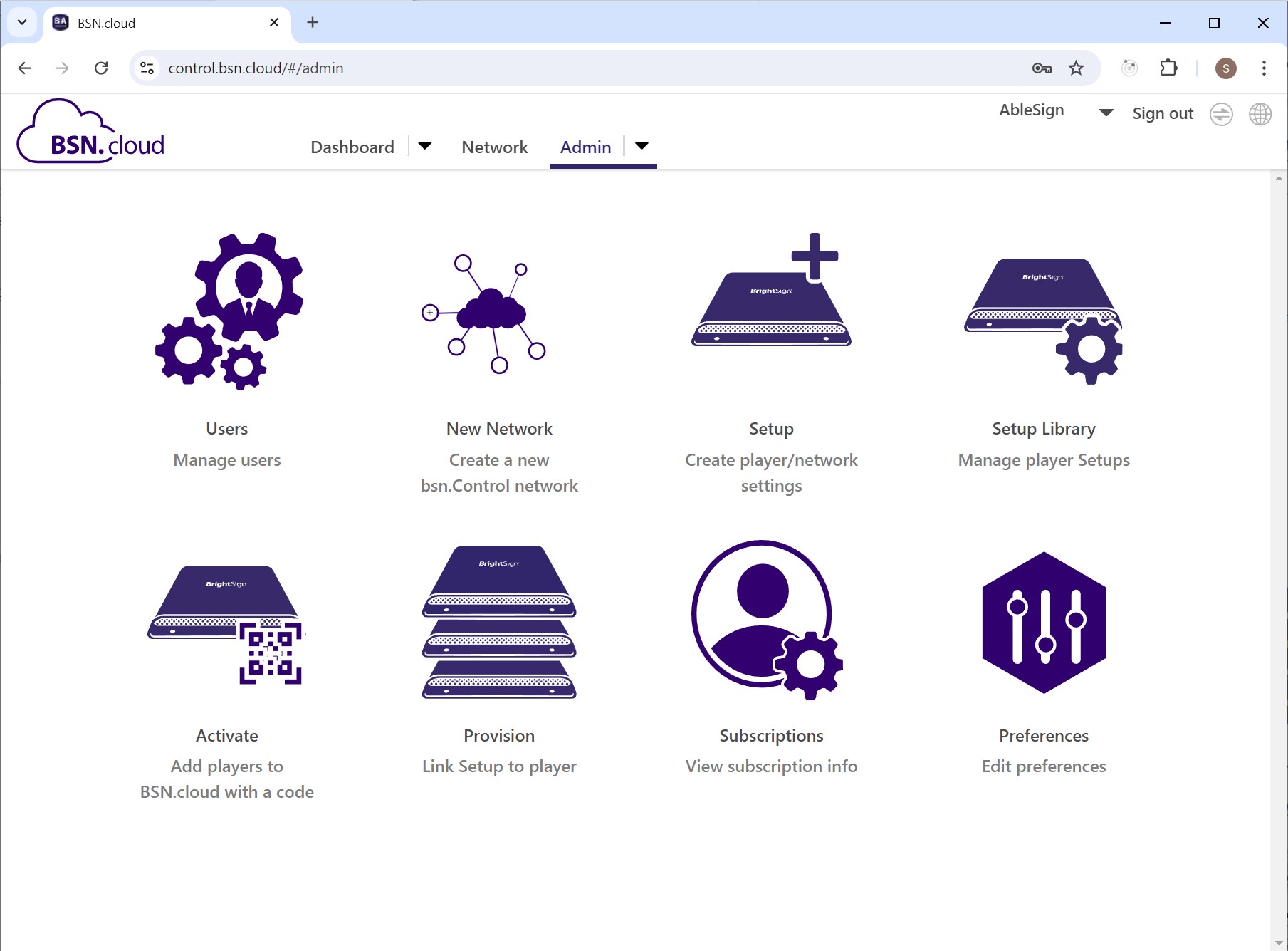
Click on Provision.
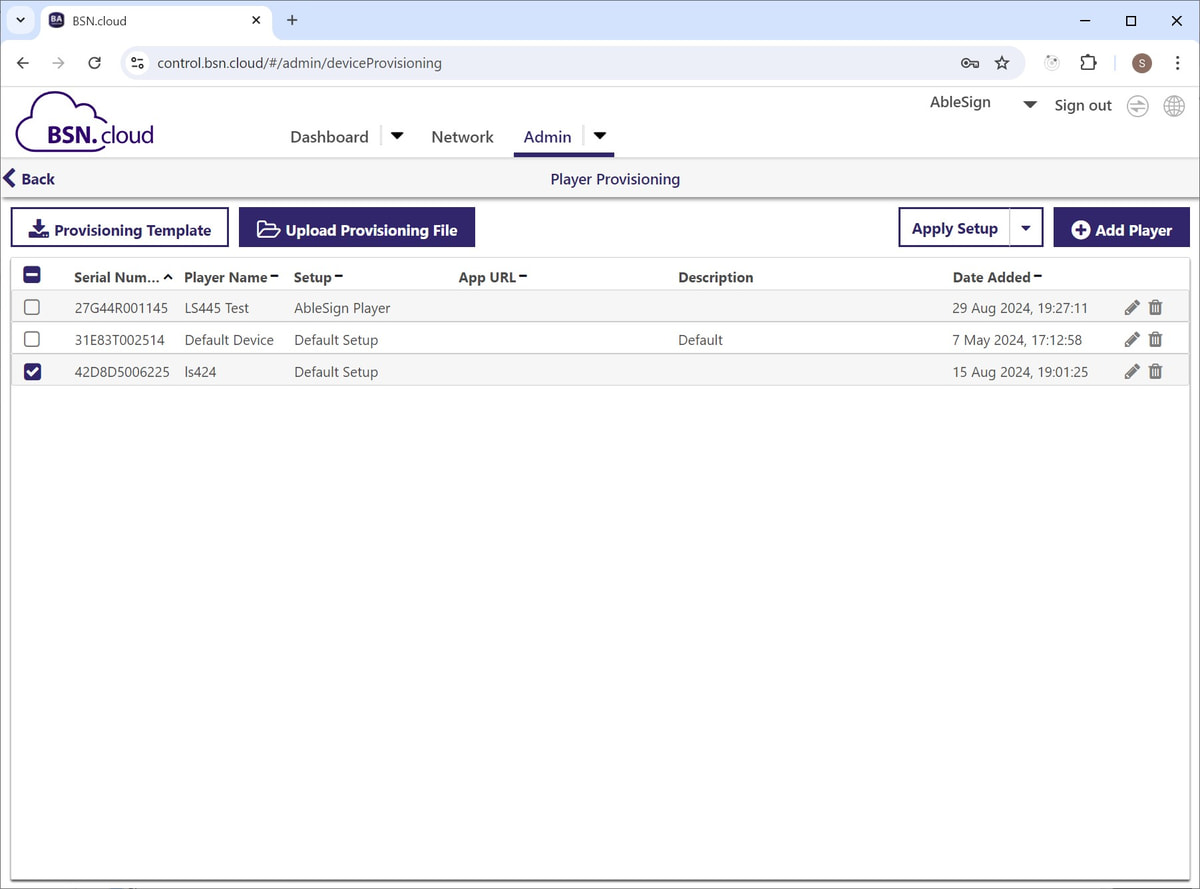
Select your existing BrightSign player from the list.
Now click Apply Setup
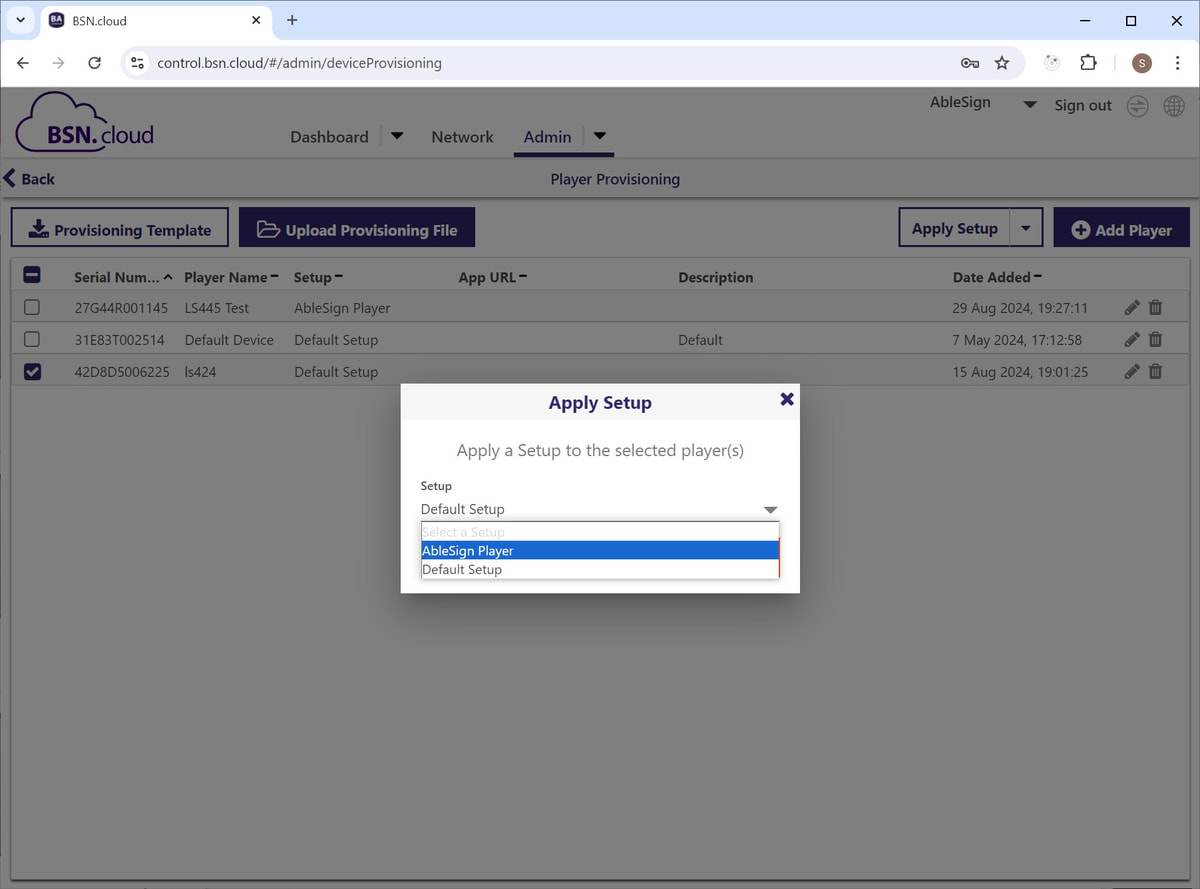
Select the Setup that you have created. In this example our ‘Setup’ is called AbleSign Player.
Click Apply Setup
The Setup will appear correctly for your player in the list, however we must tell the player to reprovision itself.
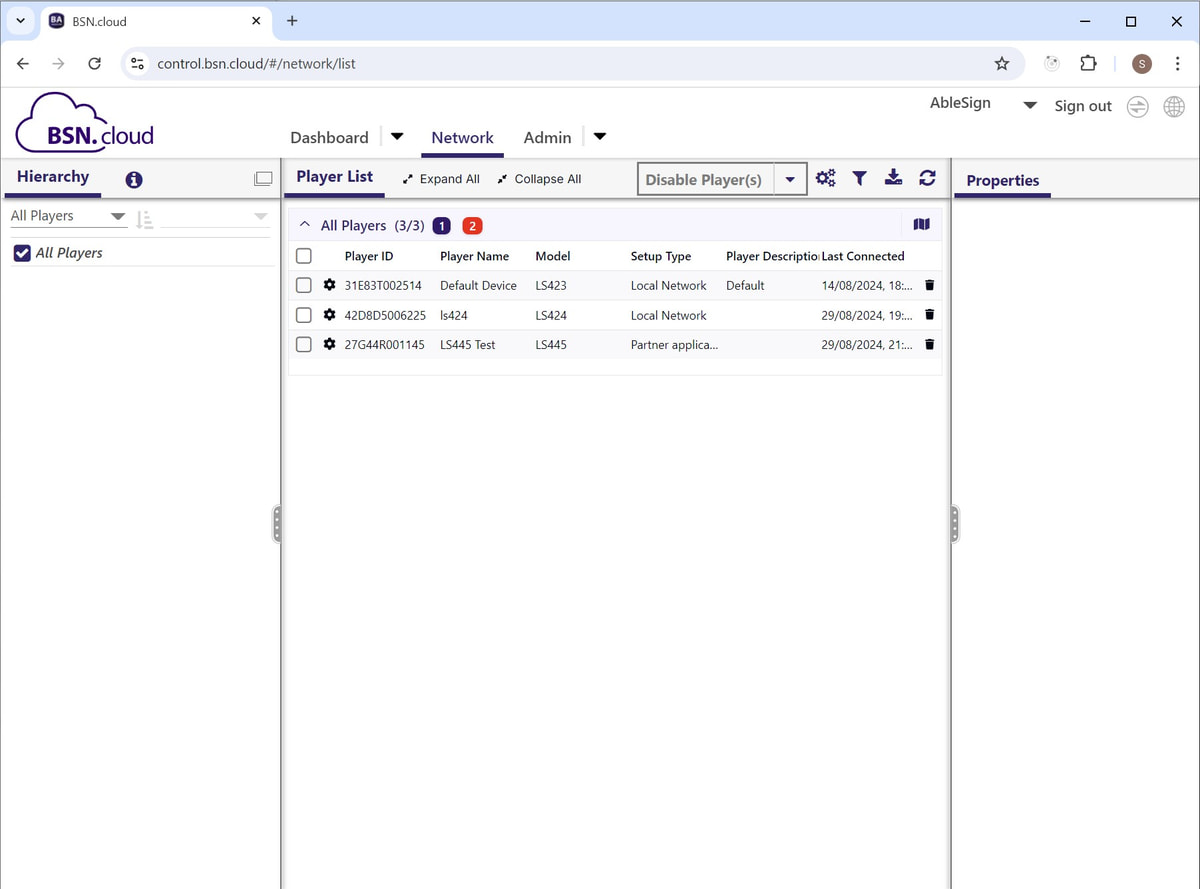
Click the Network tab.
Your BrightSign player must be connected to the Internet for the following steps.
Each of the players listed has a cog symbol to the left of the Player ID. Click on this to connect to your device.
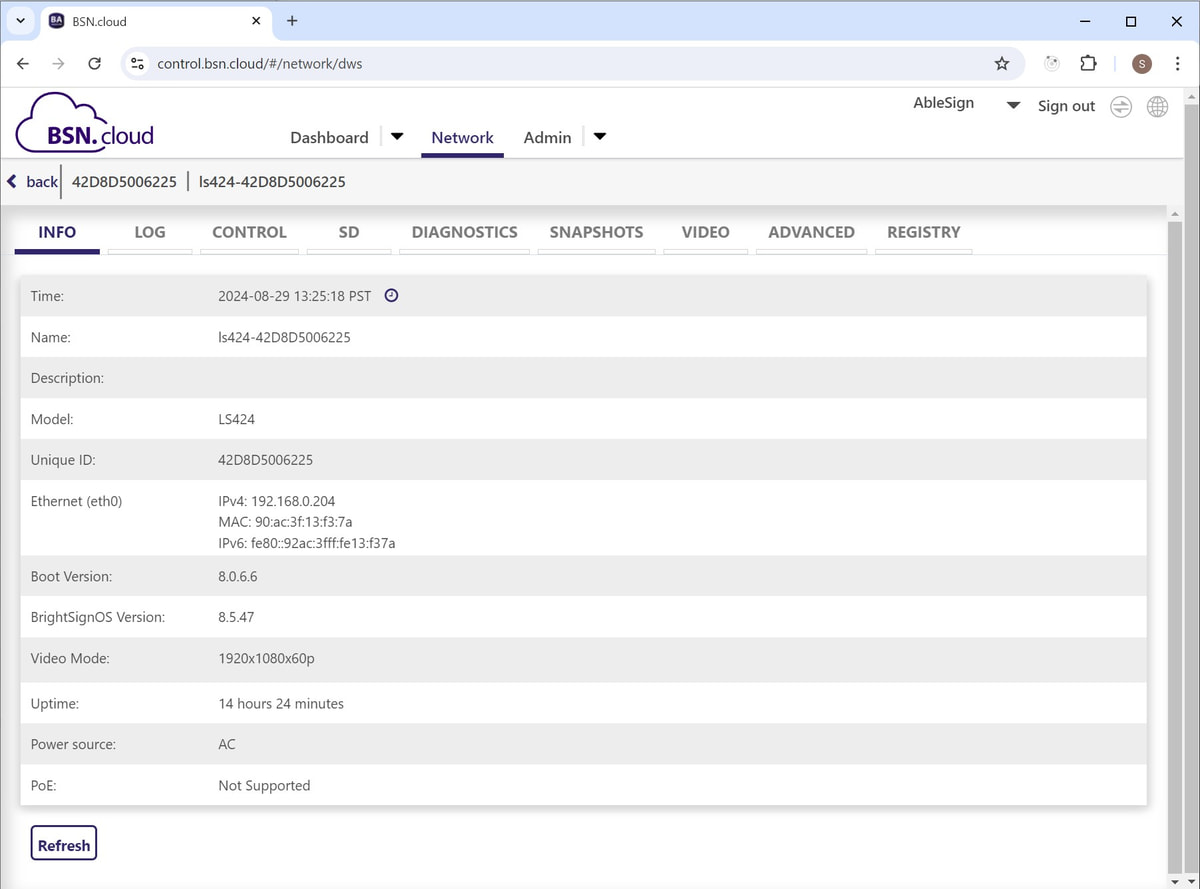
In our case, we are working with an LS424 player.
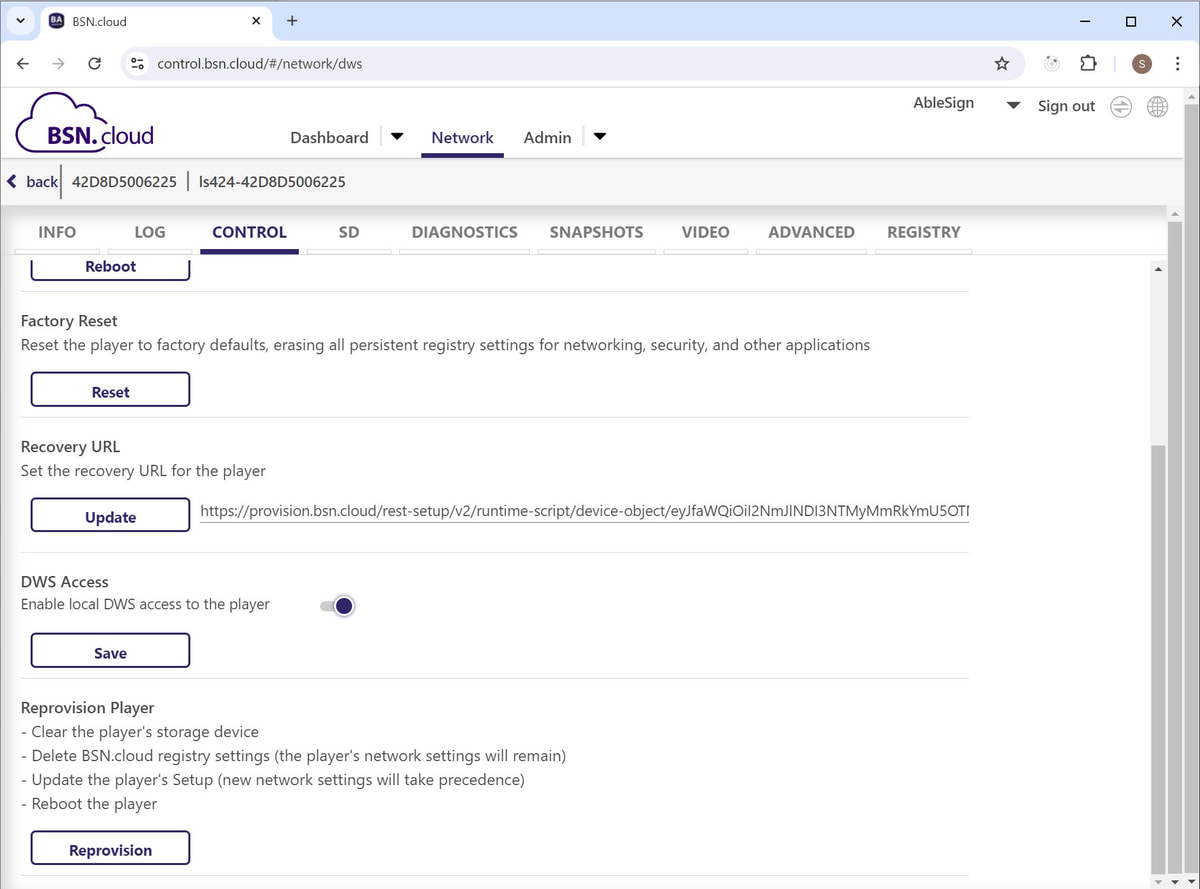
Click on the Control tab.
Click on the Reprovision button at the bottom of the page.
Note, the storage device (usually an SD card) will be cleared so any content on it will be lost.
The player will then download, unpack and run the AbleSign software. The screen may be black and the player may reboot several times.
After a few moments the AbleSign app will display the pair code for a new screen.
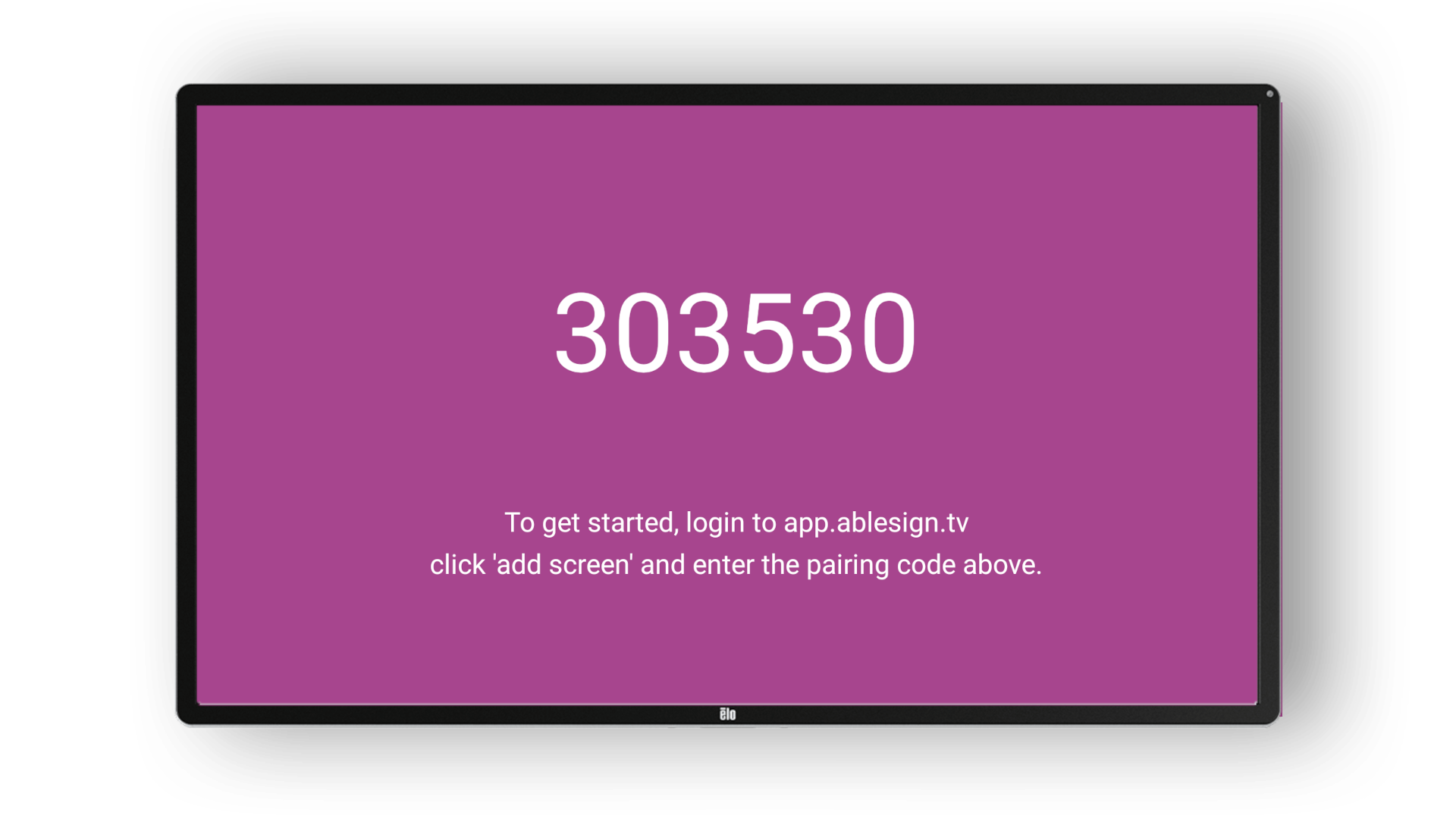
Next, you can pair your screen with your AbleSign account. Please see: