Quick start guide to digital signage on AndroidTV
This guide relates to AndroidTV devices such as Google Chromecast, Onn and Nvidia Shield.
It’s super easy to create a digital sign using an AndroidTV, so let’s get started!
Download the AbleSign App
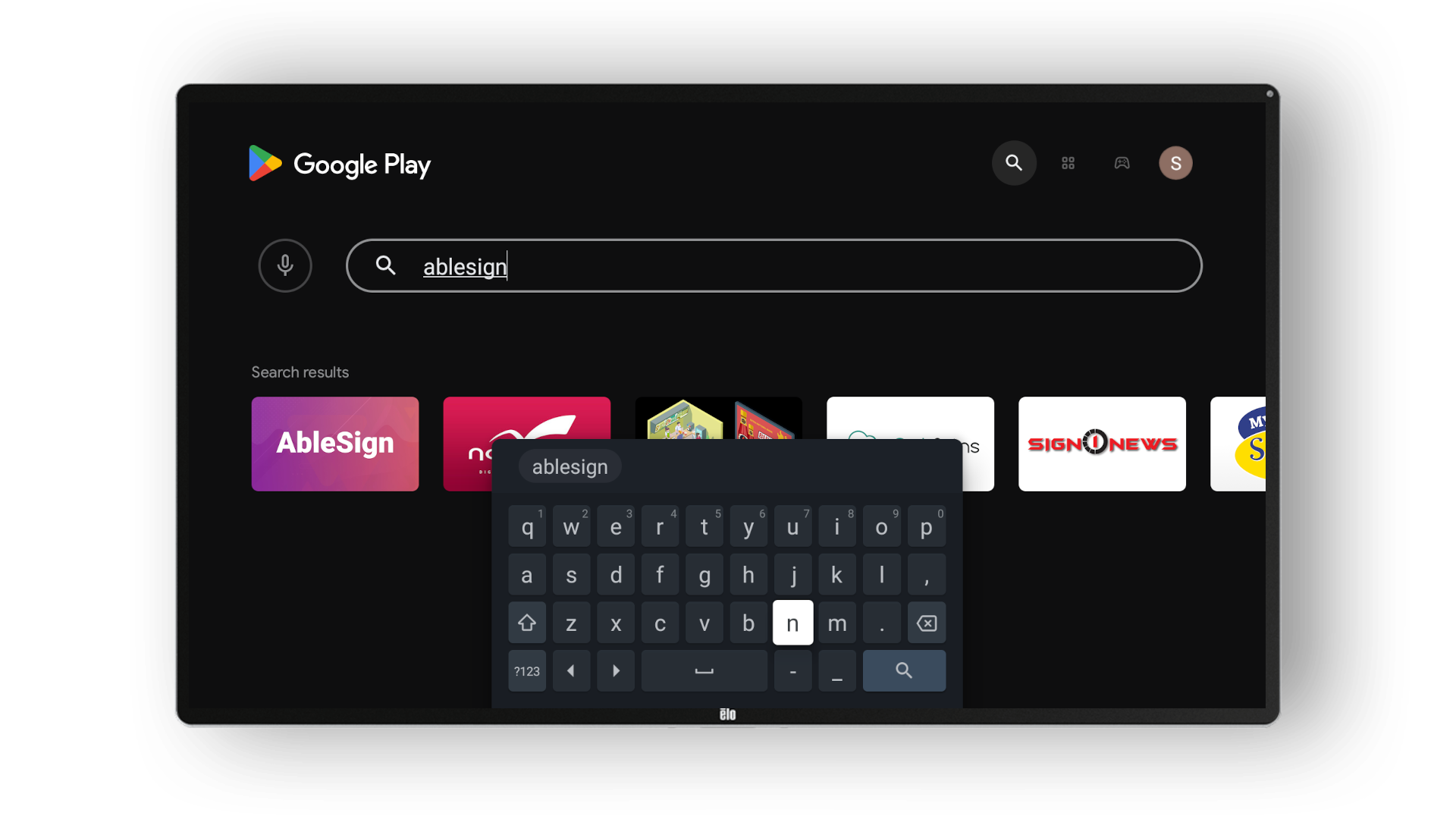
Head to the Google Play app Store on your AndroidTV and search for AbleSign (all one word).
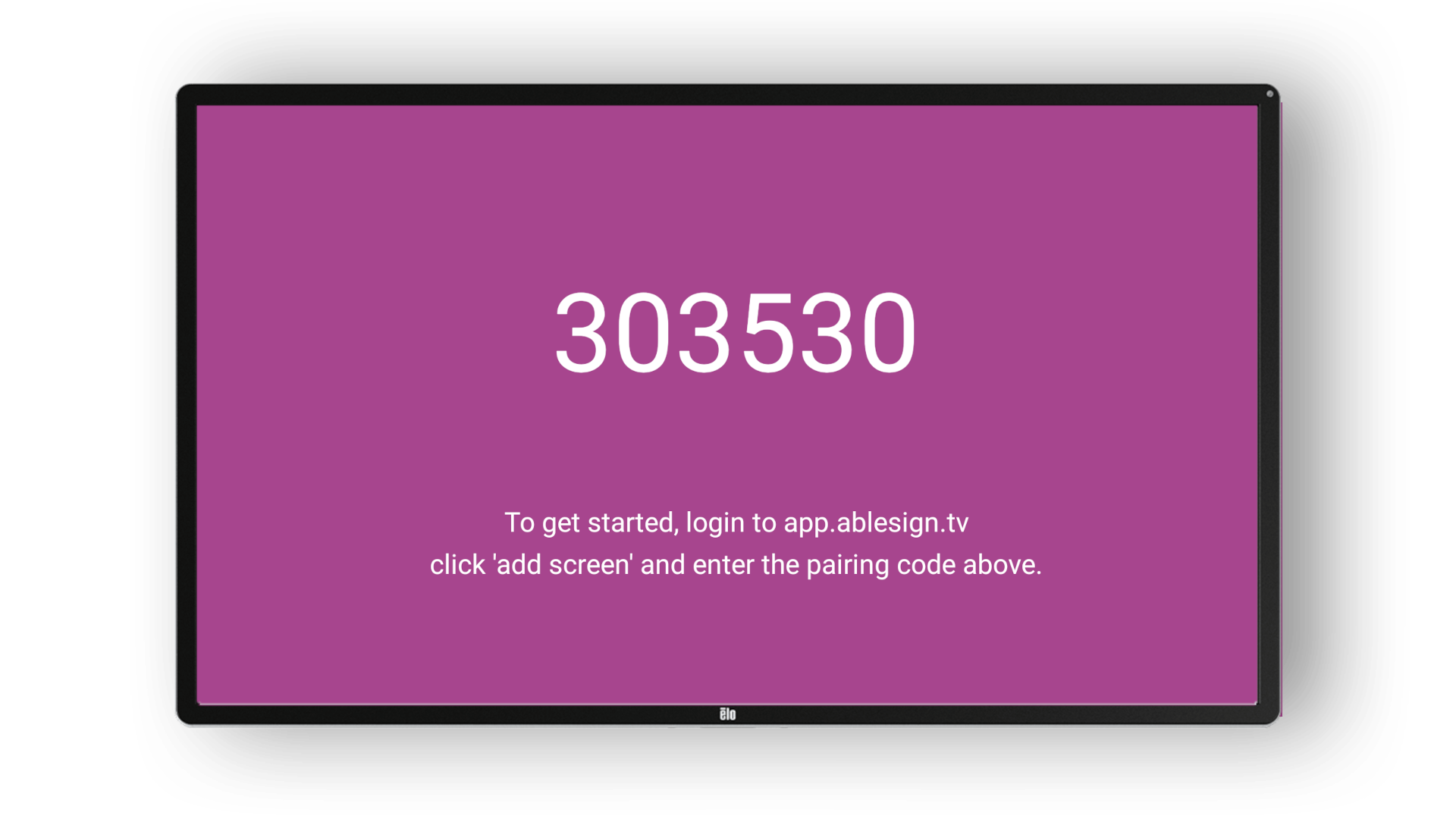
Start the app and it will display a pairing code.
Pair the screen
Visit app.ablesign.tv to create a free AbleSign account if you don’t have one already.
Login and then click on Screens / Add Screen and enter the pairing code displayed on your screen.
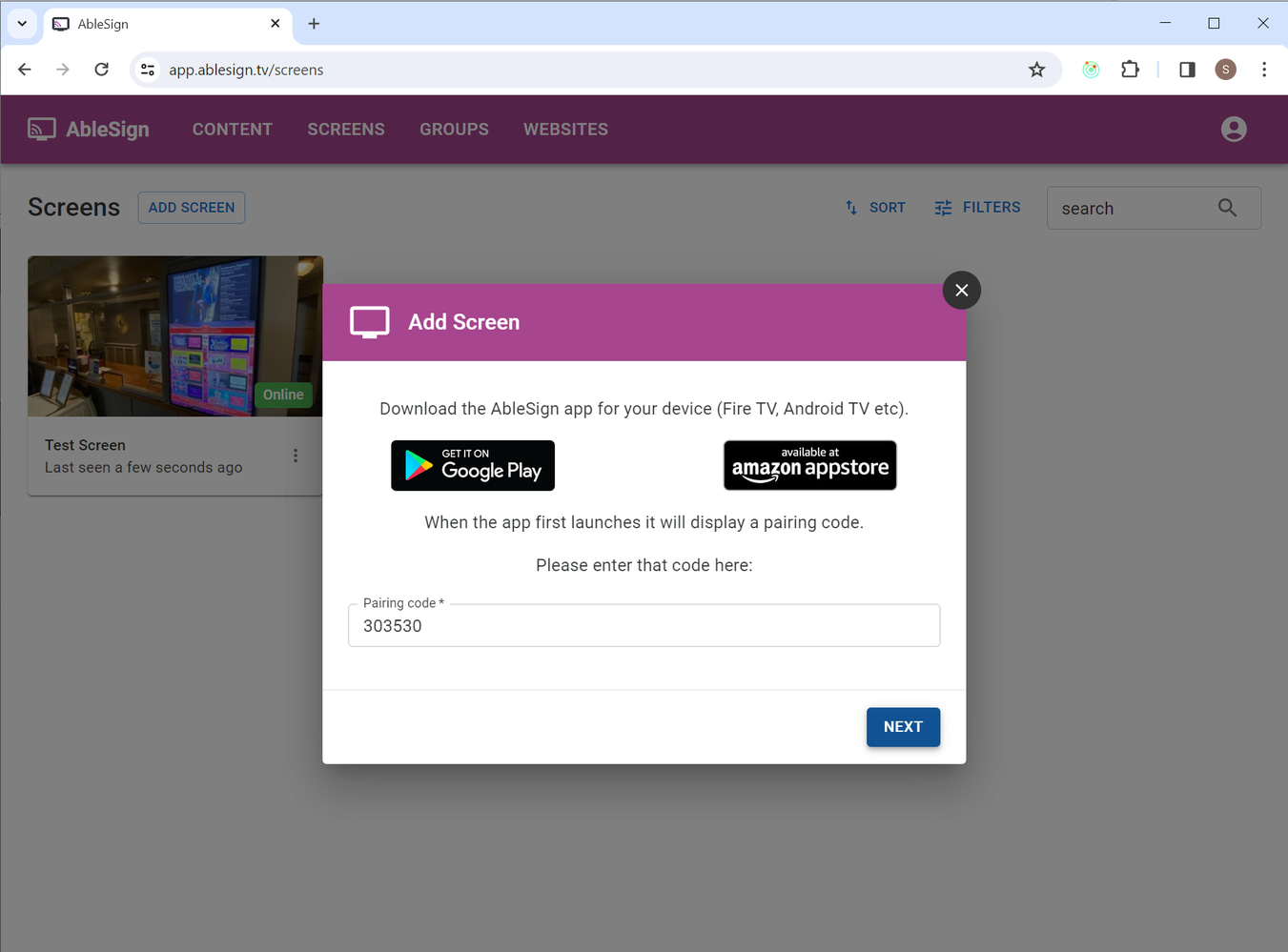
Next, enter a name for the screen.
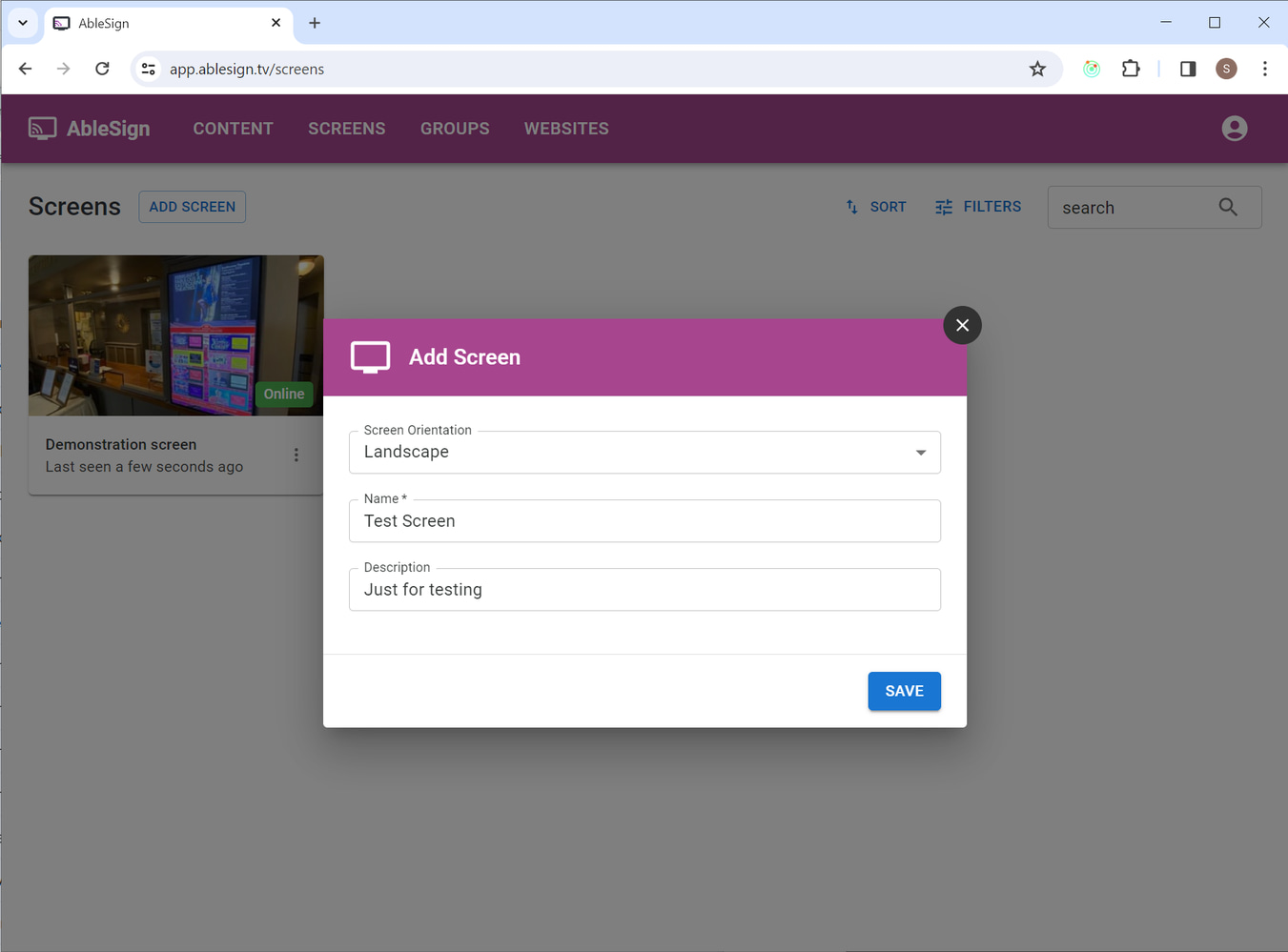
Create your playlist
This is where the fun starts. We are now ready to create a playlist and have the screen display it. Your AbleSign account includes some demo videos and images to help you get started, so let’s use those.
Drag the waterfall video from the right to your playlist on the left.
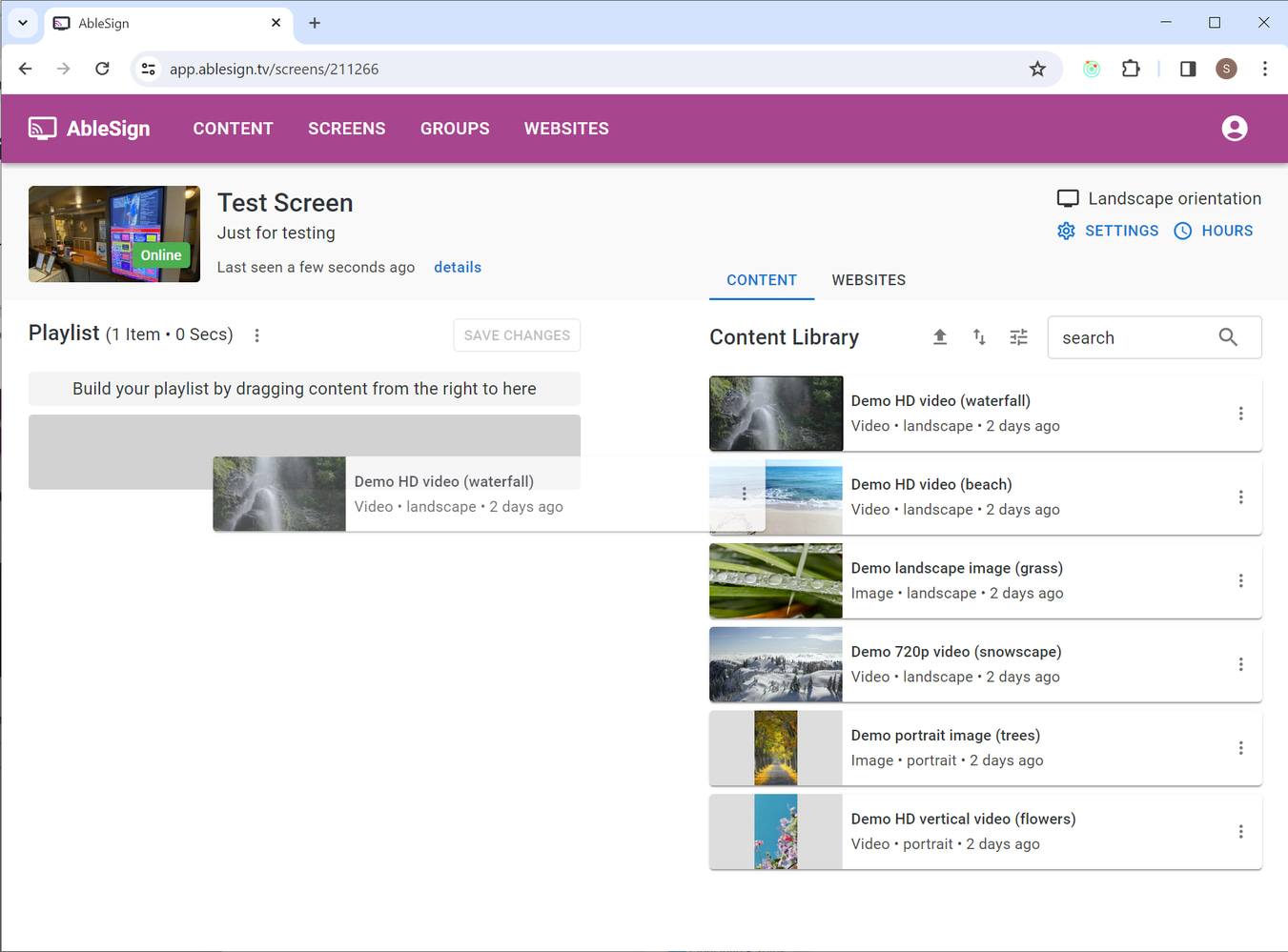
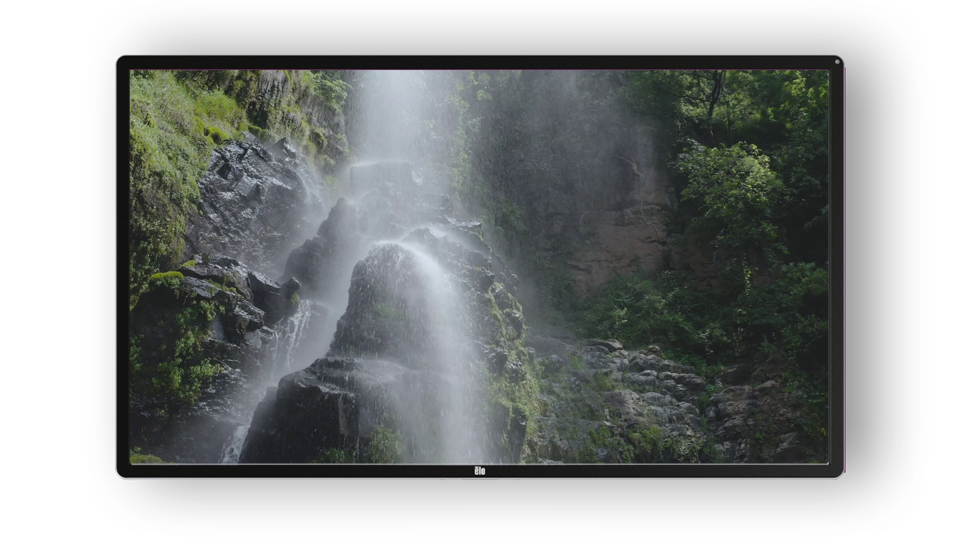
Click on SAVE CHANGES. Your screen will download the video from your playlist and then start displaying it.
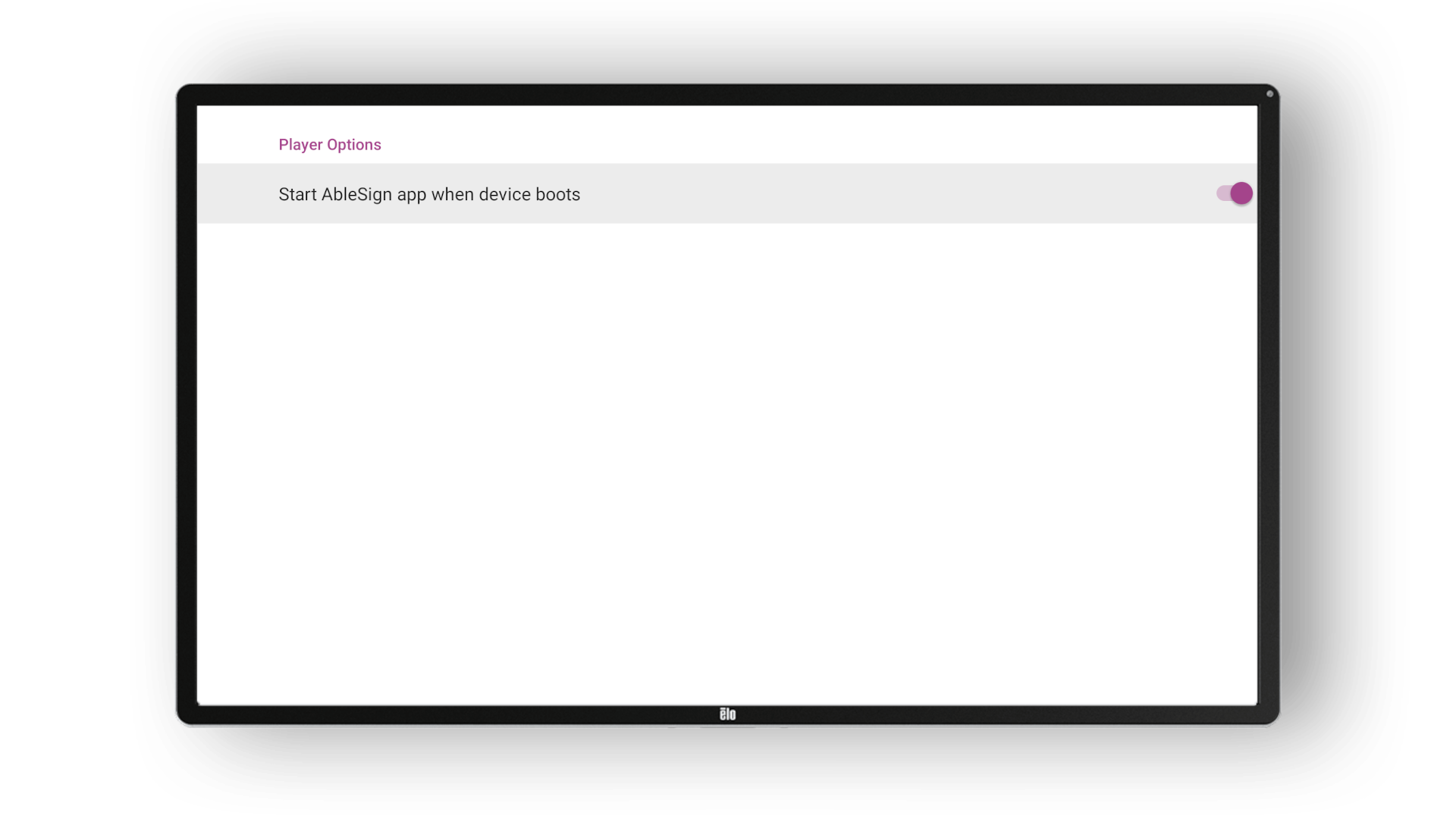
If you wish to have the AbleSign app start automatically when your AndroidTV starts, press the up button on your remote and select the option.