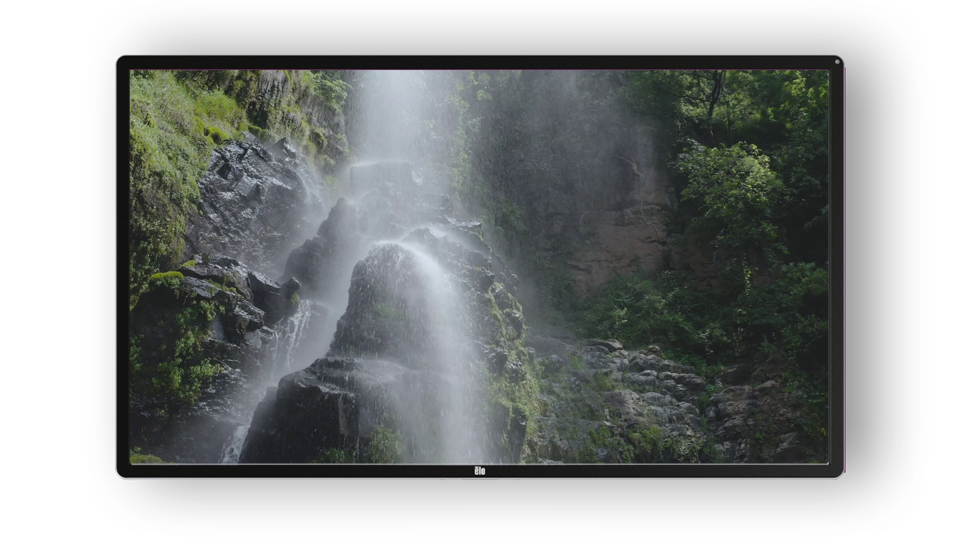
Quick start guide to digital signage on LG webOS
LG offer reliable, commercial grade displays that are designed for 24/7 digital signage use.
The process for installing AbleSign on an LG display is very straightforward and takes just a few moments. This guide is based on an LG 43UH5N-EP but any modern LG webOS commercial display is supported.
Install AbleSign
Before proceeding please ensure your display is running webOS Signage 6.0 or later and is connected to the internet.
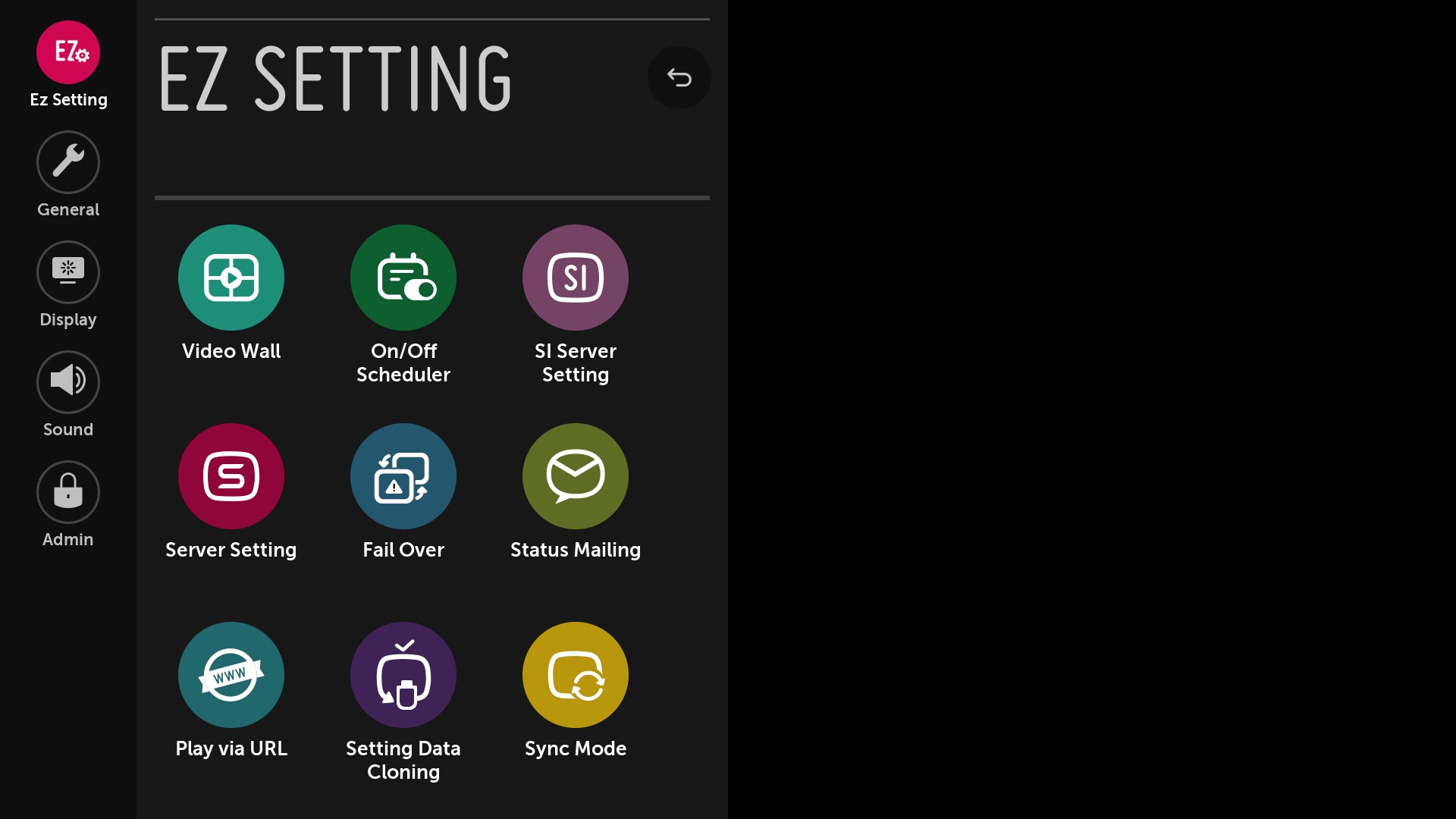
AbleSign is installed by entering a web address in the display’s settings. Using the remote control, open Settings and select Ez Setting, then SI Server Setting.
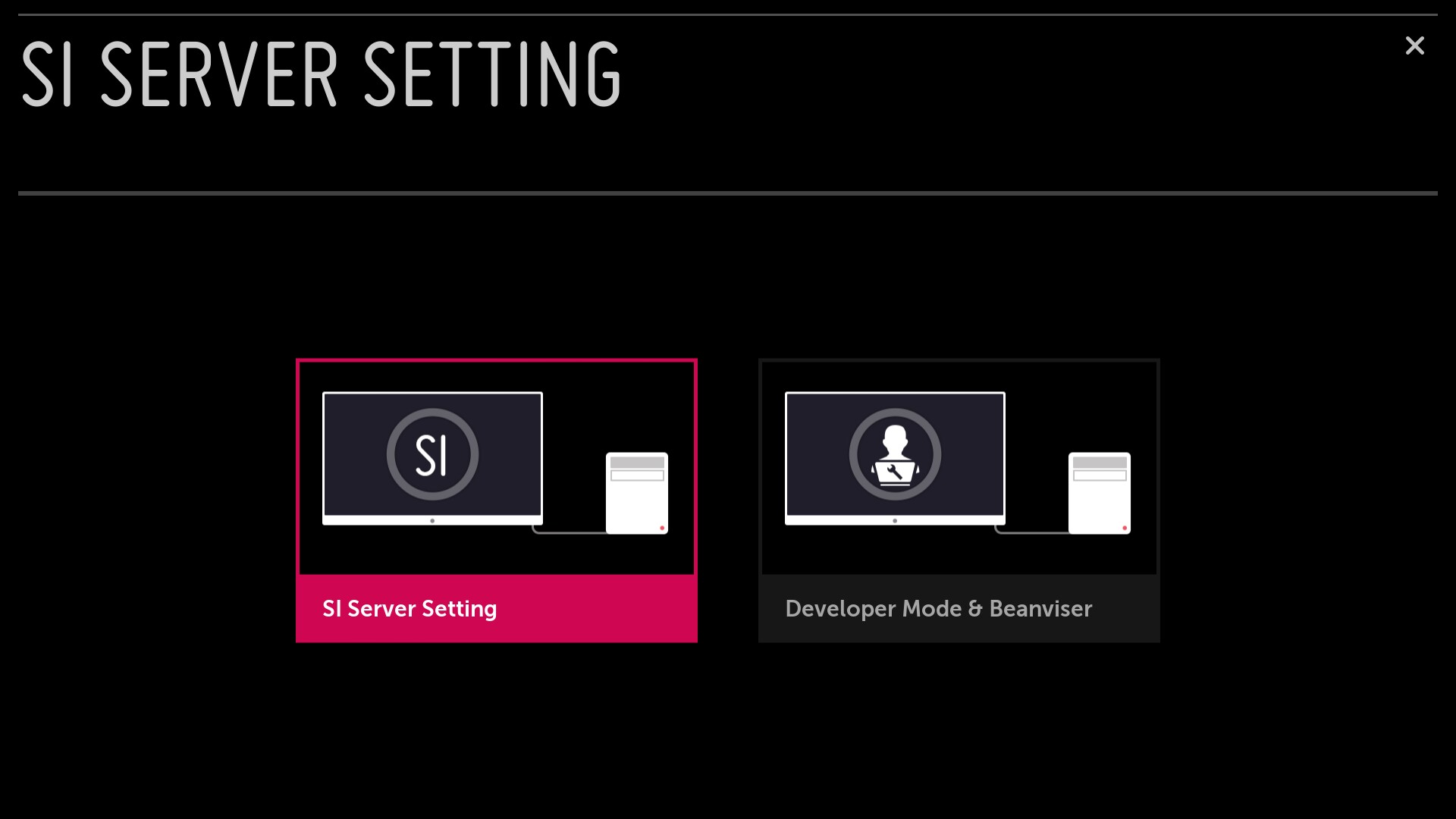
On the next screen select SI Server Setting again.
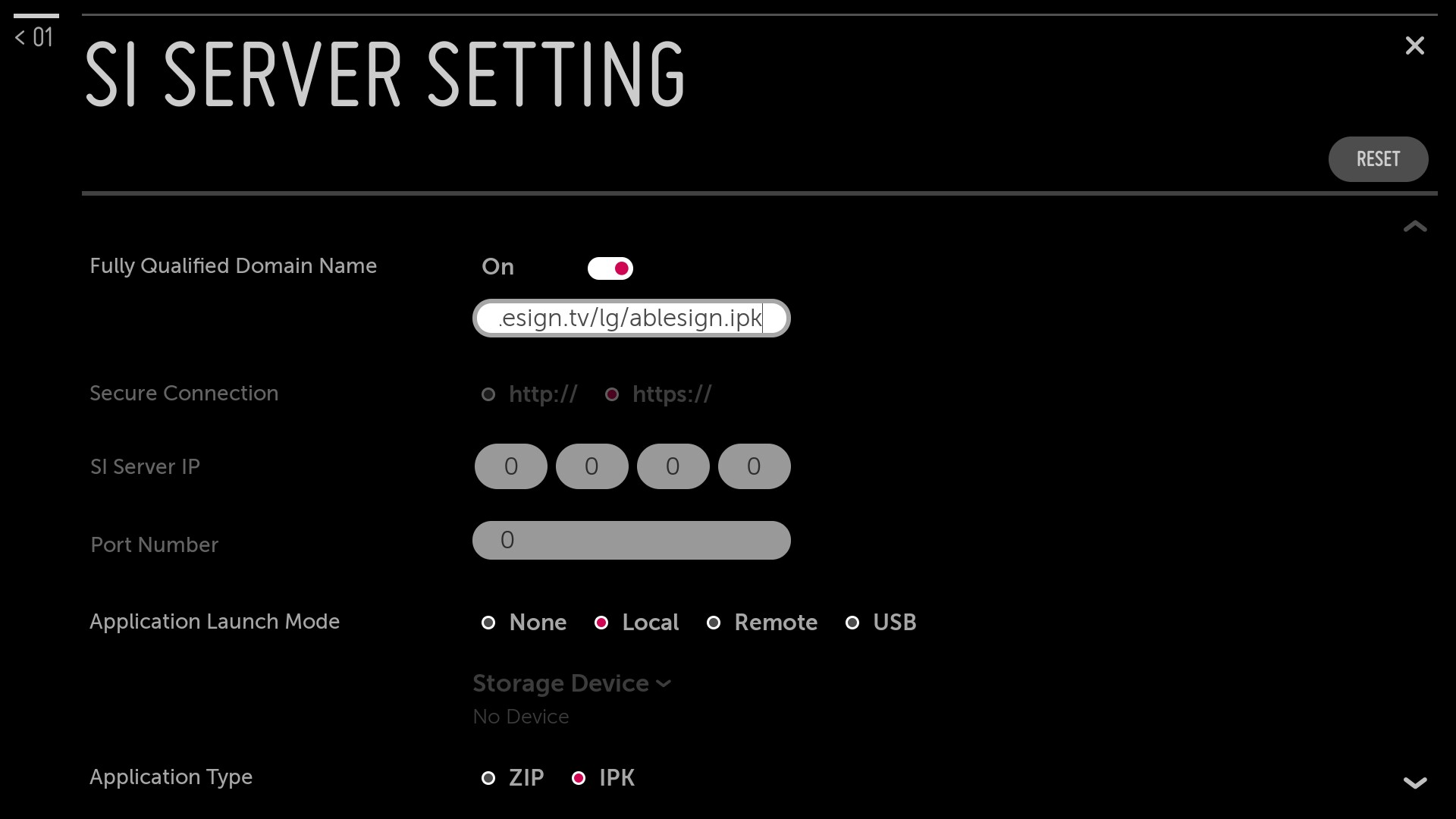
Set Fully Qualified Domain Name to On and enter this address in the box below it: https://dl.ablesign.tv/lg/ablesign.ipk
Then set Application Launch Mode to Local and Application Type to IPK.
Scroll down to Local Application Upgrade and select REMOTE. The display downloads AbleSign.
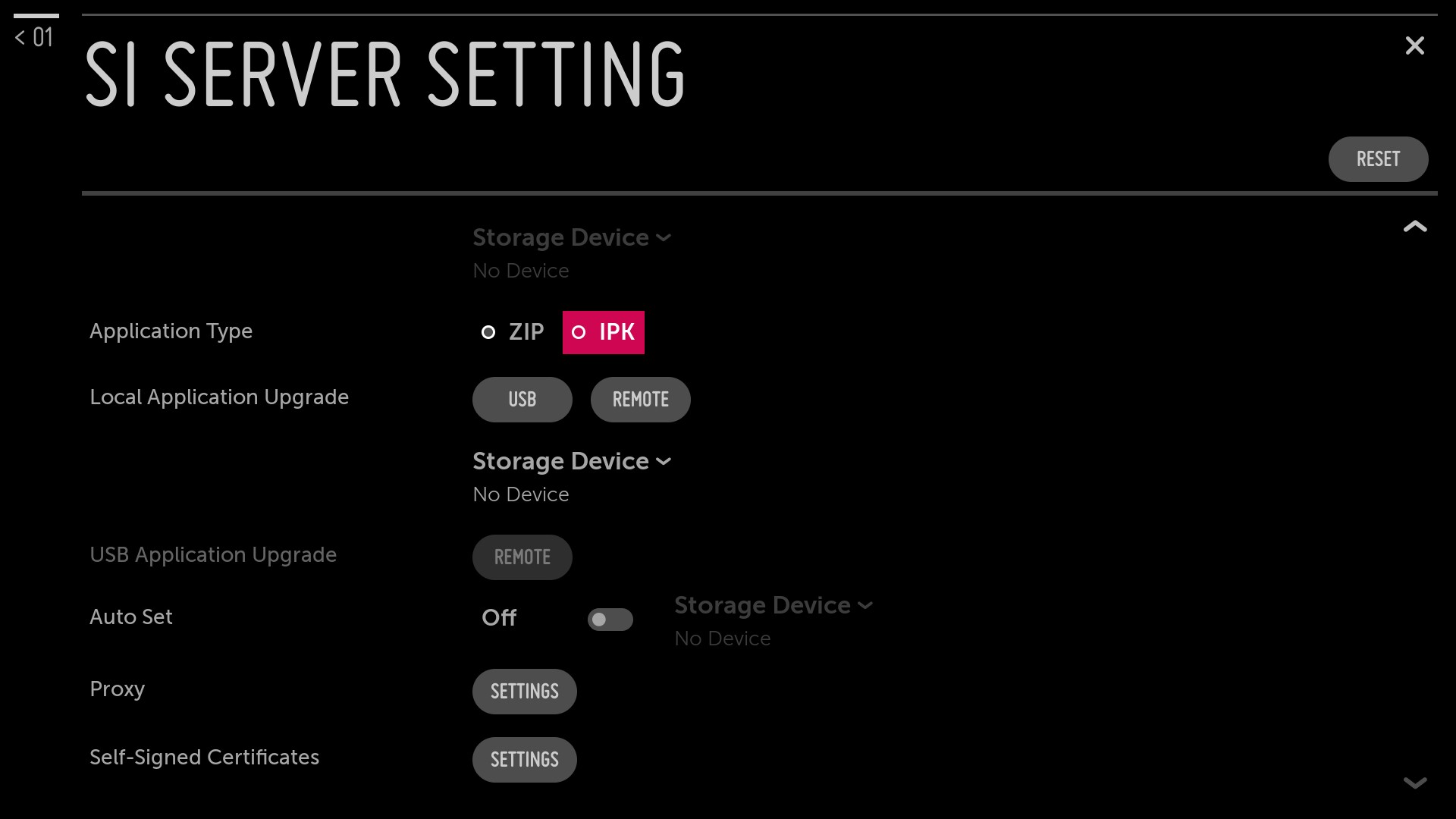
When the download has finished, turn the display off and on again.
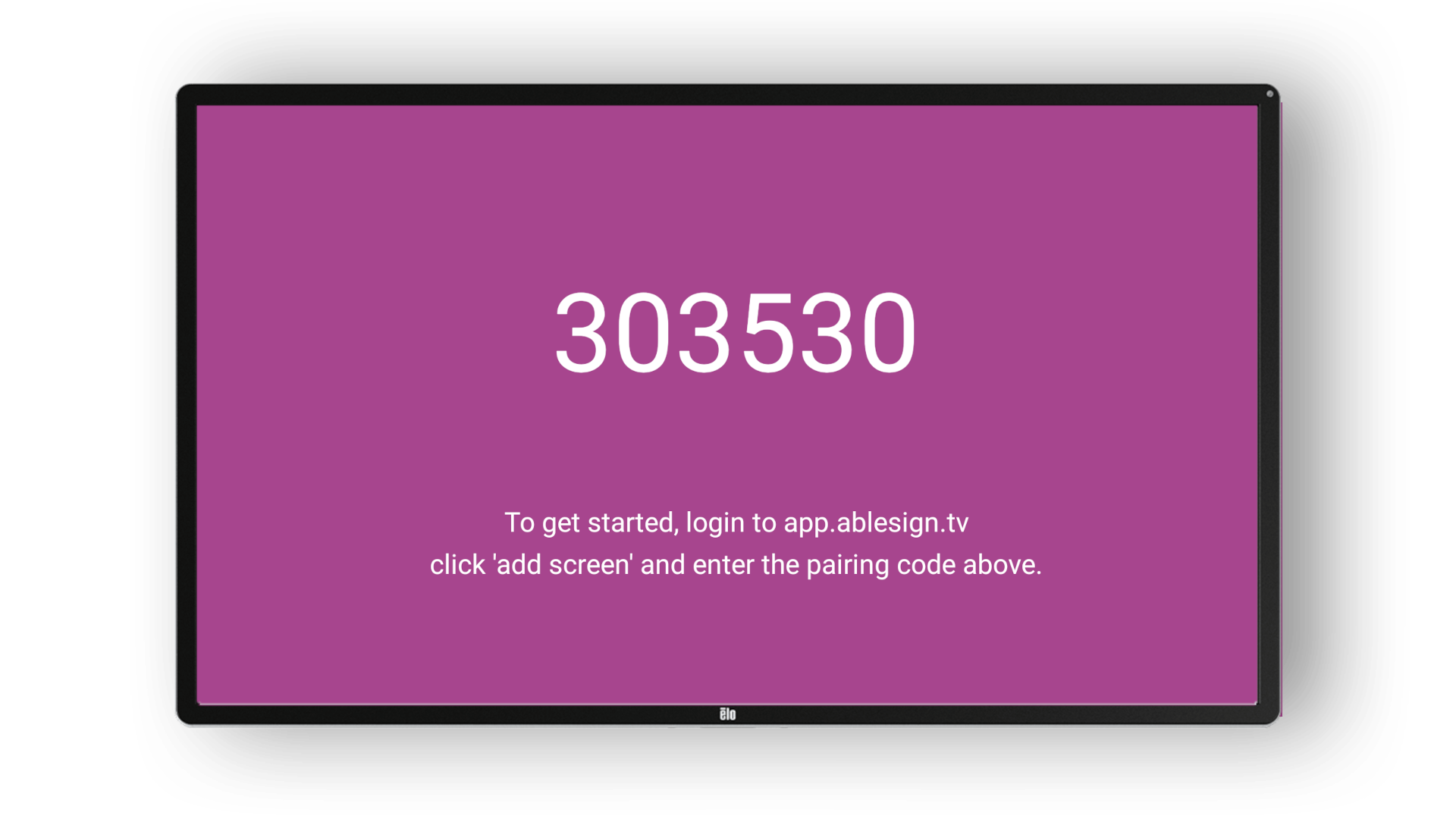
After a short while the AbleSign app will start and display a pairing code.
Login to AbleSign
At this point we can add the screen to our AbleSign account. Create a free account if you don’t have one already.
Login to app.ablesign.tv and click Add Screen.
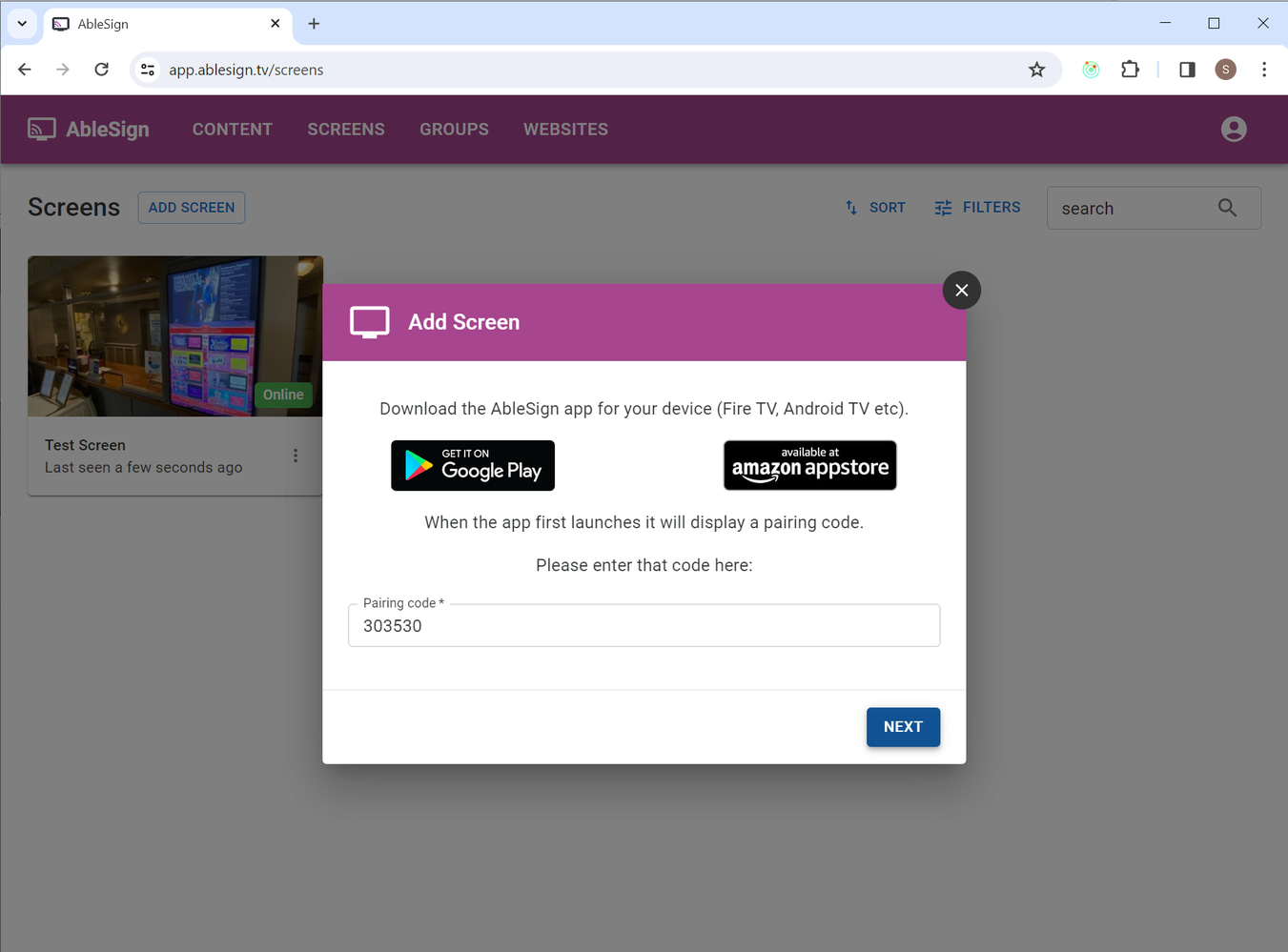
Enter the pairing code that is being displayed on your screen.
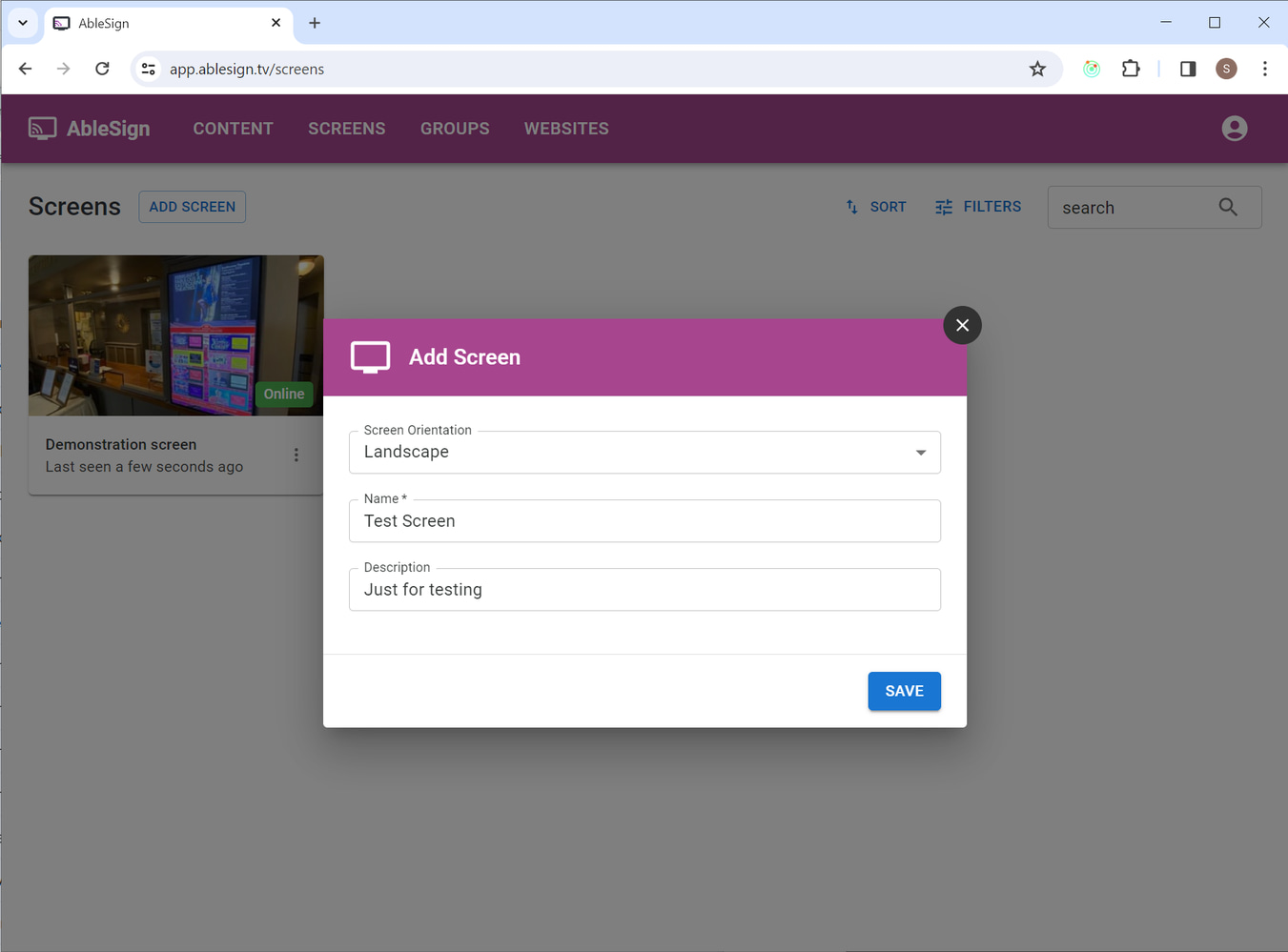
Click Next, and then enter a name for the screen.
Display your content
Your LG display is now ready to play your content. Let’s display a video on the screen using the demo content provided.
Drag the waterfall video from the right to your playlist on the left.
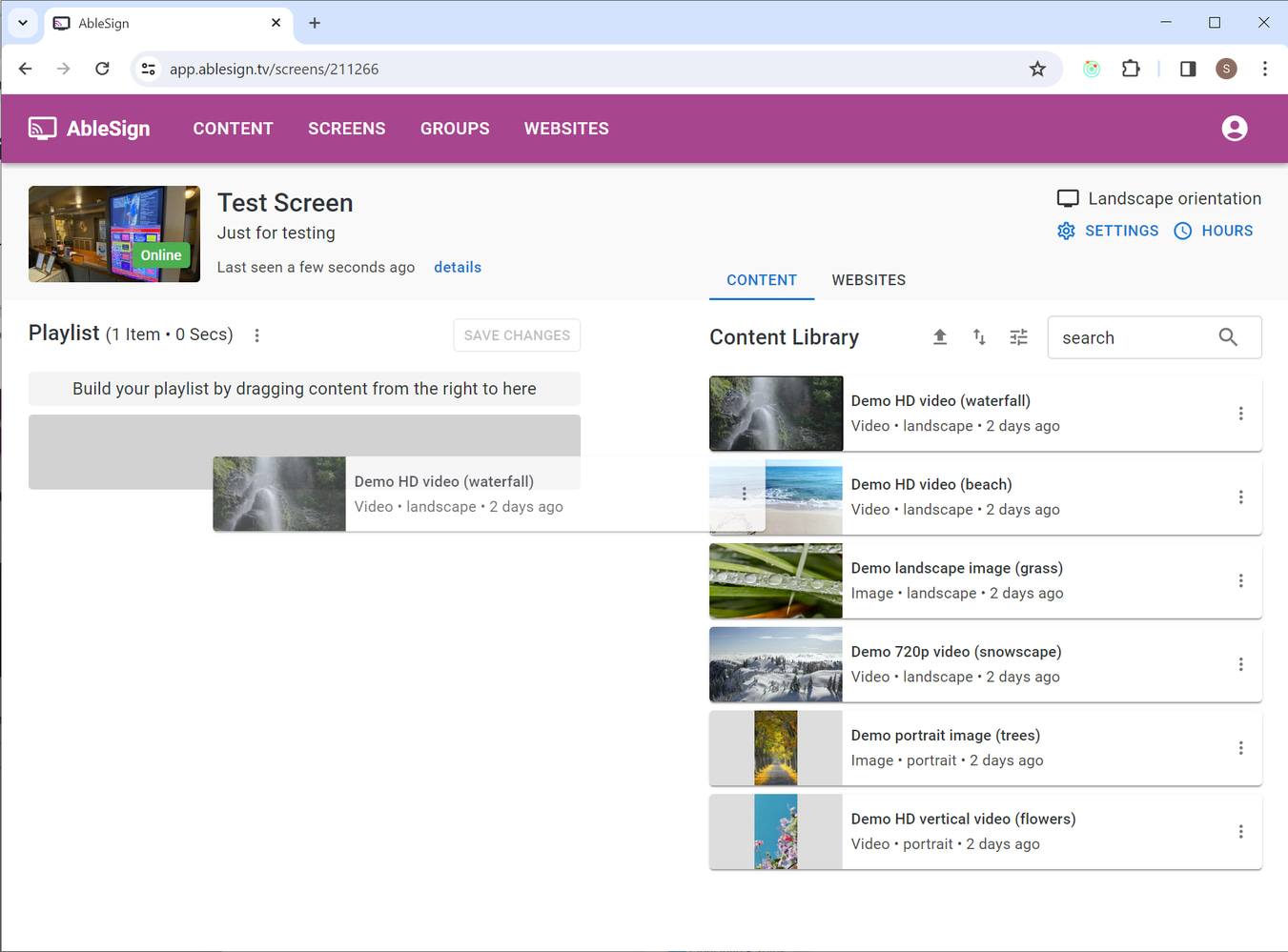
Click on SAVE CHANGES. Your LG display now downloads the playlist and media files, and then starts playing it.