Quick start guide to digital signage on Samsung Smart Signage displays
Samsung’s Smart Signage displays are commercial grade screens designed for 24/7 digital signage use, with the Tizen operating system built in so no extra player hardware is needed.
The process for installing the AbleSign app on a Samsung display is very straightforward and takes just a few moments.
Install AbleSign
Before proceeding please ensure your display is a Samsung Smart Signage model running Tizen 4.0 or later (models from 2018 onwards) and is connected to the internet.
Samsung’s menus differ between current and older displays, so there are two sets of steps below.
Current and new models
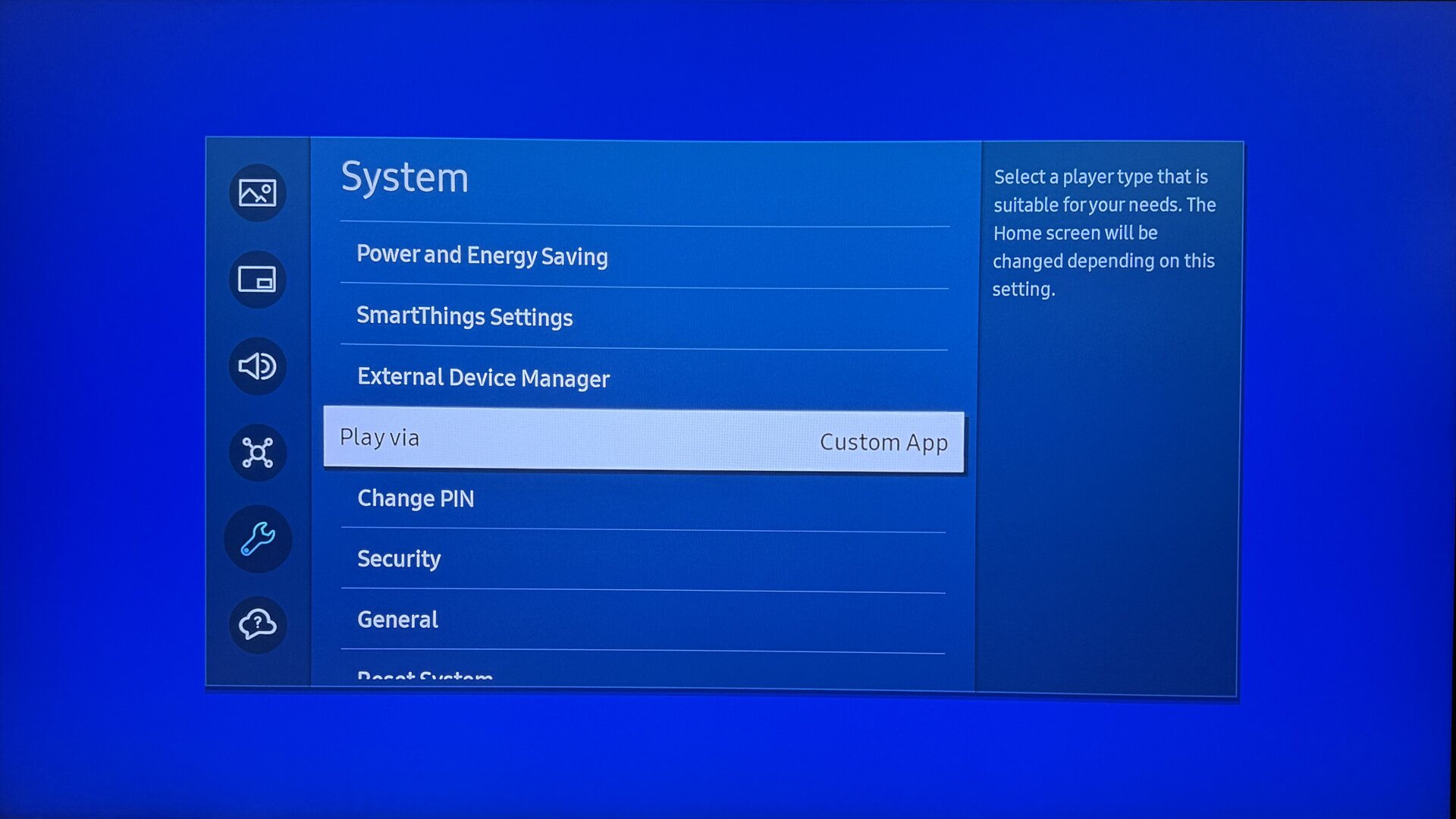
Press the Settings button on the remote control, select System, then Play via, and choose Custom App.
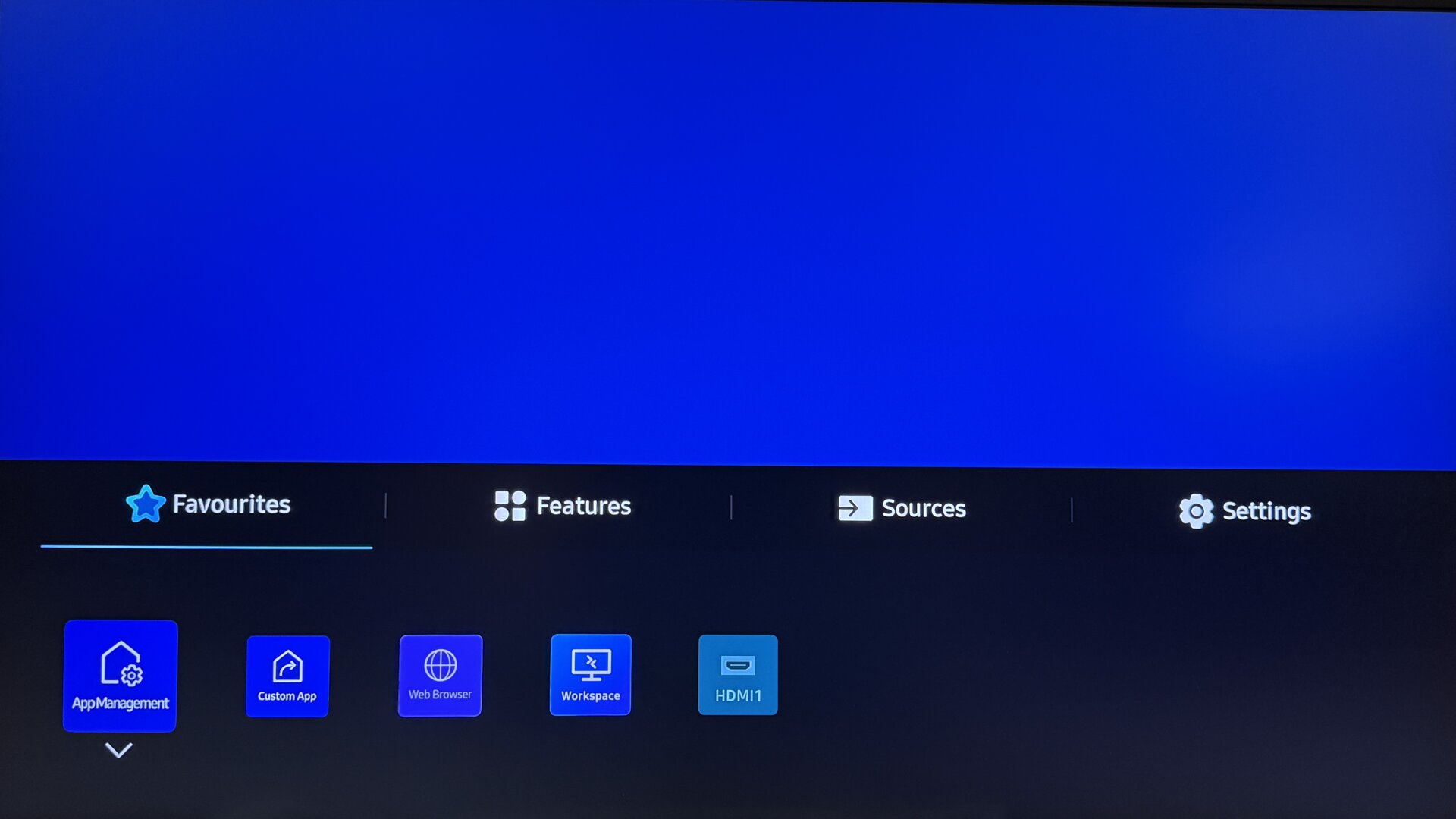
Press HOME and select the App Management tile.
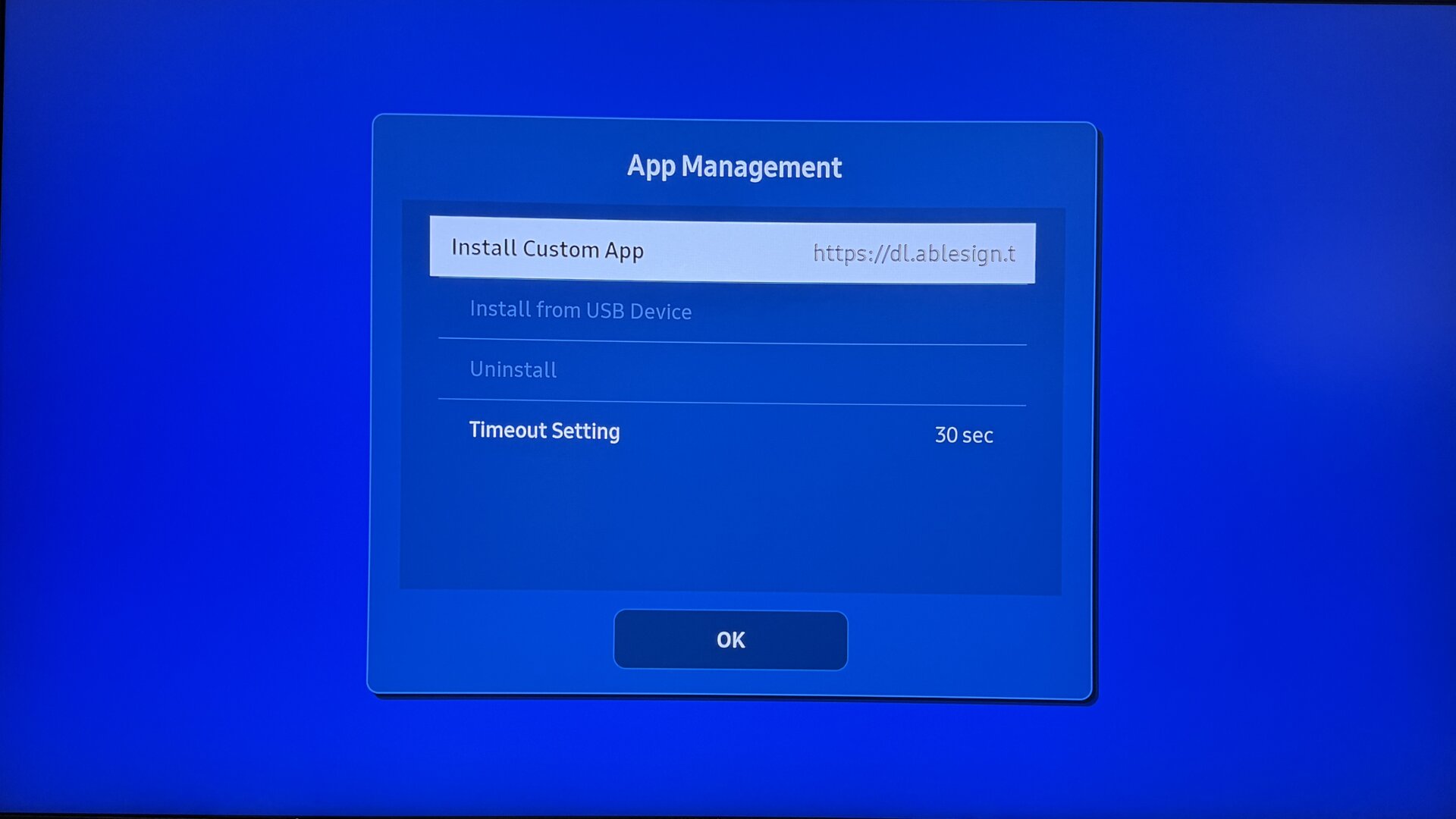
Select Install Custom App, enter this address, all in lower case, and confirm it: https://dl.ablesign.tv/samsung
Older models
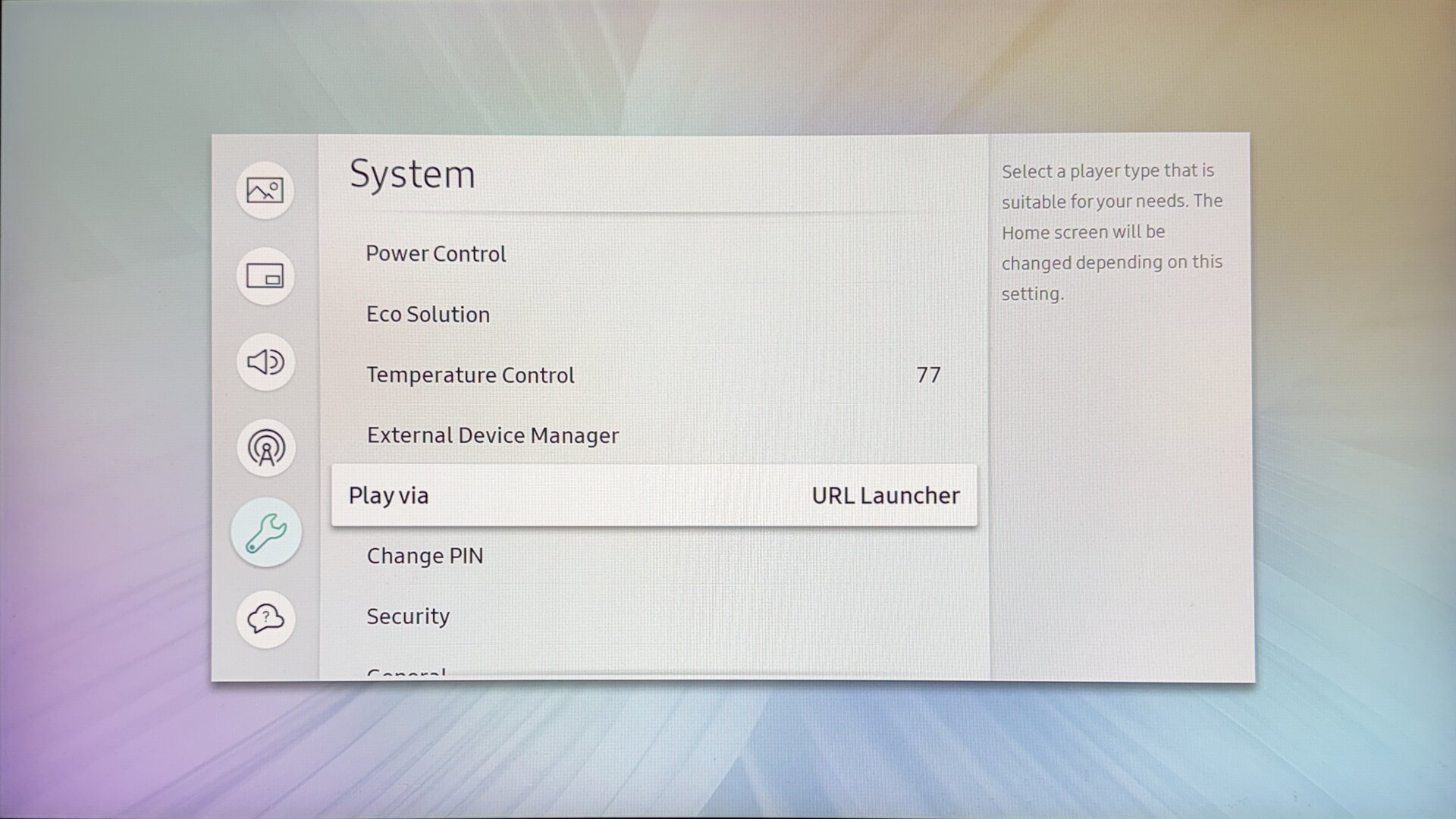
Press the Settings button on the remote control (labelled MENU on older remotes), select System, then Play via, and choose URL Launcher.
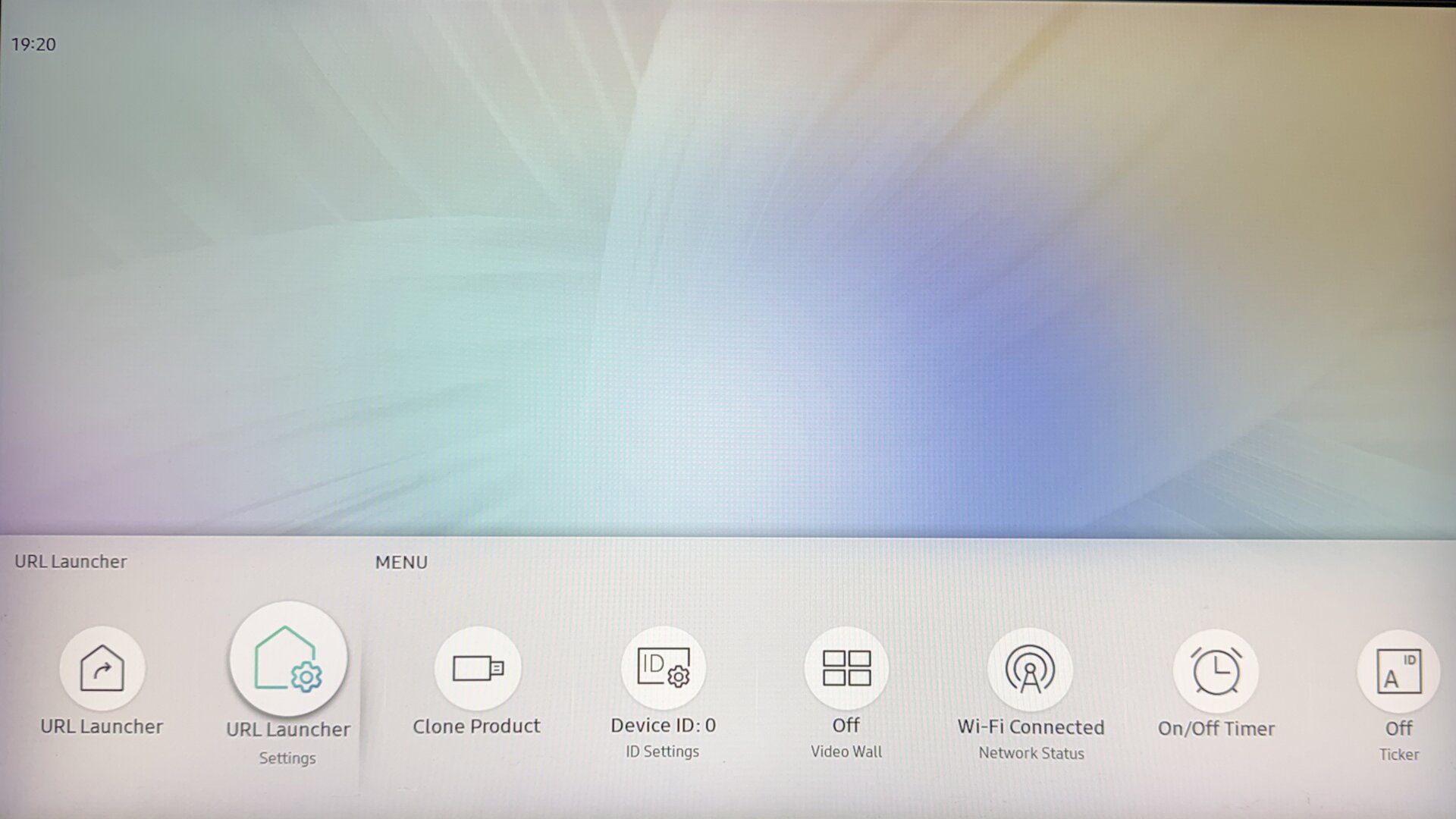
Press HOME and select URL Launcher Settings.
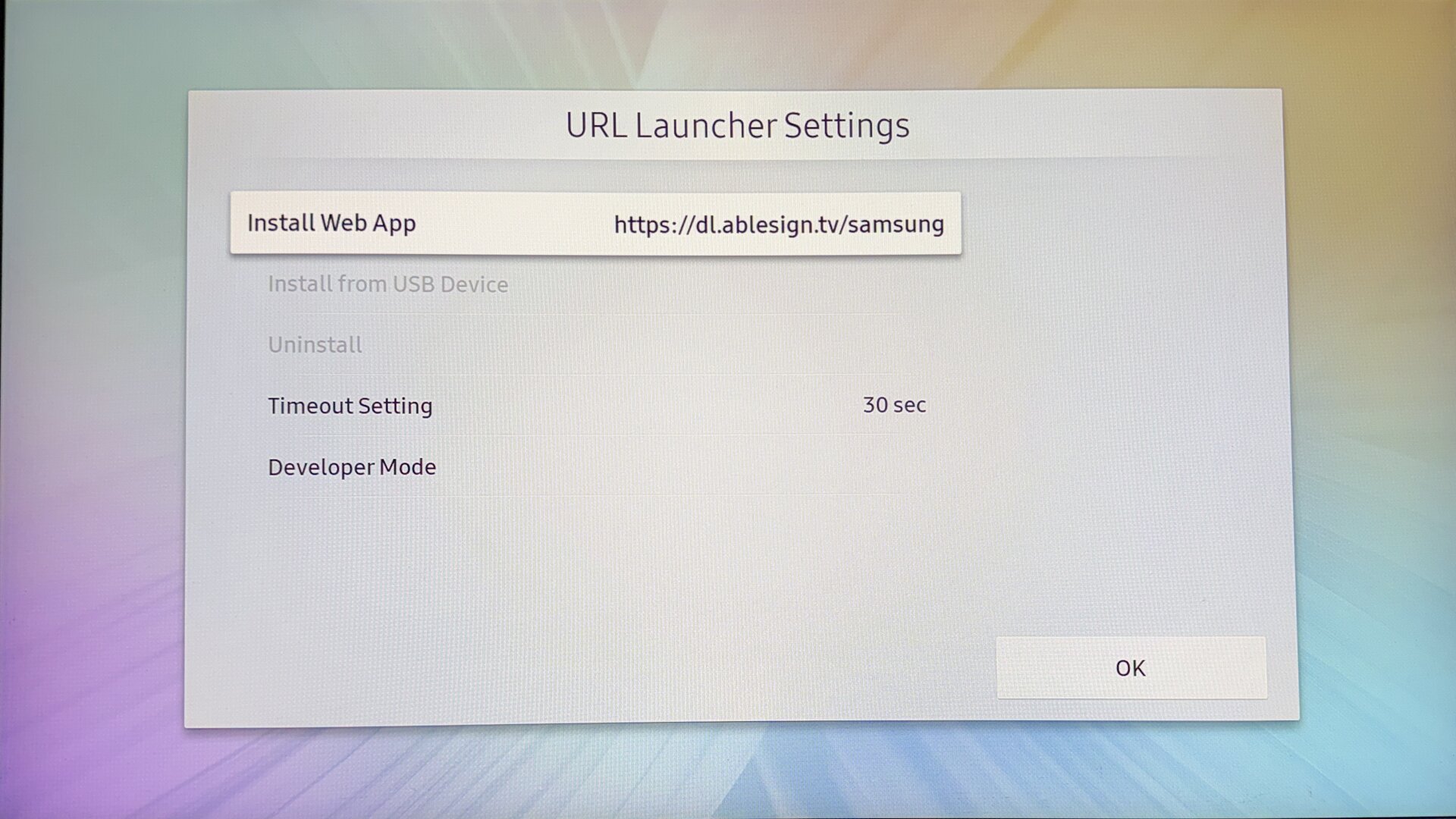
Select Install Web App, enter this address, all in lower case, and confirm it: https://dl.ablesign.tv/samsung
First start
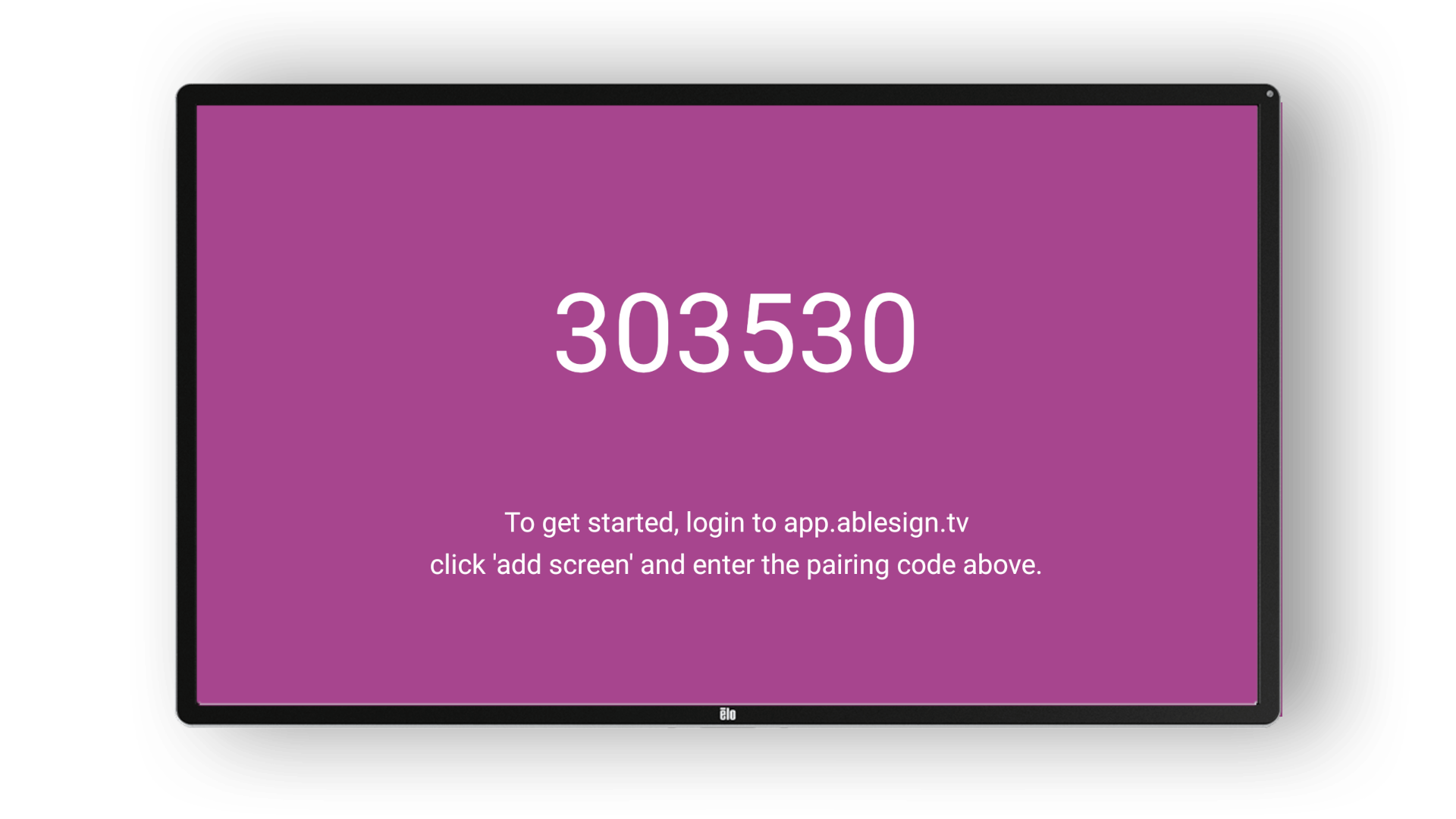
The display downloads and installs AbleSign and then starts it. After a short while the AbleSign app will display a pairing code. From now on the display starts AbleSign automatically whenever it is turned on, and picks up new versions of the app by itself.
Log in to AbleSign
At this point we can add the screen to our AbleSign account. Create a free account if you don’t have one already.
Log in to app.ablesign.tv and click Add Screen.
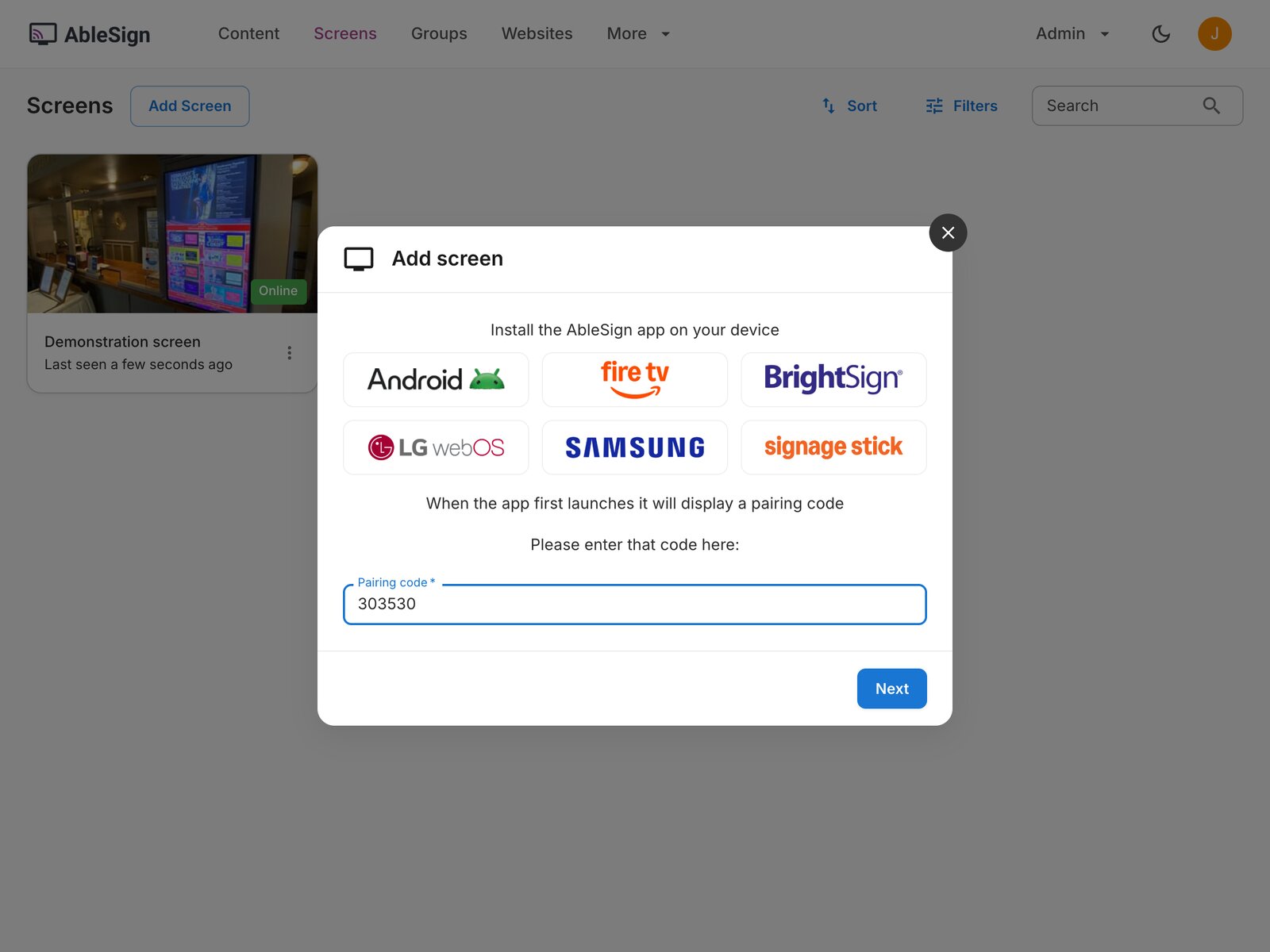
Enter the pairing code that is being displayed on your screen.
Click Next, and then enter a name for the screen.
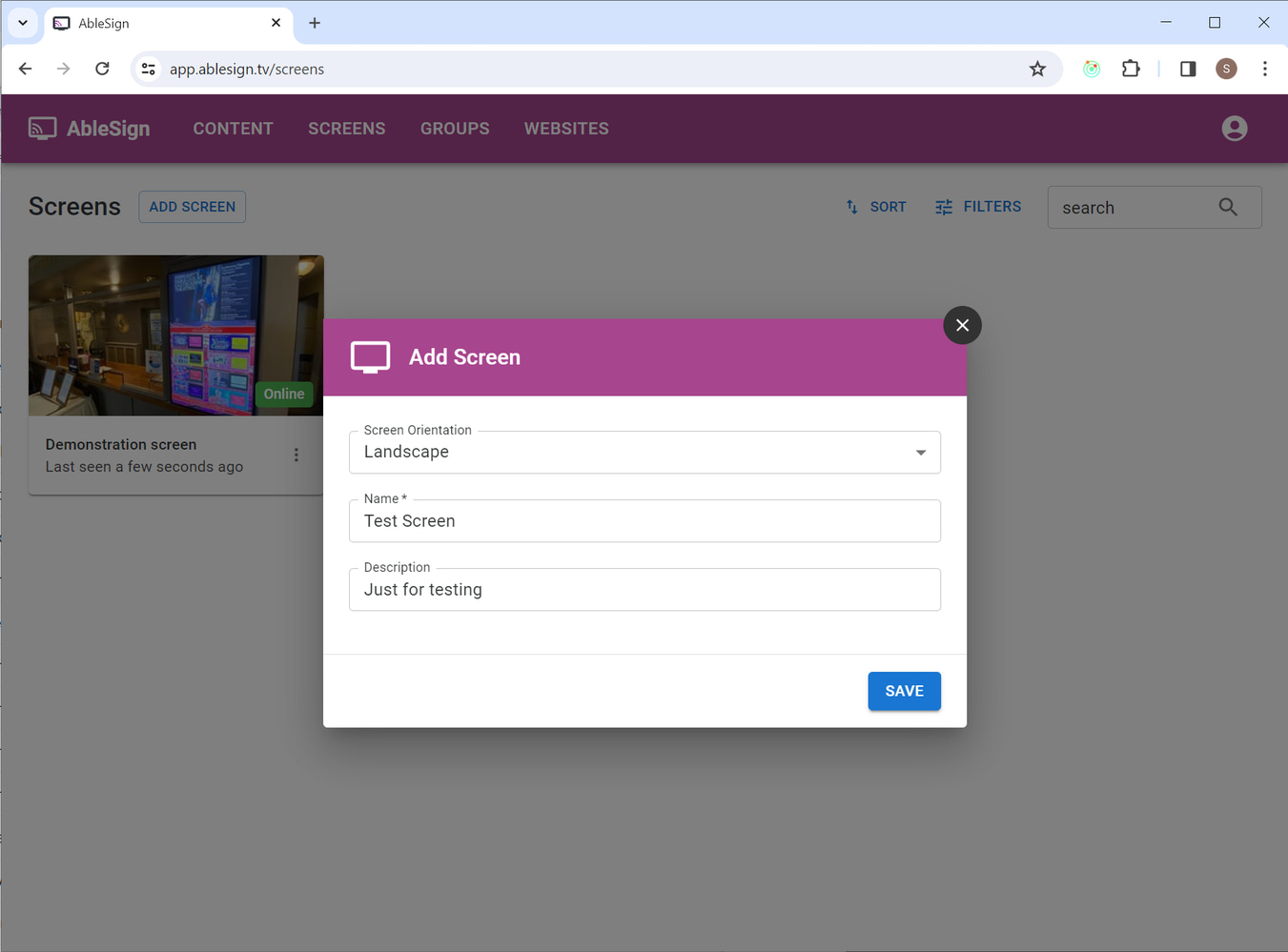
Display your content
Your Samsung display is now ready to play your content. Let’s display a video on the screen using the demo content provided.
Drag the waterfall video from the right to your playlist on the left.
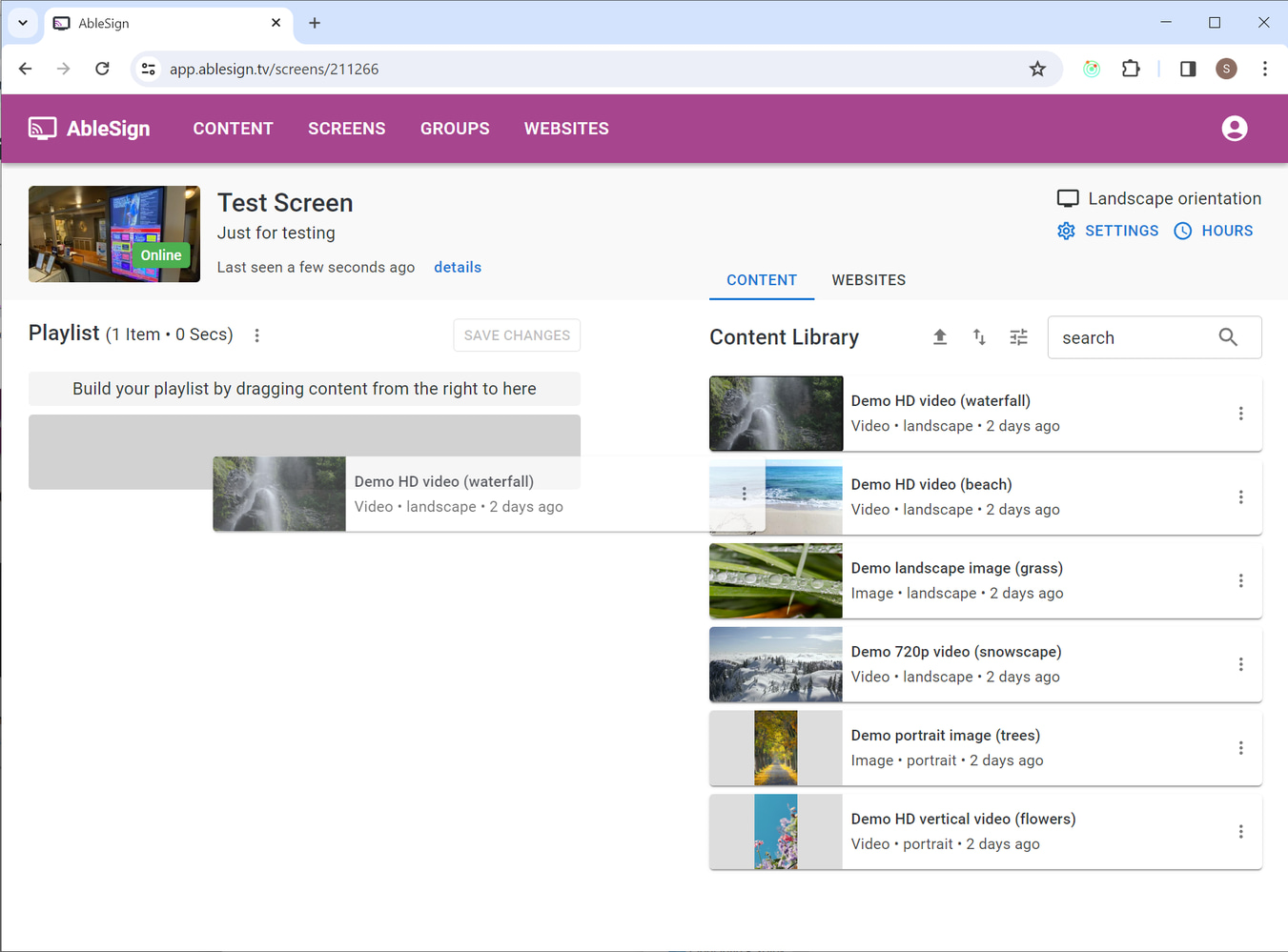
Click on Save Changes. Your Samsung display now downloads the playlist and media files, and then starts playing it.