How to use standalone playlists
Standalone playlists let you keep a library of ready-made playlists, independent of your screens. You can drop one into any screen’s playlist, where it appears as a single item, and schedule when it plays, just like an image or video. When you change a standalone playlist, every screen that uses it is updated.
In this example we create two standalone playlists, Morning and Afternoon, add them both to a screen’s playlist, and set daily display times so that the screen plays the Morning playlist until midday and the Afternoon playlist for the rest of the day.
Create the Morning playlist
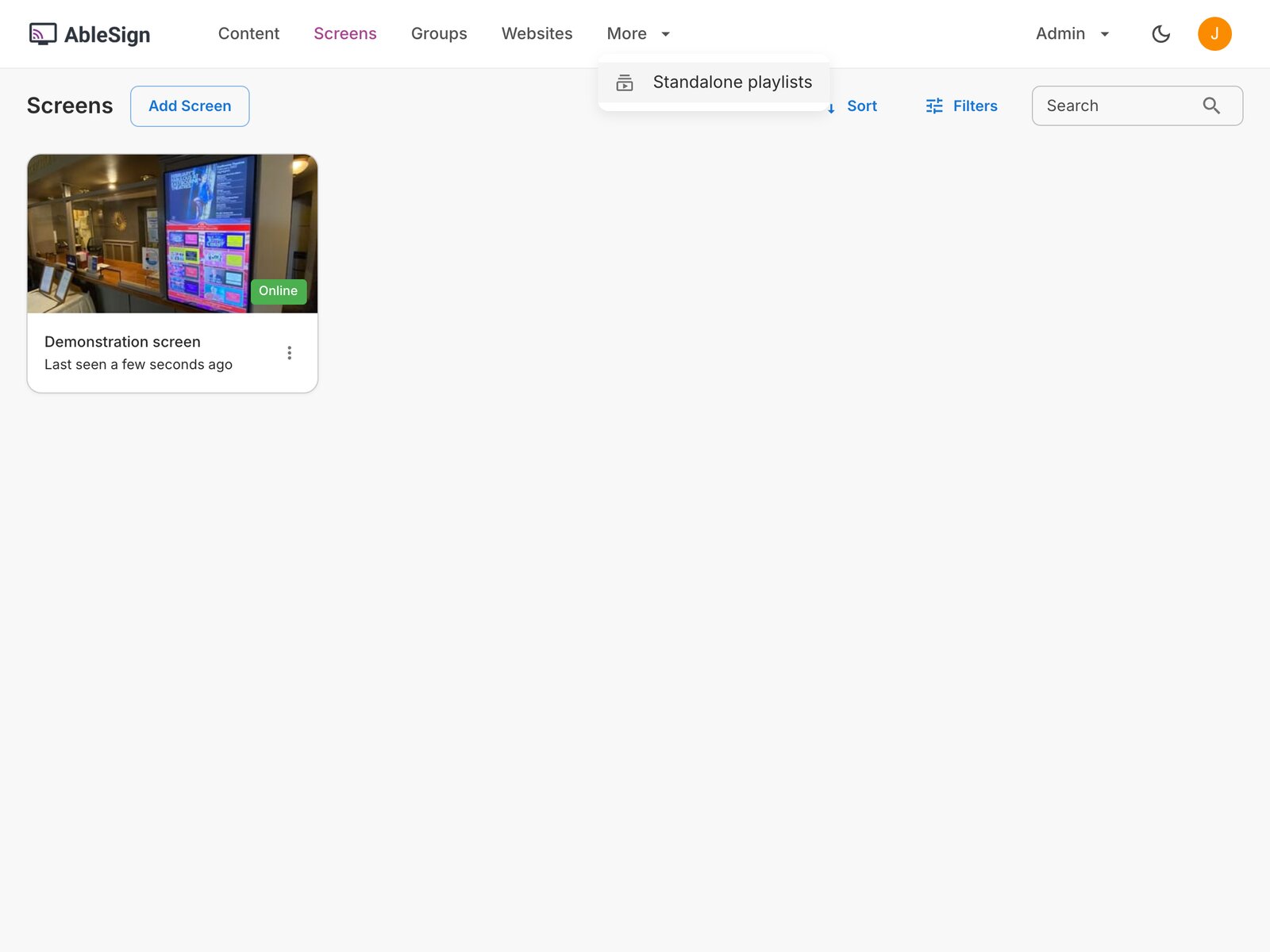
Open the More menu at the top of the page and choose Standalone playlists.
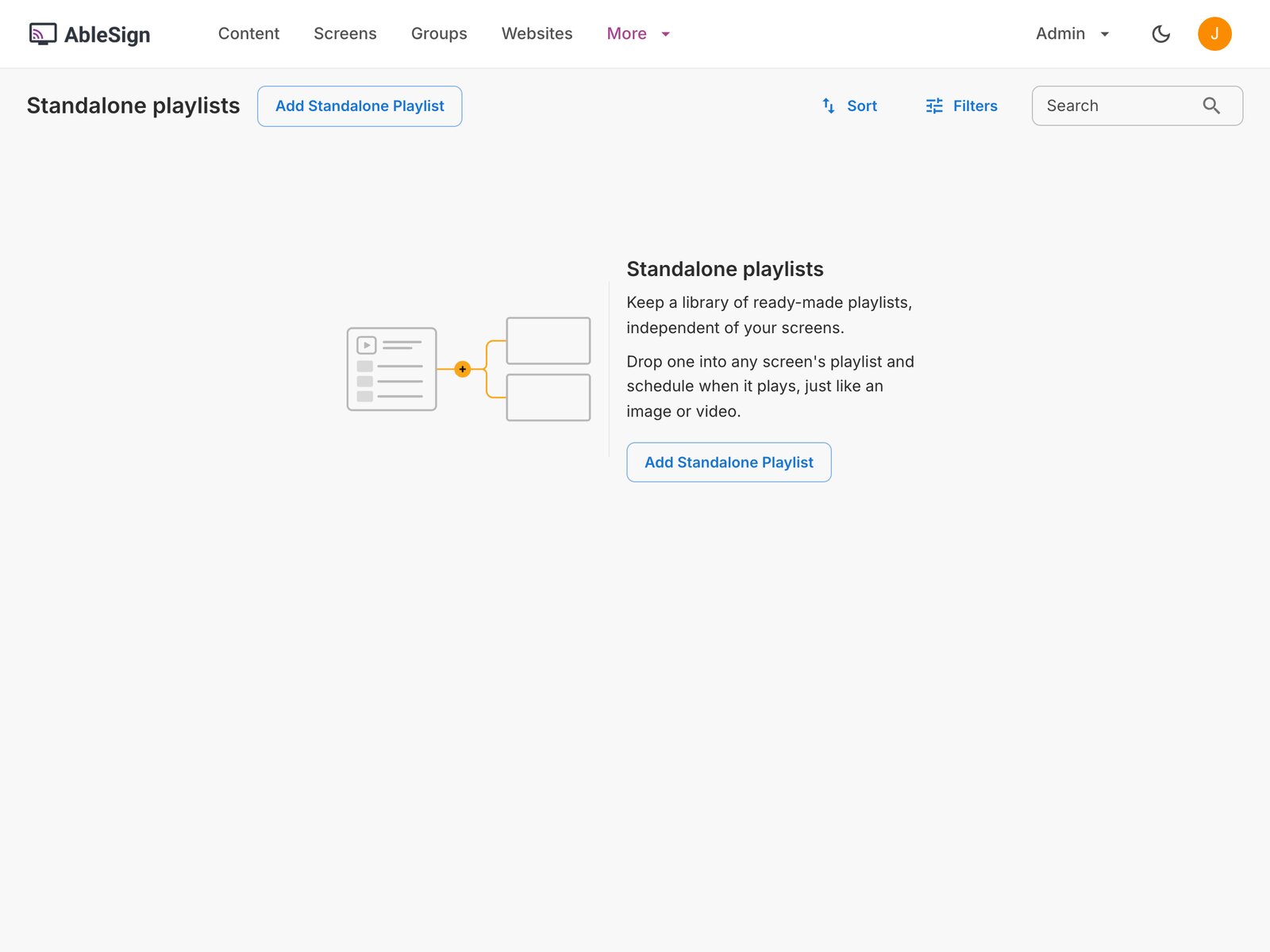
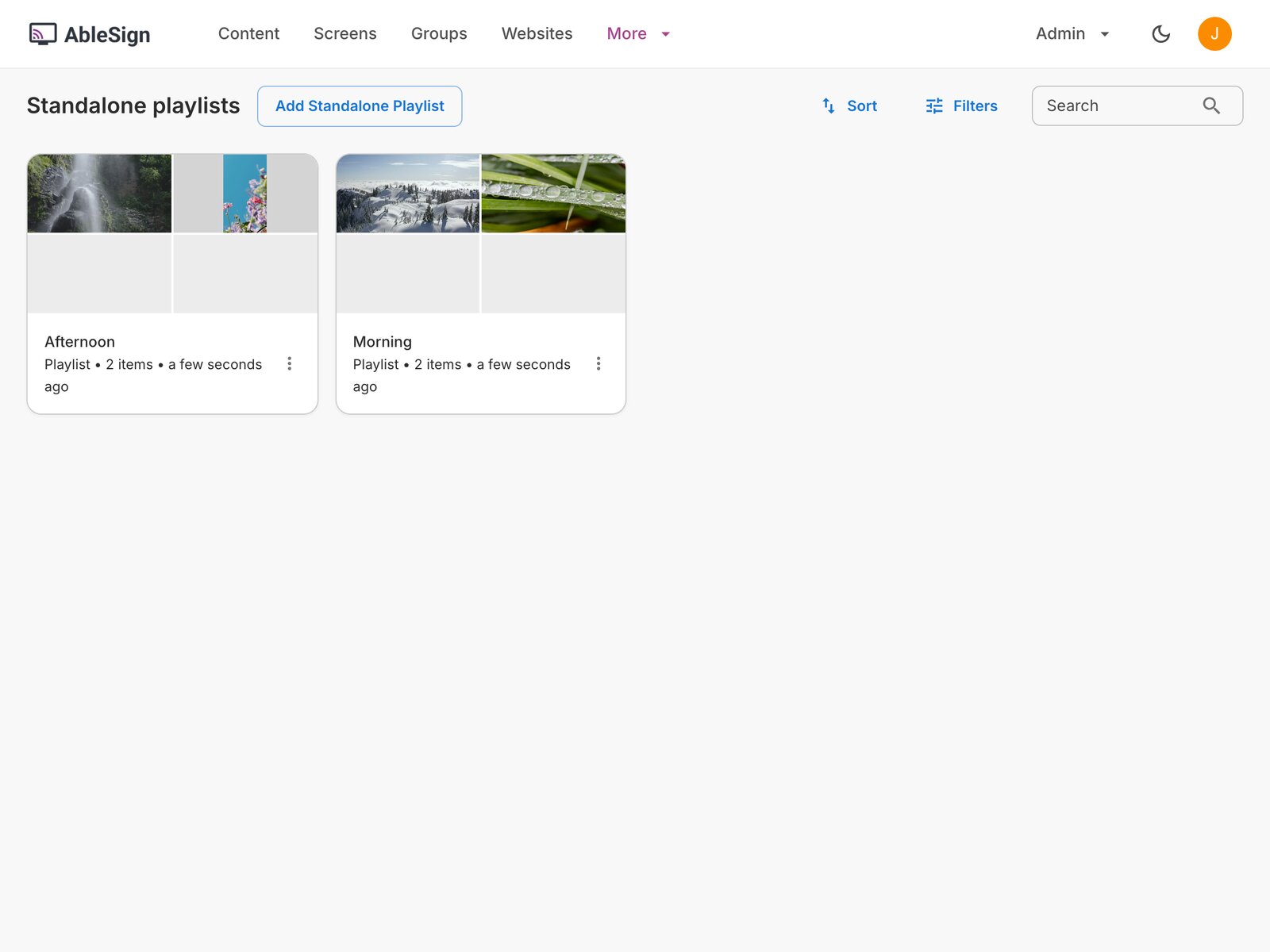
The Standalone playlists page lists your standalone playlists. It is empty to begin with, so click Add Standalone Playlist.
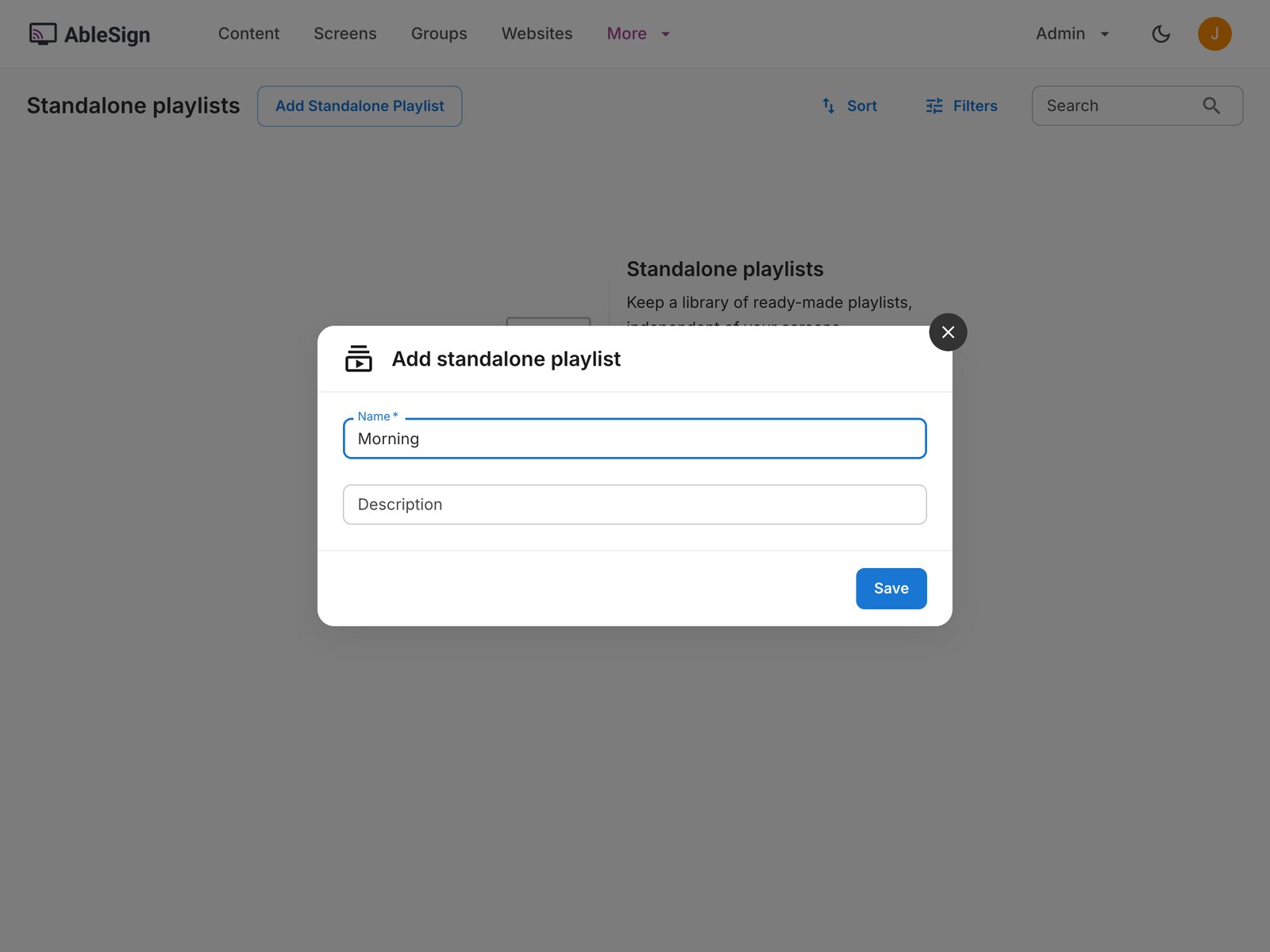
Enter a name for the playlist, Morning in this example, and click Save. The description is optional.
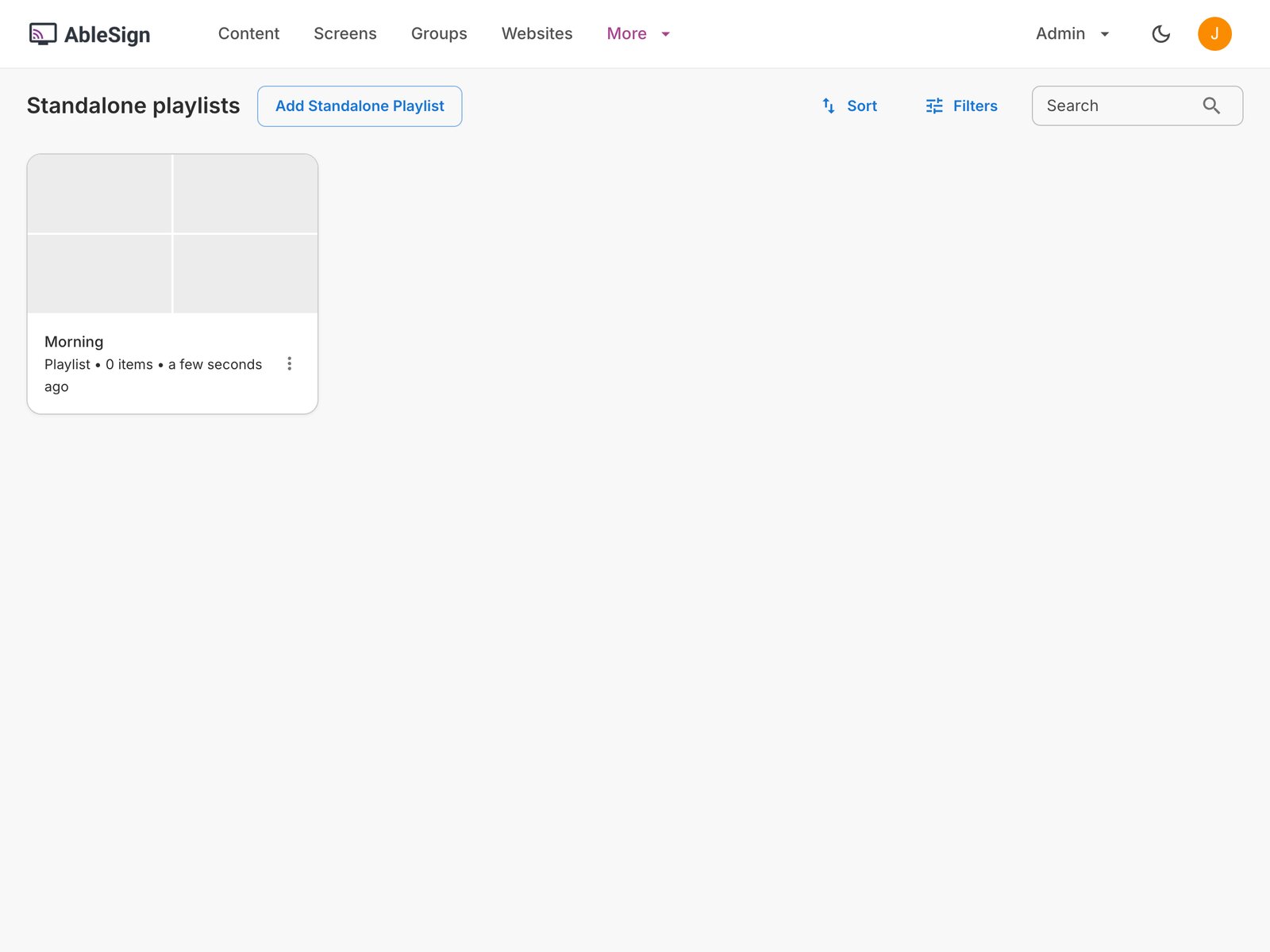
The new playlist appears on the page. Click it to open it.
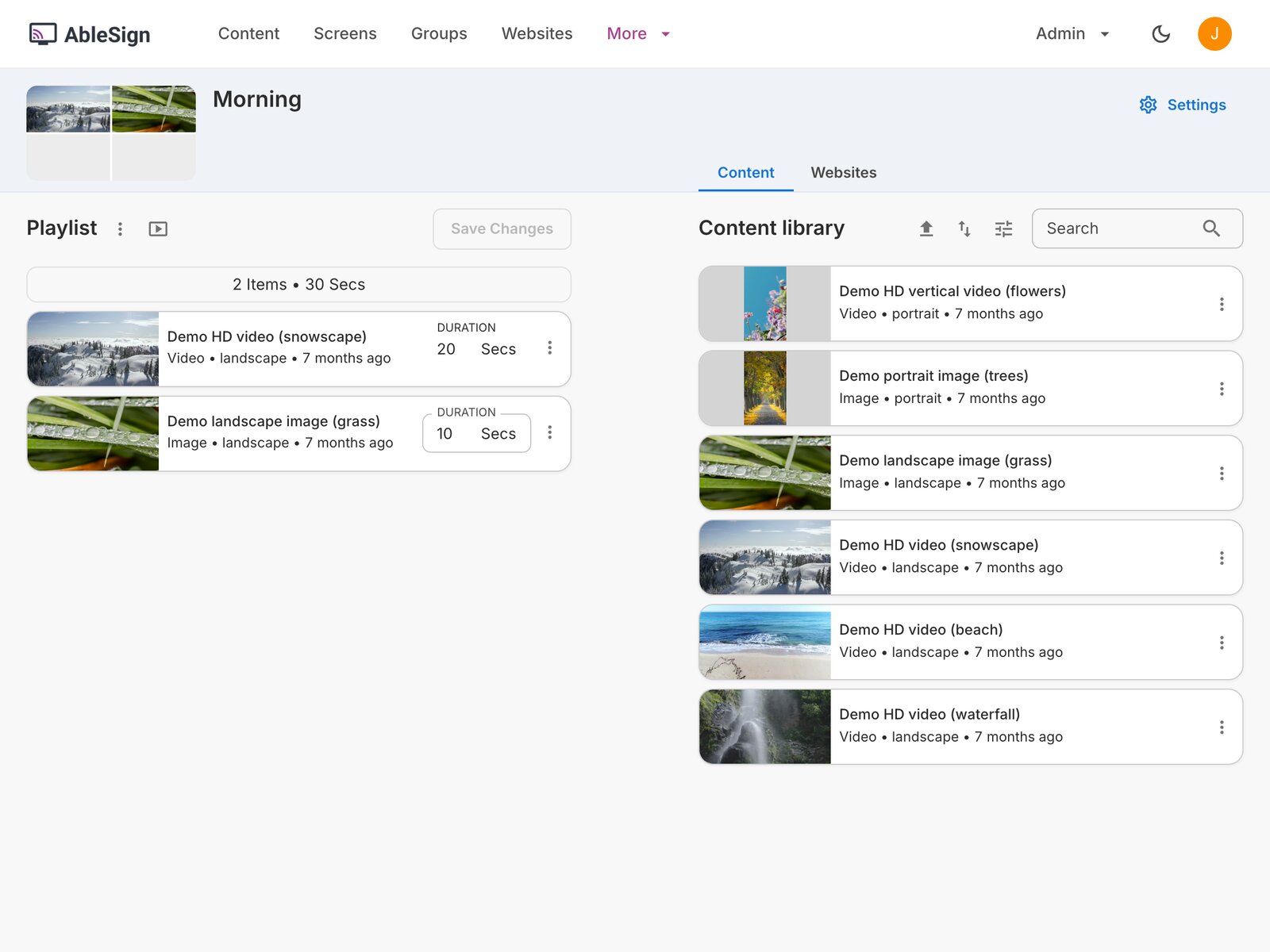
A standalone playlist is built in the same way as a screen’s playlist. Drag the content you want to play in the morning from the content library on the right into the playlist, then click Save Changes. Here we have added the demo snowscape video and the demo grass image.
Create the Afternoon playlist
Return to the Standalone playlists page and repeat these steps to create a second playlist called Afternoon, with the content you want to play in the afternoon. Each playlist’s card shows a picture made from its first items.
Add the playlists to a screen
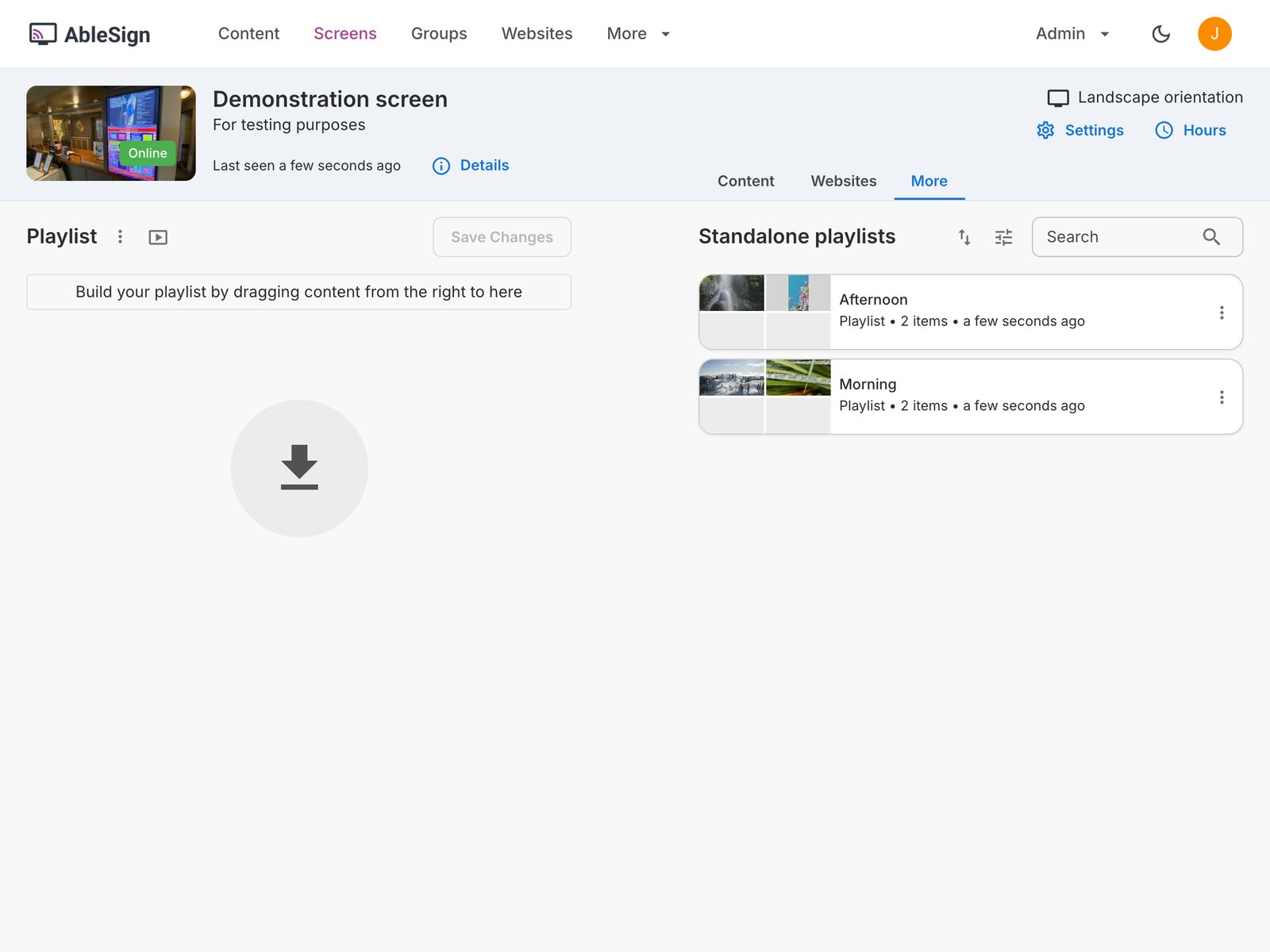
Open the screen you would like to manage and select the More tab above the content library. It lists your standalone playlists. The tab appears once you have created a standalone playlist.
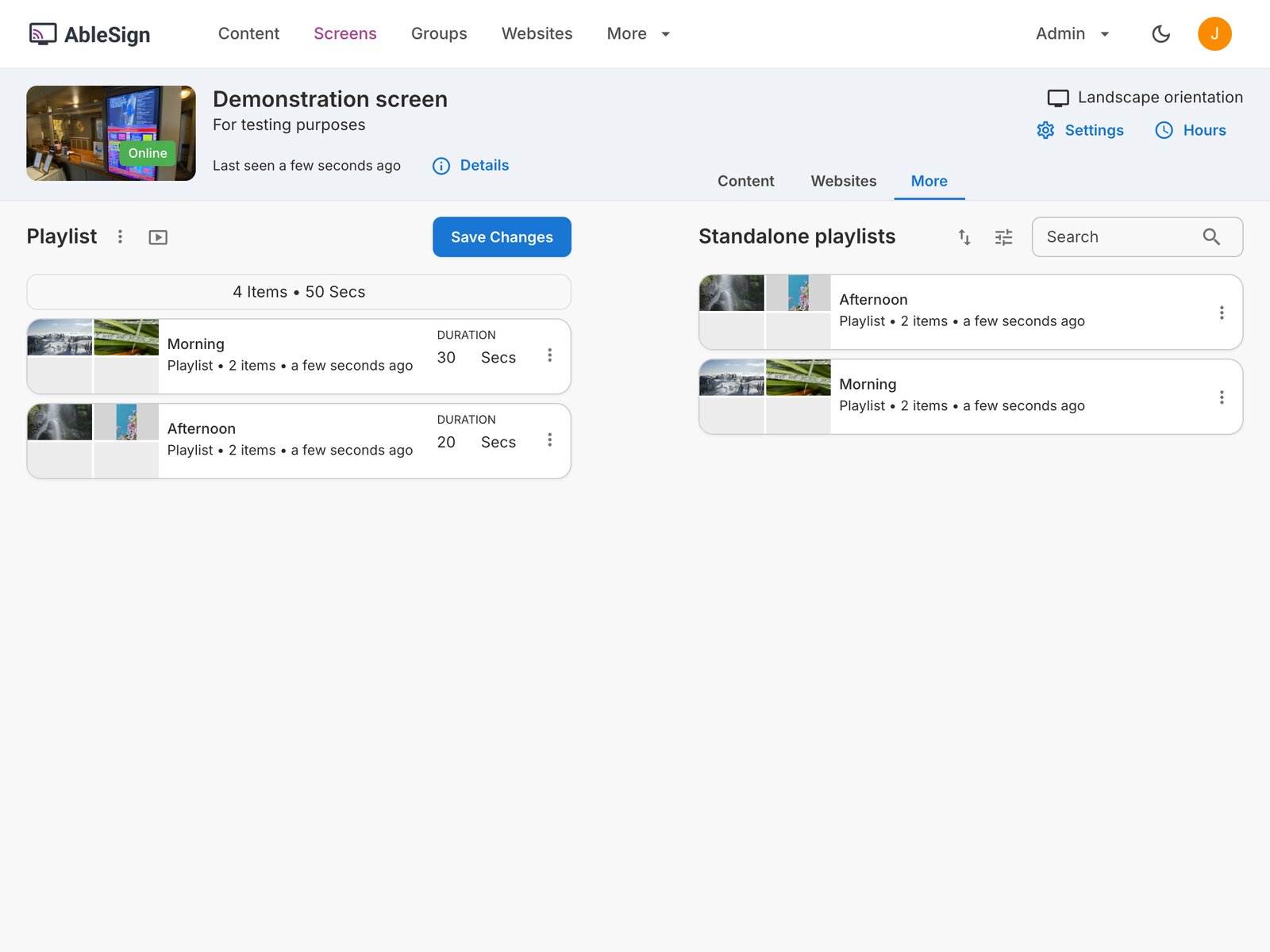
Drag Morning and then Afternoon into the screen’s playlist. Each one is added as a single item, which shows the number of items inside it and how long they take to play.
Set daily display times
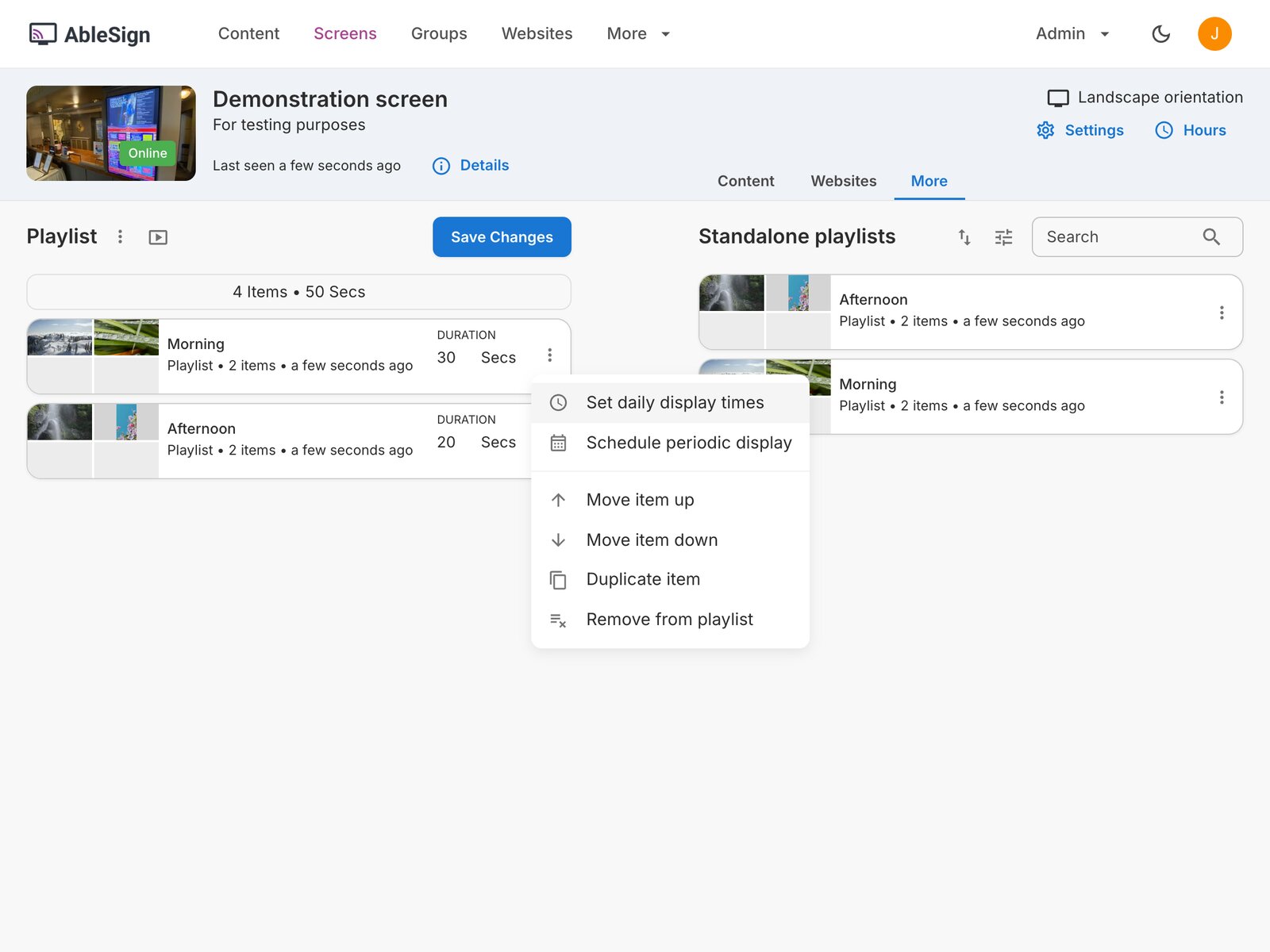
As it stands, the screen would play both playlists one after the other, all day. To play each one at its own time of day, open the menu of the Morning item and select Set daily display times.
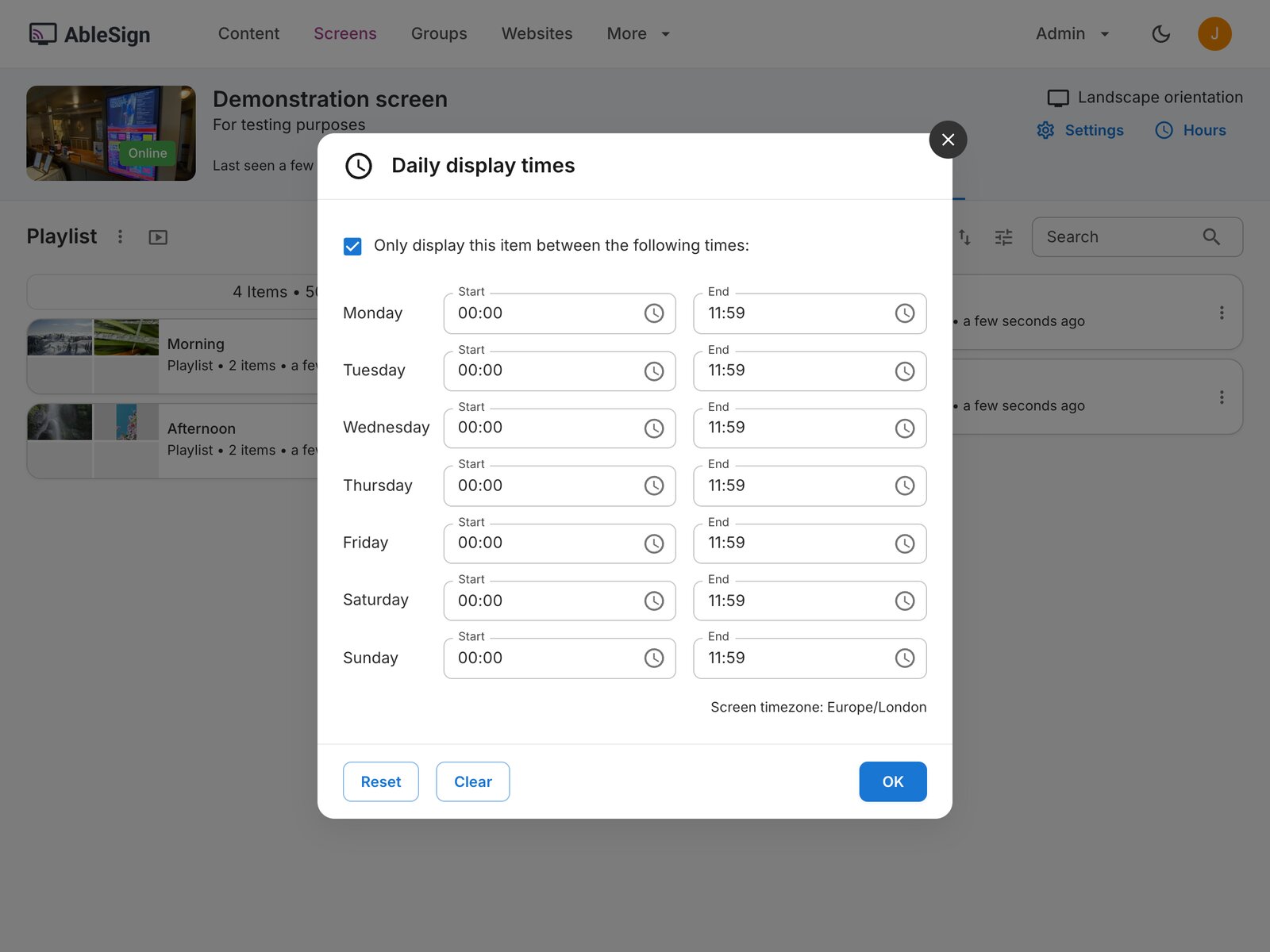
Tick Only display this item between the following times and set the End time of each day to 11:59, leaving the start times at 00:00. Click OK.
Now do the same for the Afternoon item, this time setting the Start time of each day to 12:00 and leaving the end times at 23:59. Click OK.
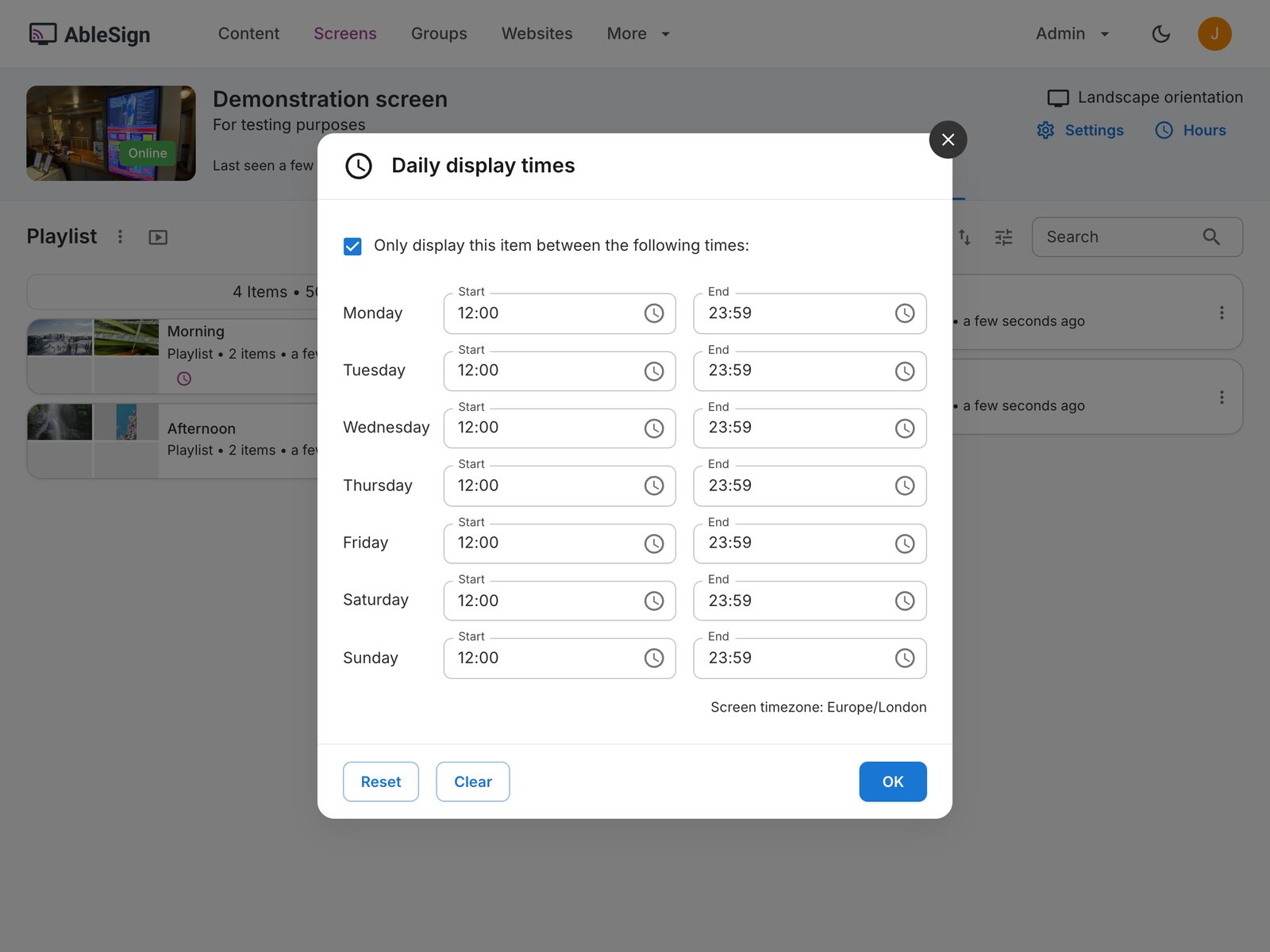
The times are in the screen’s timezone, which is shown at the bottom of the window. For more about entering display times, see How to set playlist items to display at specific times.
Finally, click Save Changes. Items that have daily display times are marked with a purple clock icon.
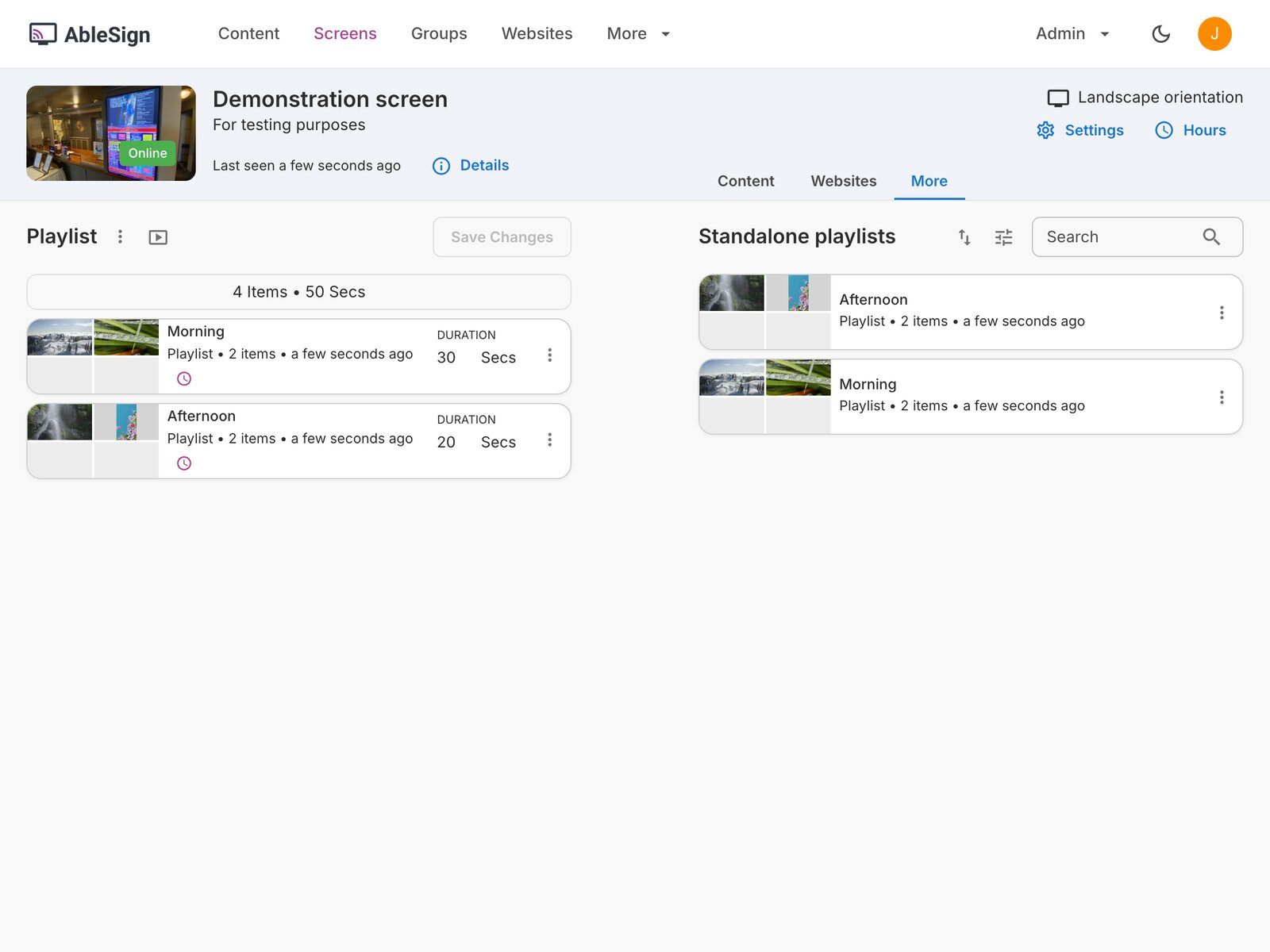
The screen now plays the Morning playlist until midday and the Afternoon playlist from midday onwards.
Changing a standalone playlist
To change what plays in the morning, open the Morning playlist from the Standalone playlists page, change its content and click Save Changes. Every screen that uses the playlist is updated, so there is no need to edit each screen.
A standalone playlist can be added to any number of screens and screen groups. The display times belong to the screen or group it is added to, so the same playlist can play at different times on different screens.
A standalone playlist can also contain other standalone playlists, up to three deep.