How to add playlist transitions
This step-by-step guide shows how to add animated transitions between the items in your playlist.
Set the playlist transition
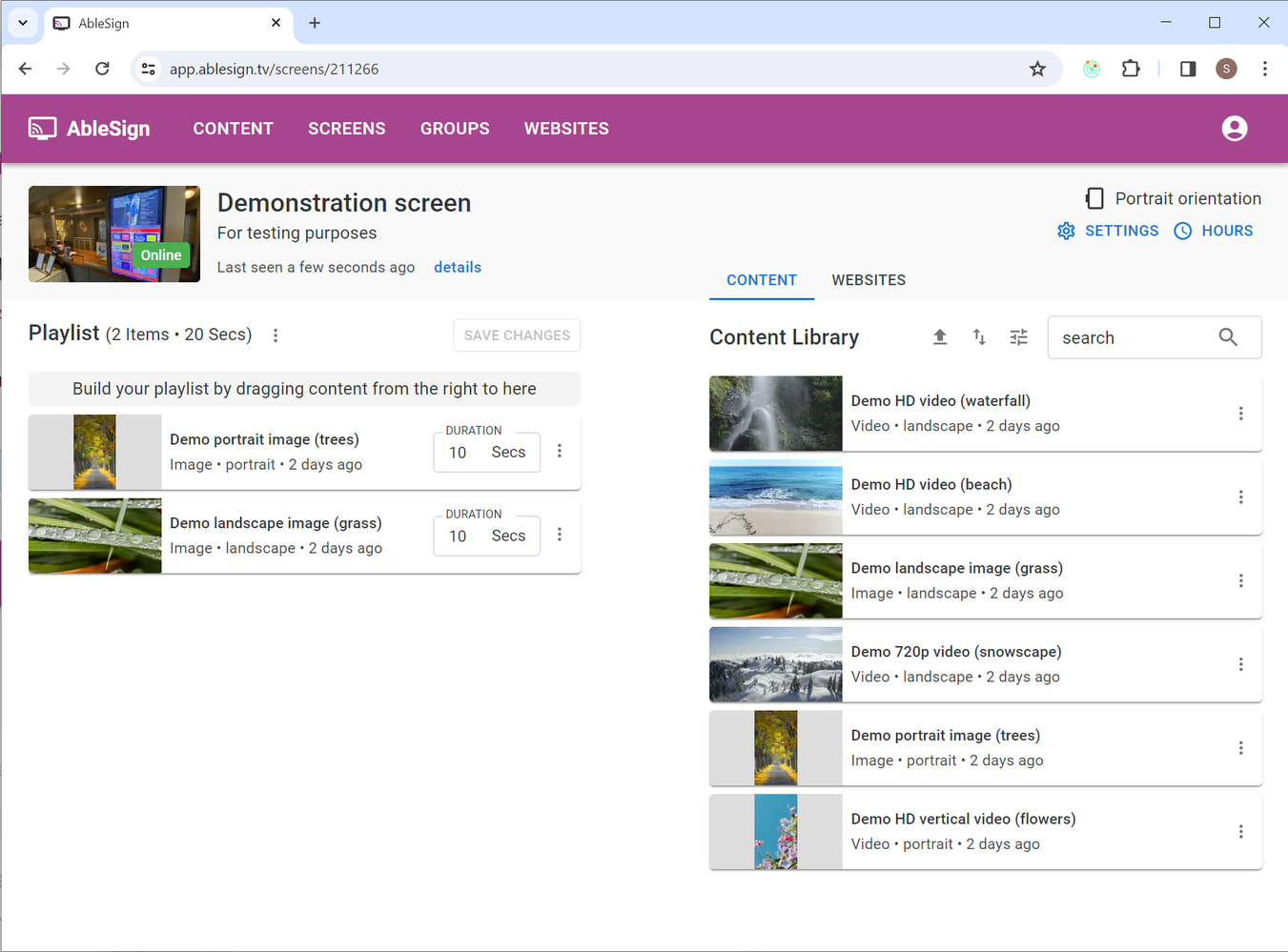
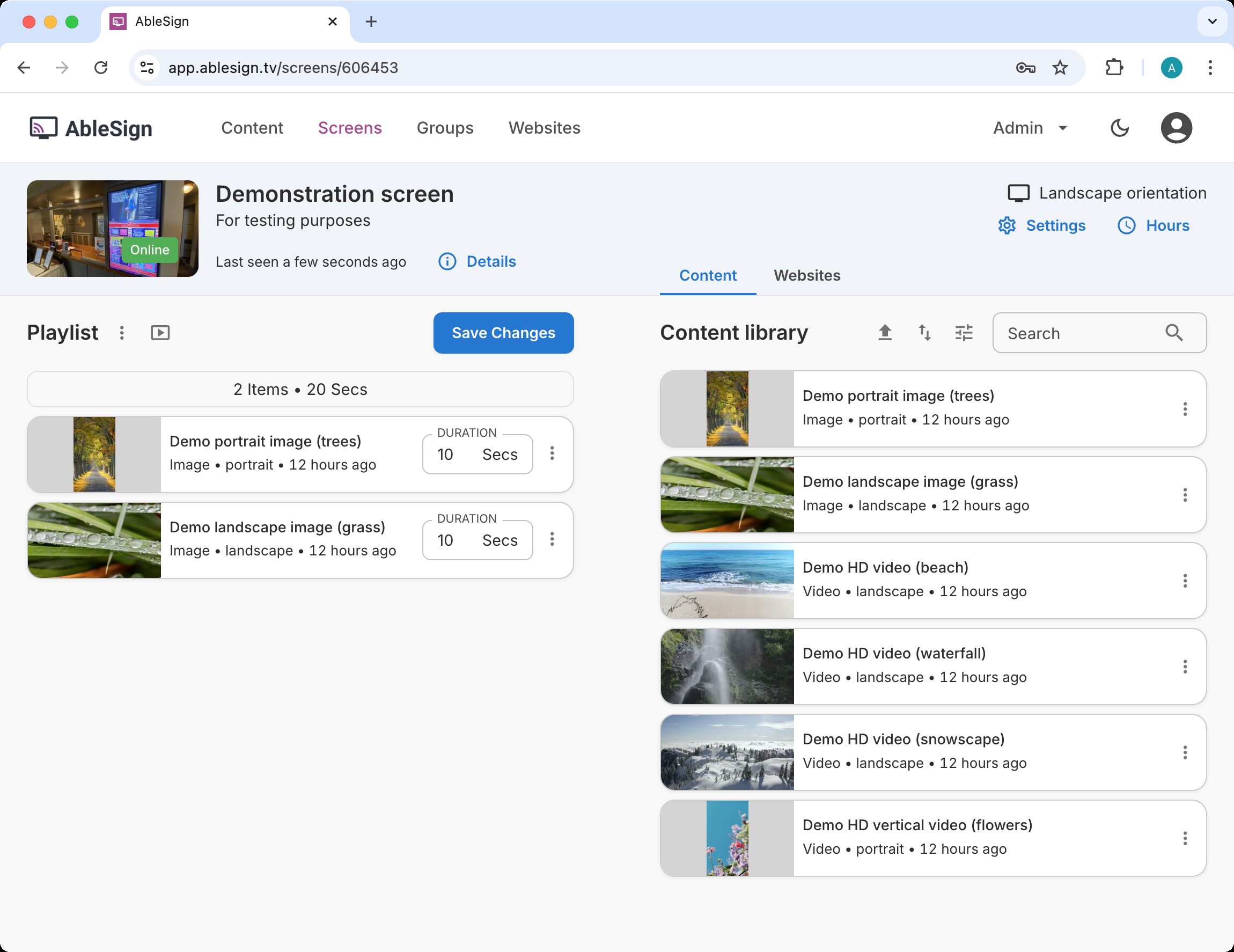
To begin, click on your desired screen to bring up the manage screen page.
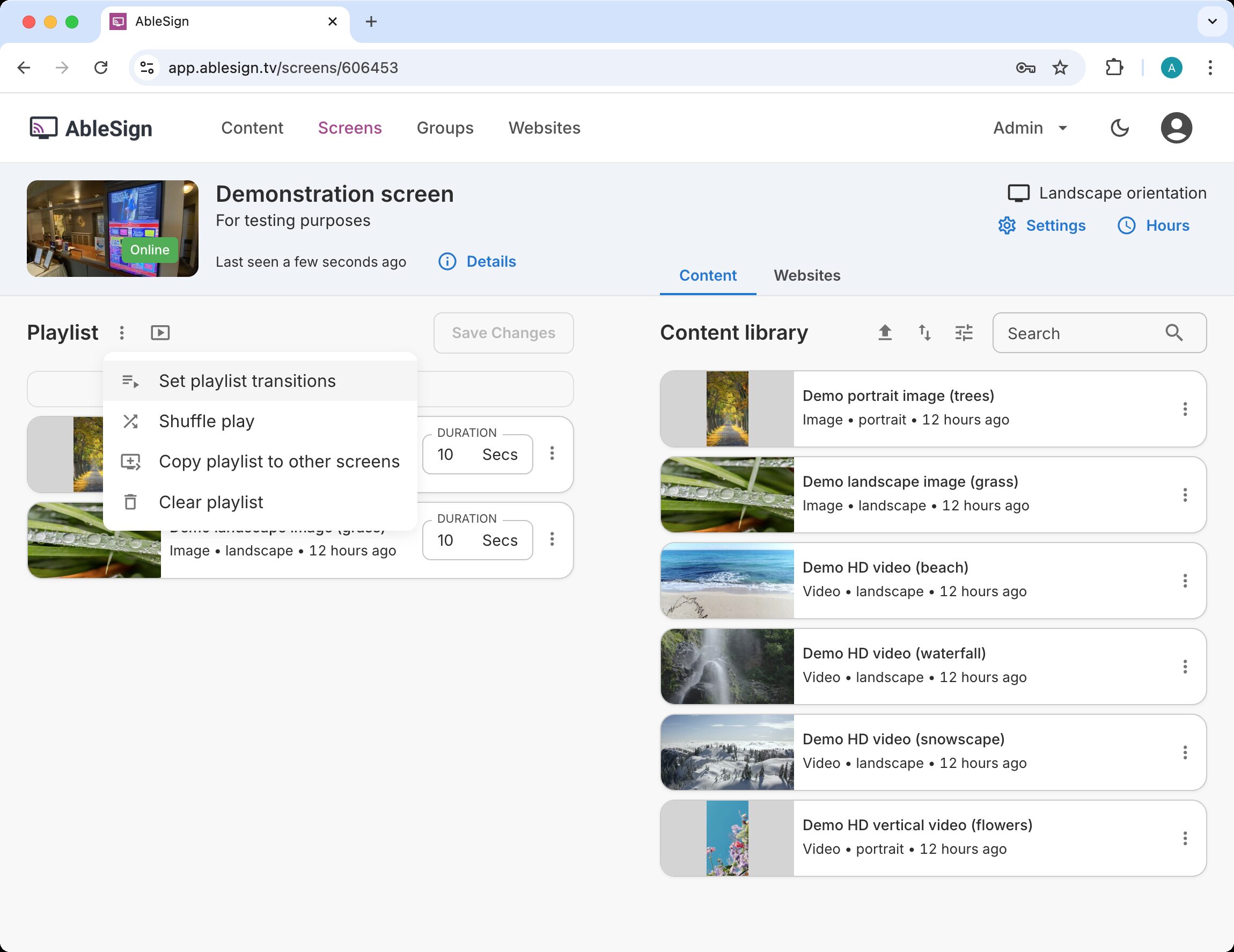
Click on the Playlist menu and select ‘Set playlist transitions‘.
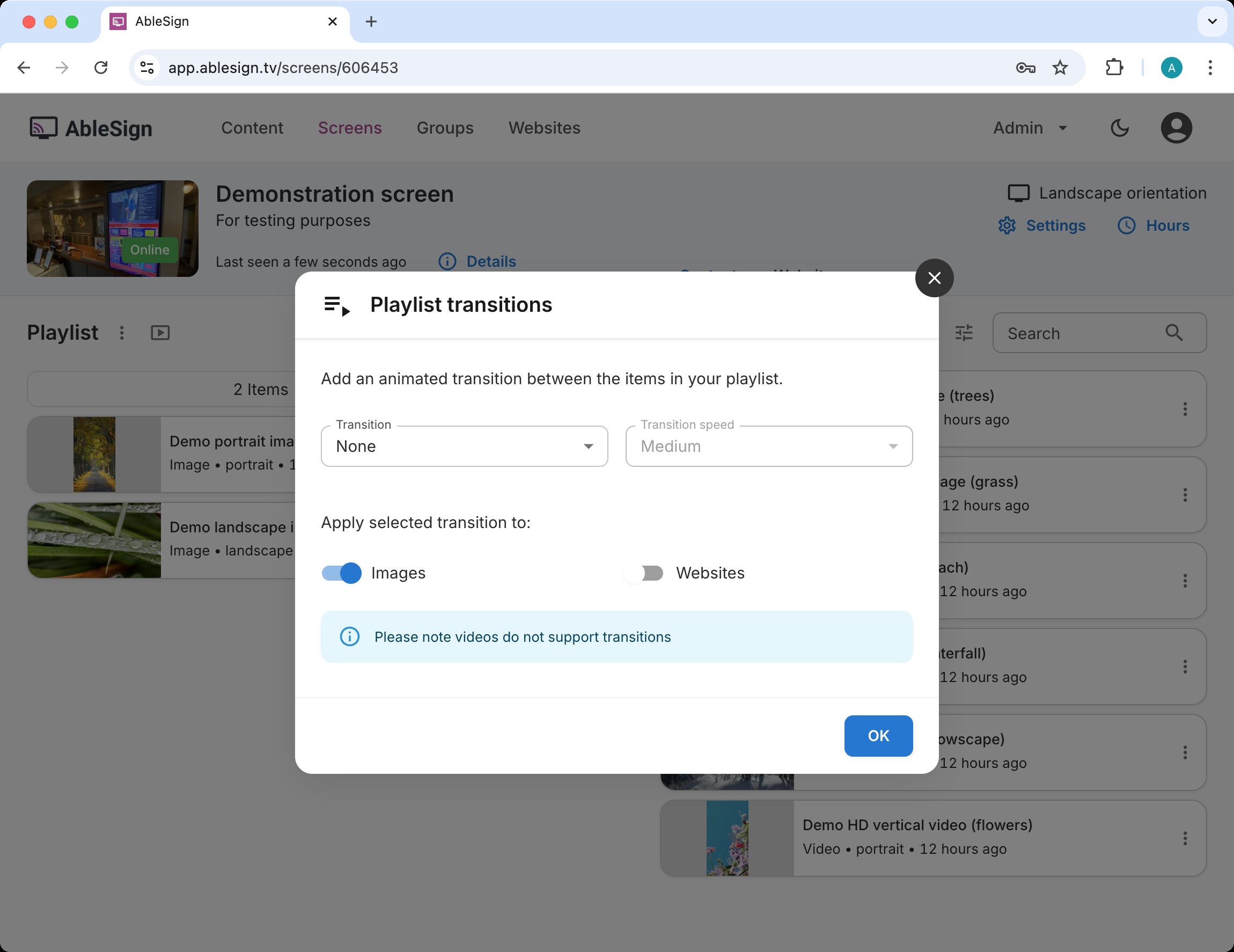
The Playlist transitions window will appear:
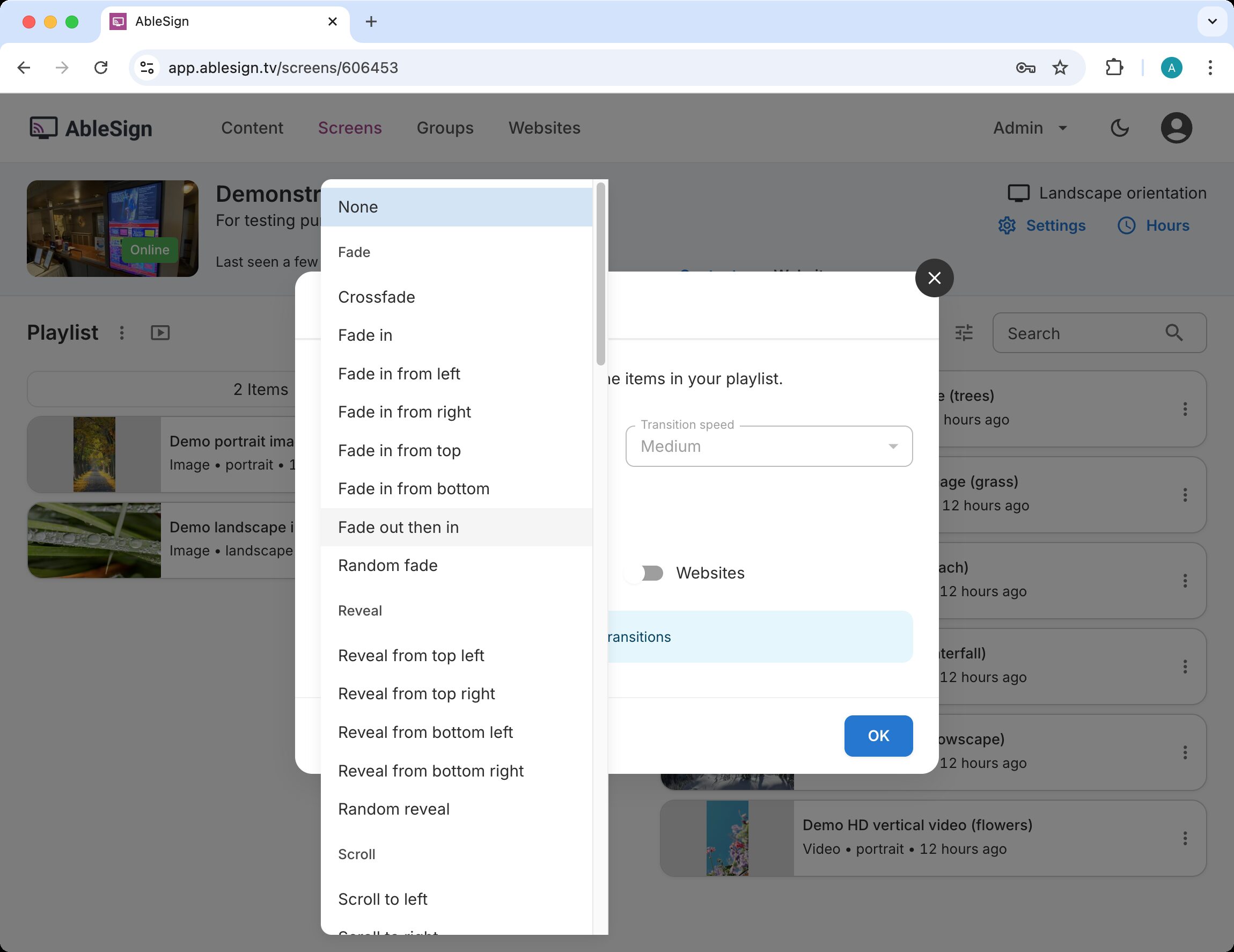
Select the transition type and transition speed that you require.
Click OK to return to the manage screen page. Don’t forget to click ‘Save changes‘.
Set a transition for one item
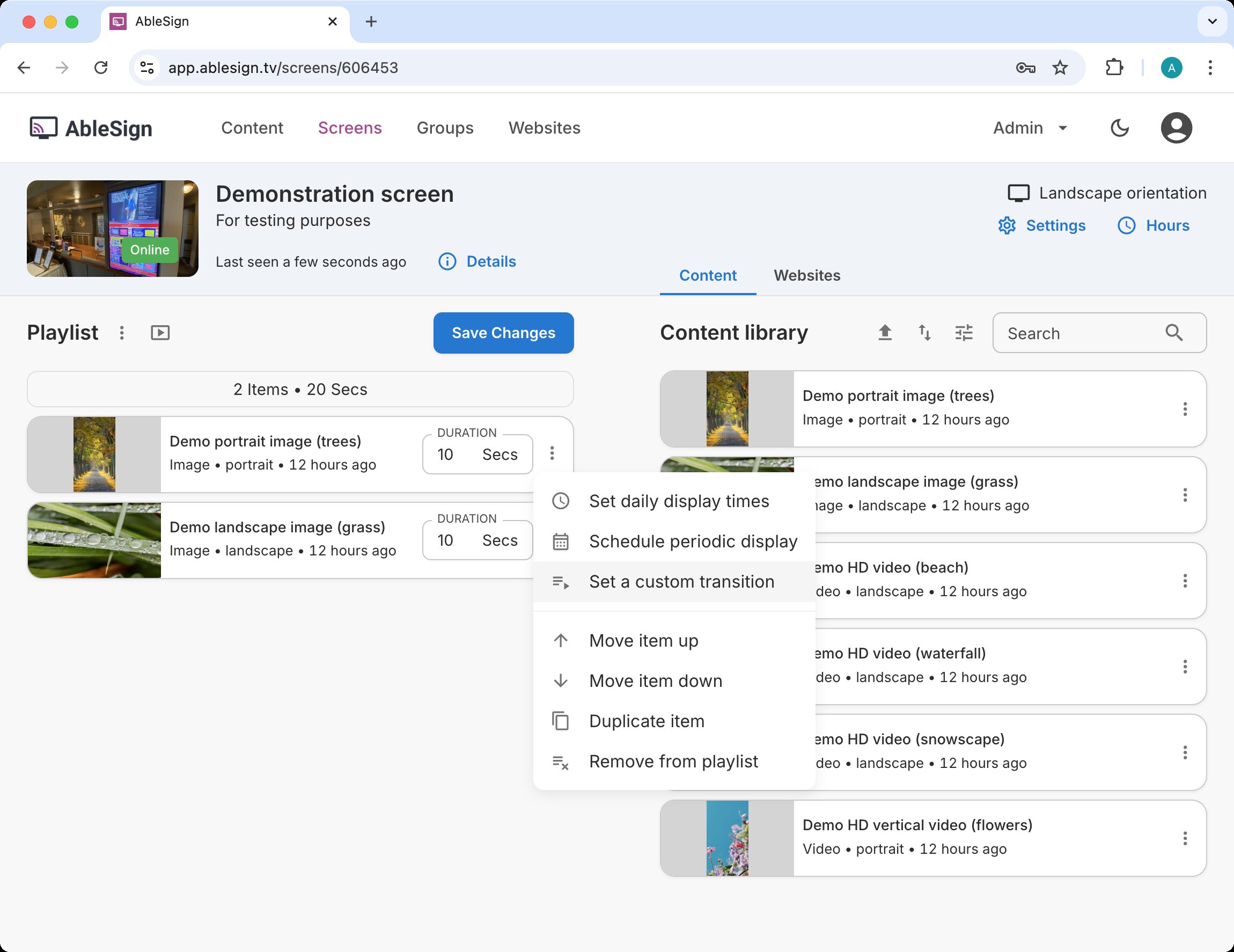
You can also set a custom transition for an individual item in your playlist. Select ‘Set a custom transition‘ from the drop down menu next to the playlist item.
That’s it. Changes to your playlist will show up straight away on your screen. You can also set playlist transitions on a screen group to update multiple screens in a single place.
Notes
Please note transitions do not apply to videos in your playlist.
AbleSign player app version 2.2.0 or above is required for transitions.